Ticket Design
The system allows you to fully customize the ticket design for both Print@Home and printed tickets. You have complete flexibility in dimensions, colors, layout, and materials. You can create designs for plastic cards, hard tickets, or simple DIN A4 tickets, and even customize them at the ticket-type level.
If no custom design is provided, Print@Home tickets will automatically use Tixify's default design. You can replace this with your own template at any time. Printed tickets, however, always require a custom design.
Ticket designs can be created at the organizer, event, or ticket-type level, giving you complete control over when each design should be used—for example, to create special layouts for VIP tickets or specific events.
You can choose from the following options to design your tickets:
- Customize the Tixify Print@Home design
- Create your own Print@Home template
- Create your own Printed Ticket template
- Customize Wallet Tickets
Tixify Print@Home design
1: The Tixify Print@Home design is stored for all your events, as long as it is not overwritten by your own template design. All settings for this design can be found in your event settings in the tab Ticket Design.
The Tixify Print@Home design features a fixed structure with optional variables that you can adjust. The advantage is that you get a ready-to-use ticket design without spending much time on customization.
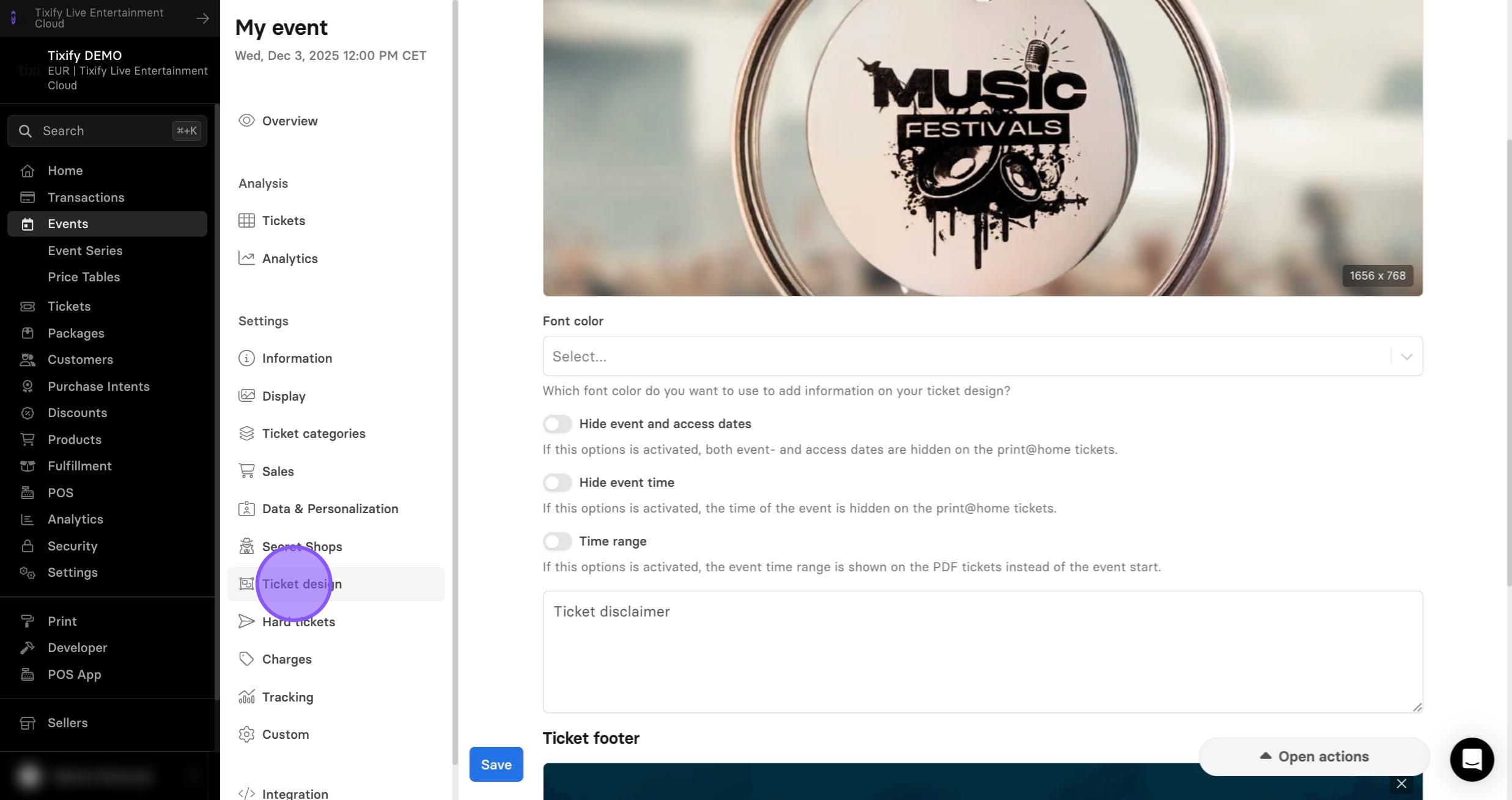
2: In your event settings choose "Ticket Design"
2: Choose your ticket background.
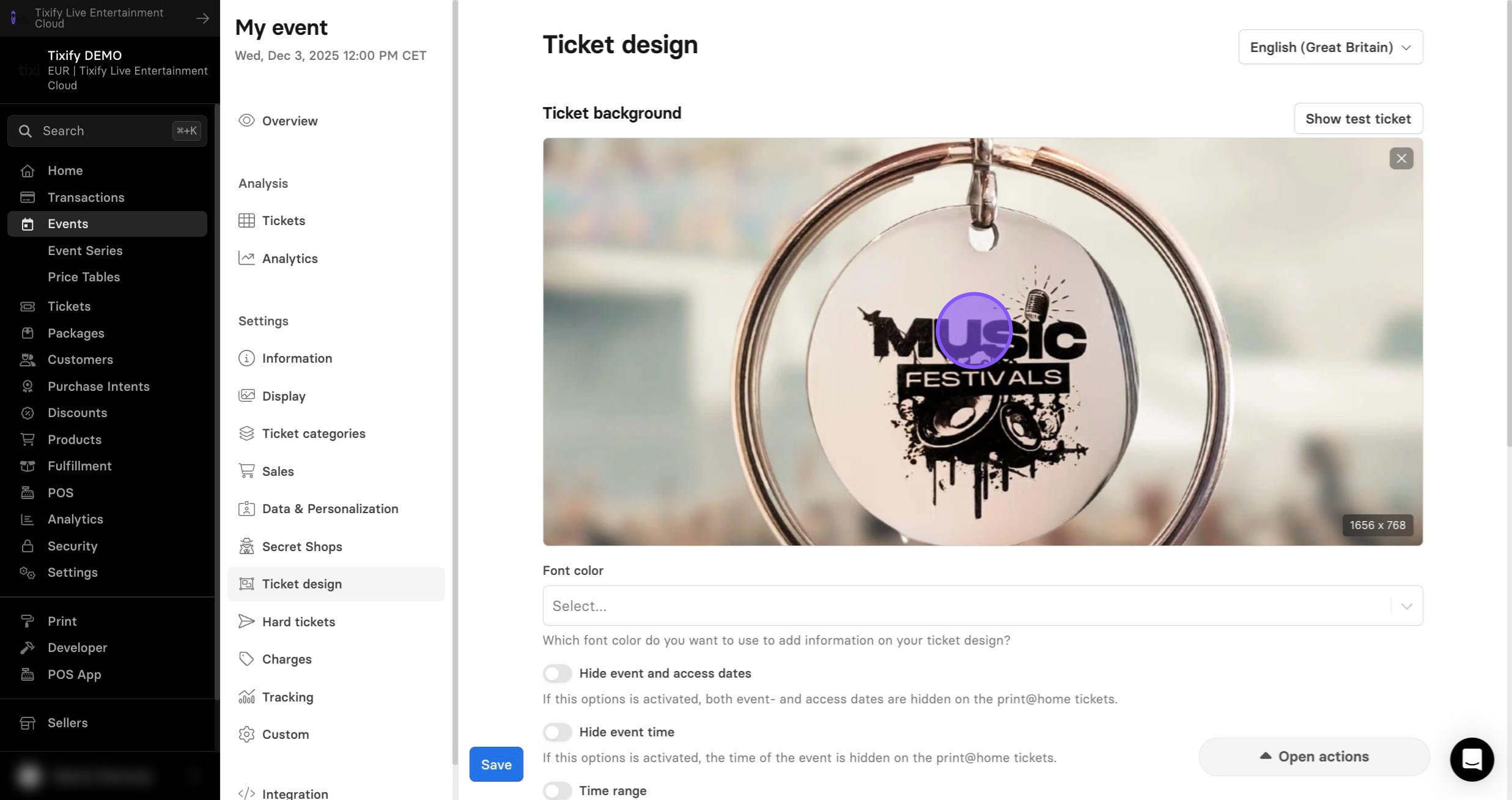
If no specific ticket image is selected, the event header is automatically generated on the ticket. Event details—such as the event name, ticket type, and price—are displayed next to the image to ensure that no text overlaps the ticket image.
If a ticket design is selected, the arrangement of the text will also change. The variables such as event name, ticket type, and price then appear directly on the image and are integrated directly into the design.
Setting a ticket background at the event level will apply the image to all tickets for that event. Alternatively, you can assign different images to individual tickets by adjusting the settings for each ticket.
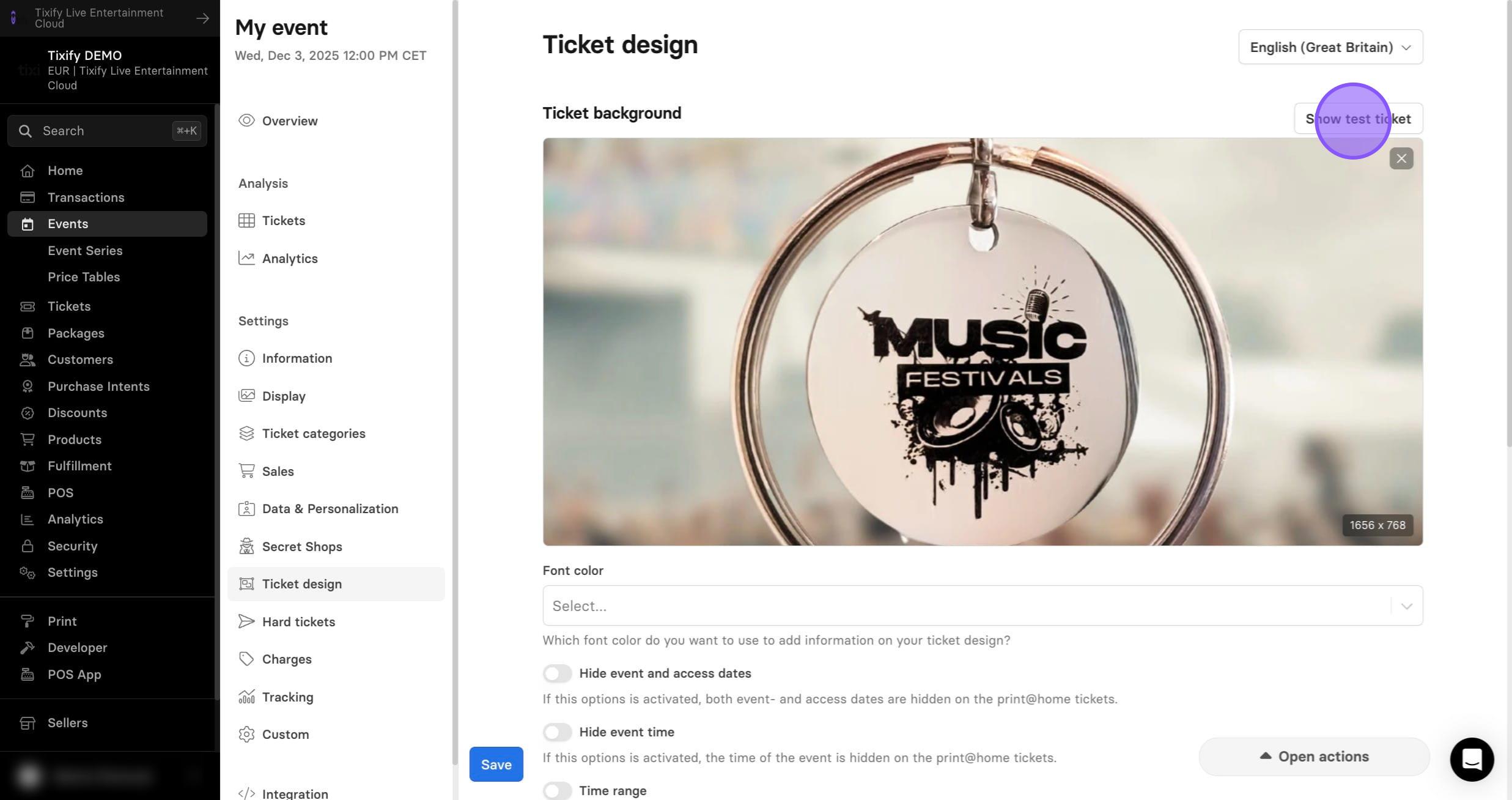
3: Any time you can check your test ticket by clicking "Show test ticket" in the top-right corner.
4: If the text is difficult to read, the text color can be adjusted in the Font Color.
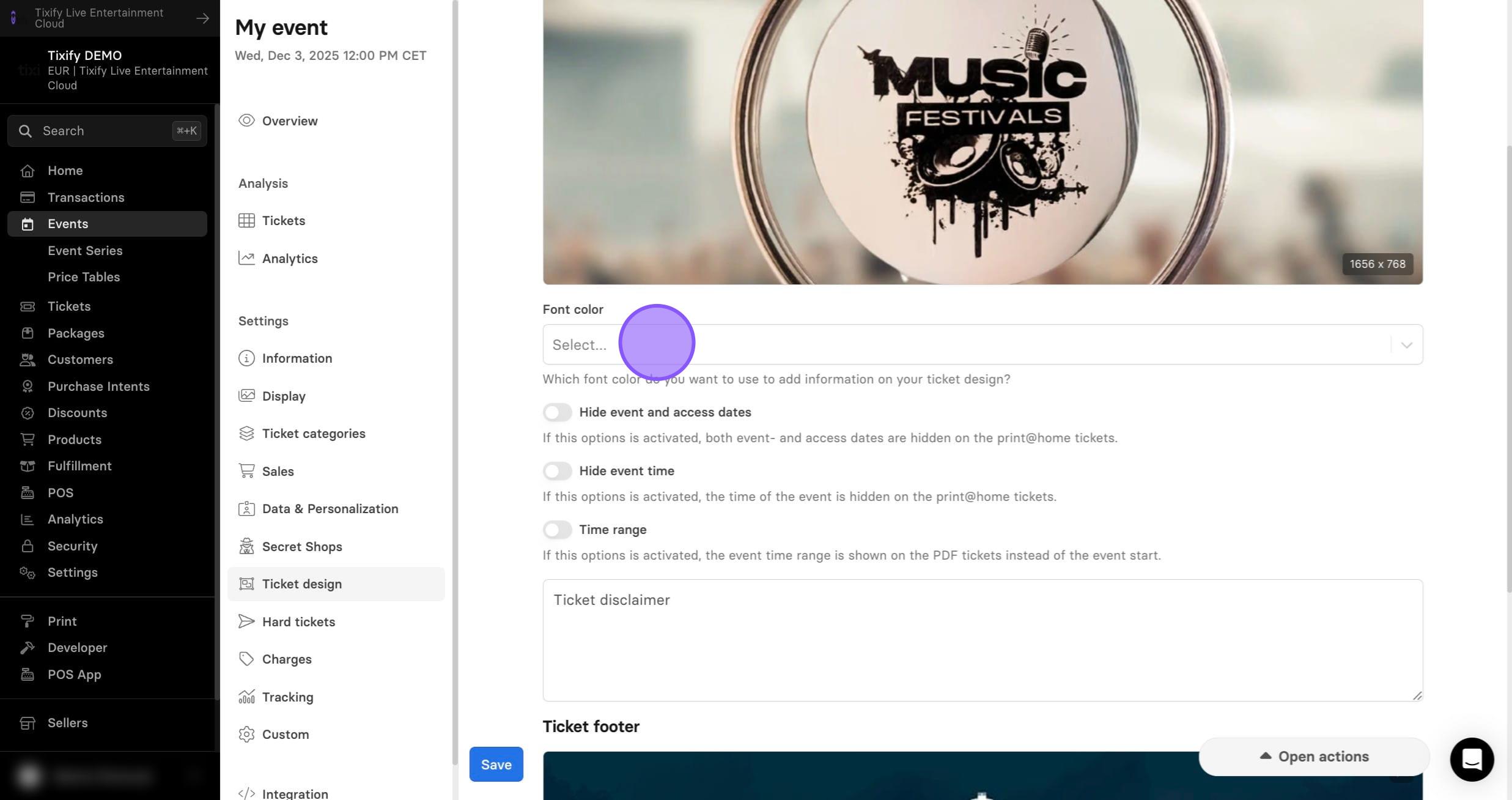
5: By default, Tixify Print@Home tickets always show the event start date and time. If you don't want to store this data, you can change it accordingly.
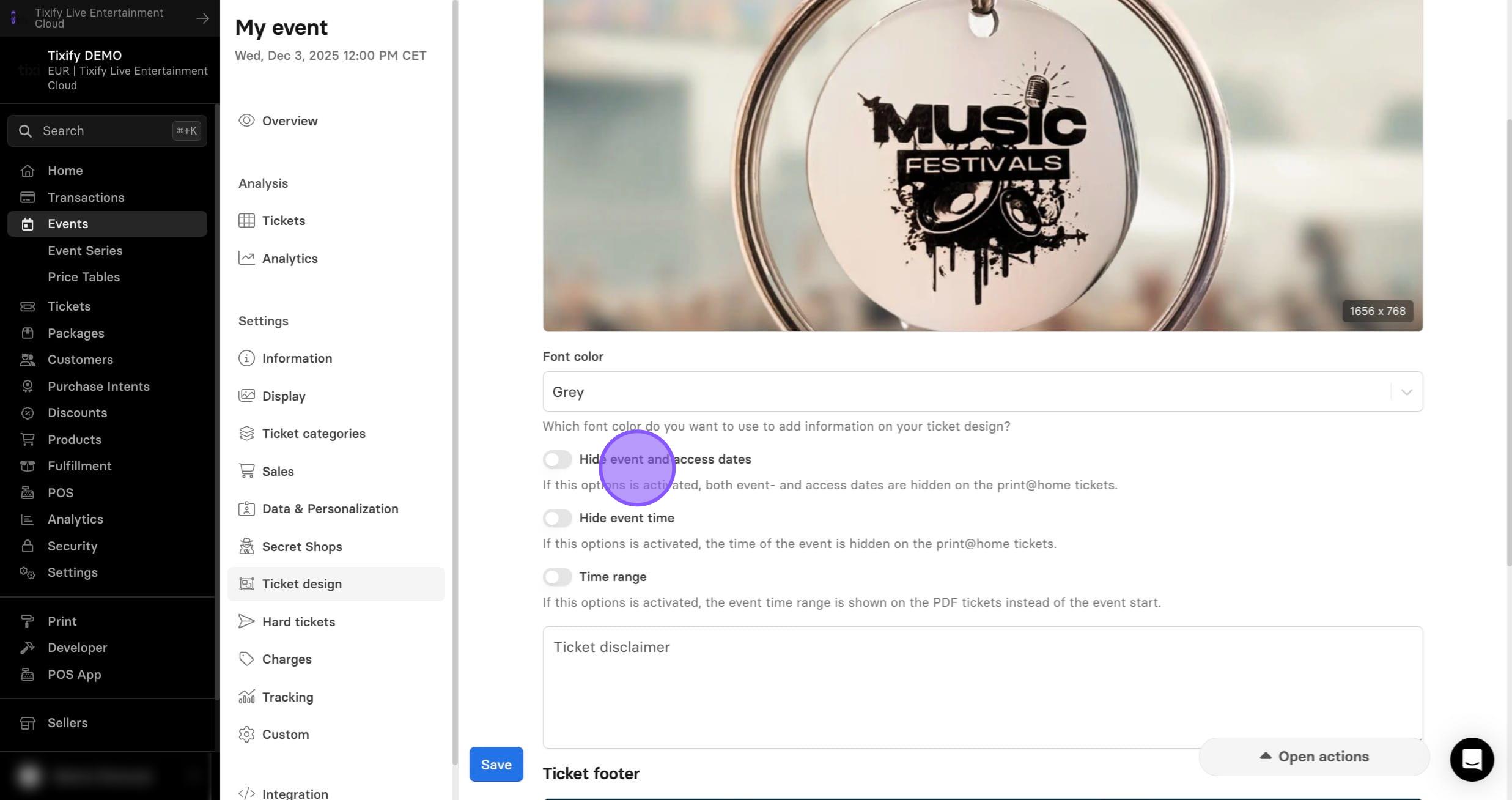
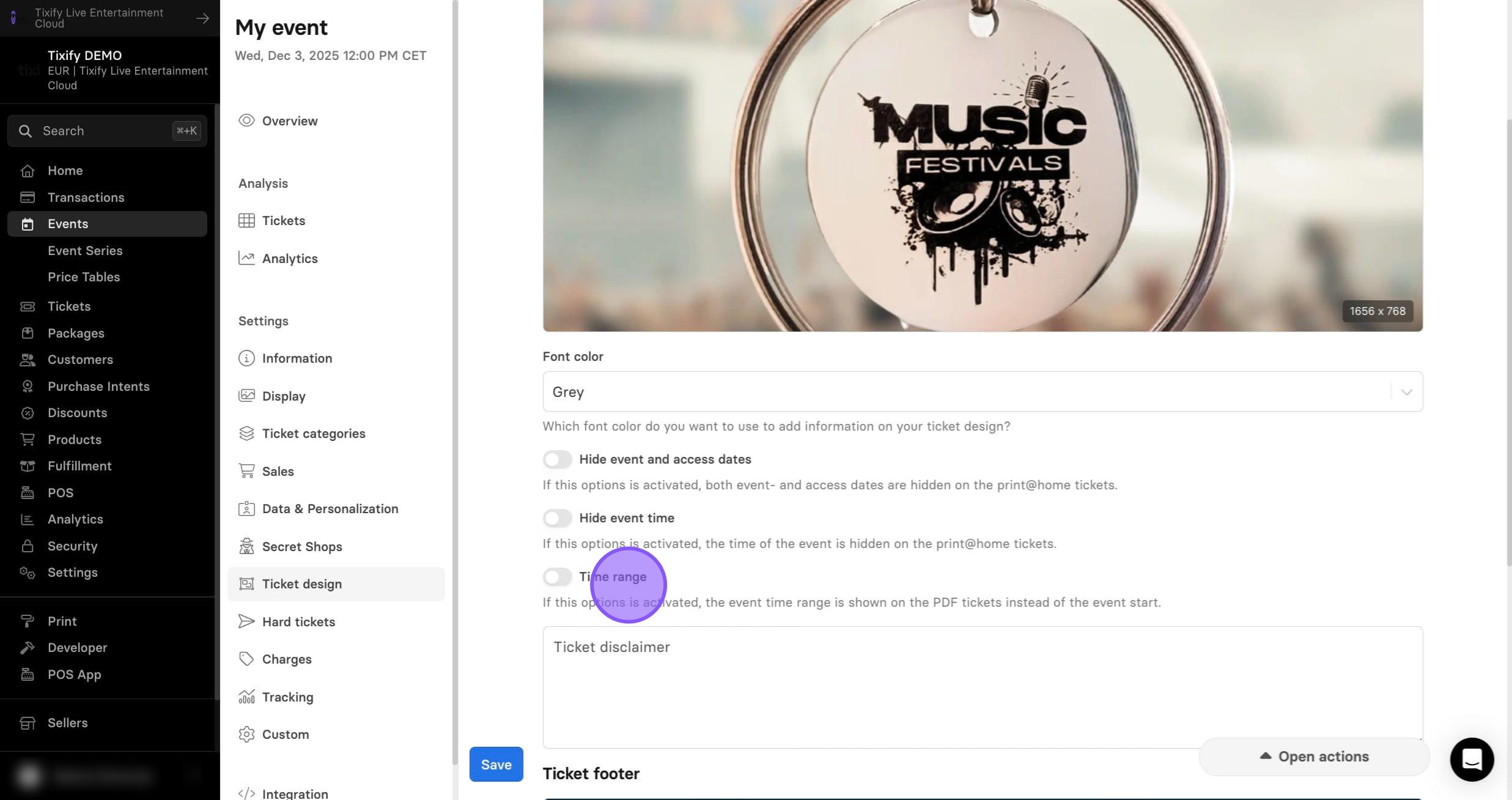
6: Enable "Time range" if you'd like to show not only start date of the event but also the end date.
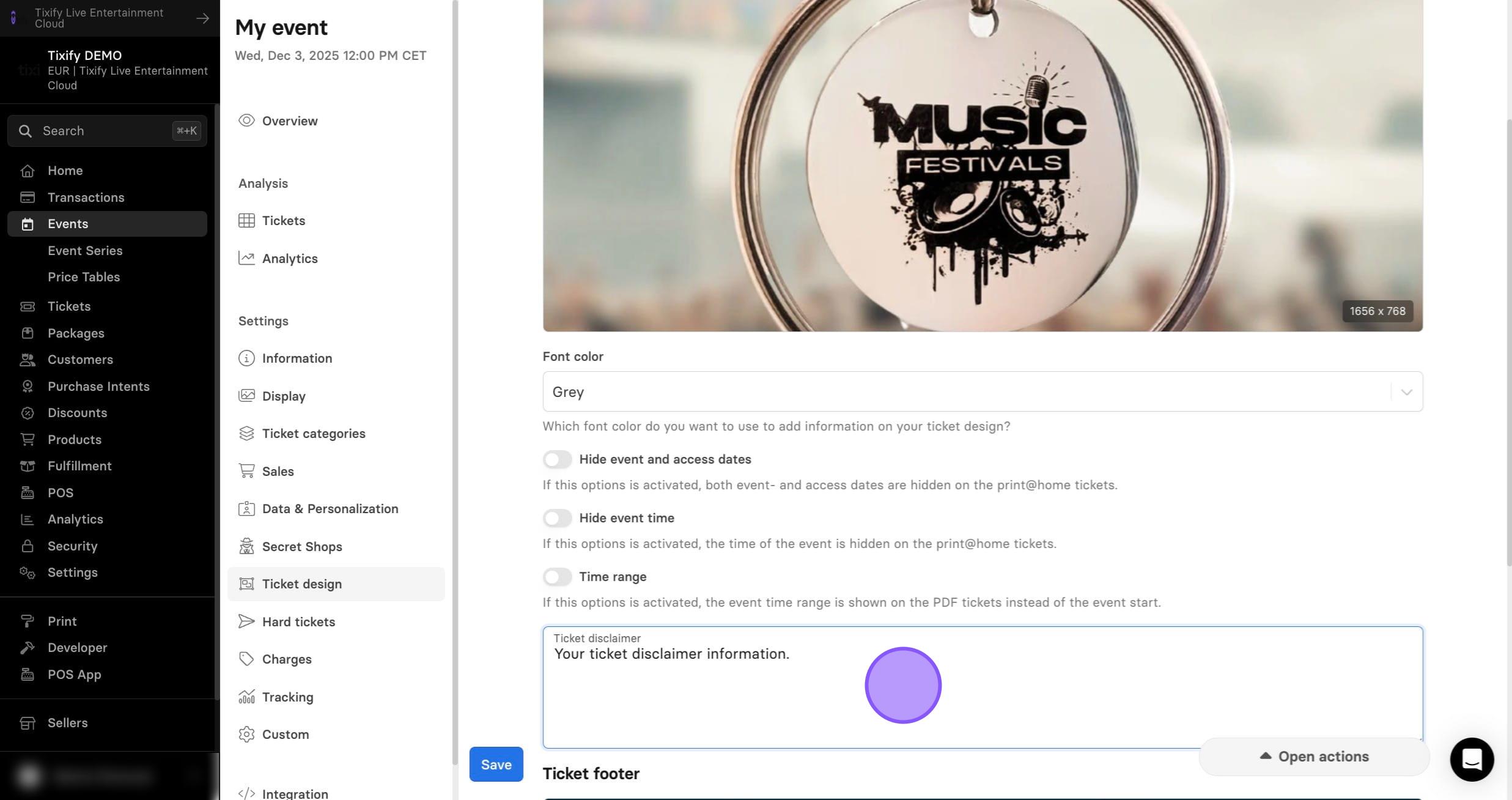
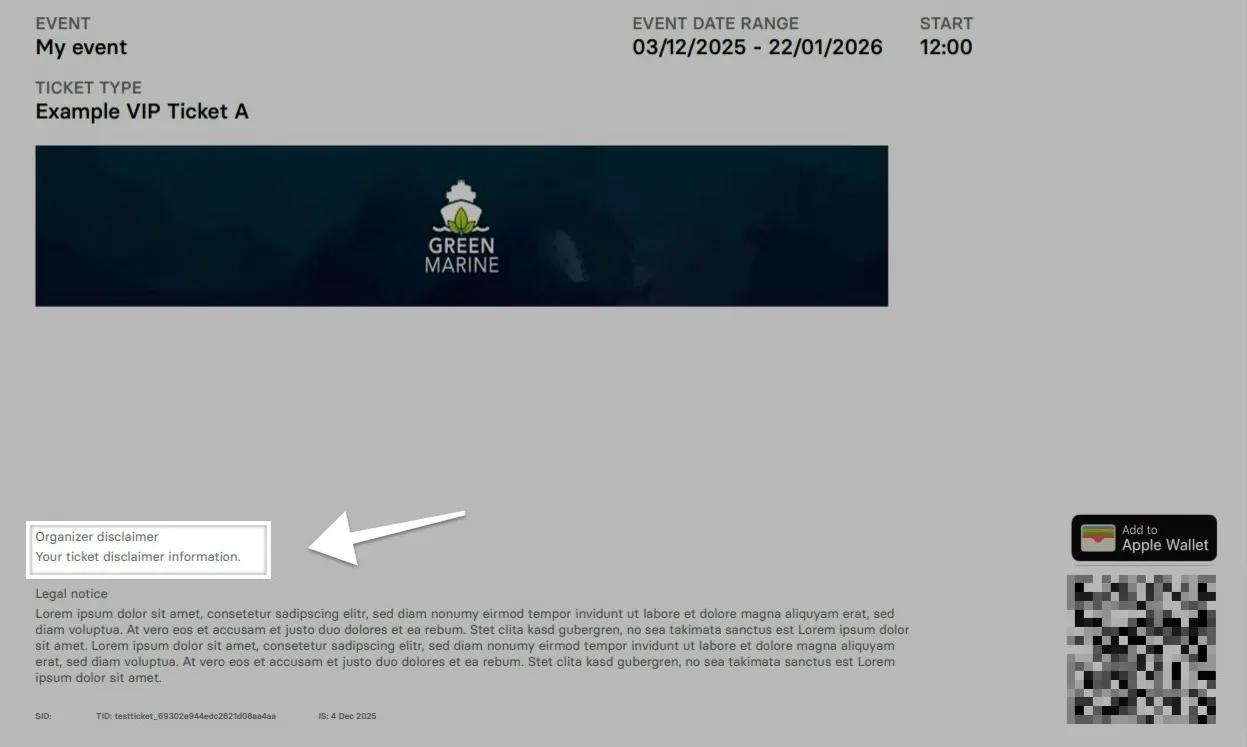
7: In addition to Tixify’s legal disclaimer, you can optionally add custom text—for example, details about the event, the booking process, or additional terms and conditions. This text appears in small print directly on the ticket.
Footer
1: The lower area of the ticket features a free space called the Ticket Footer. This space is ideal for sponsor logos or additional information. Simply create a graphic containing all the necessary logos or text and upload it as an image file.
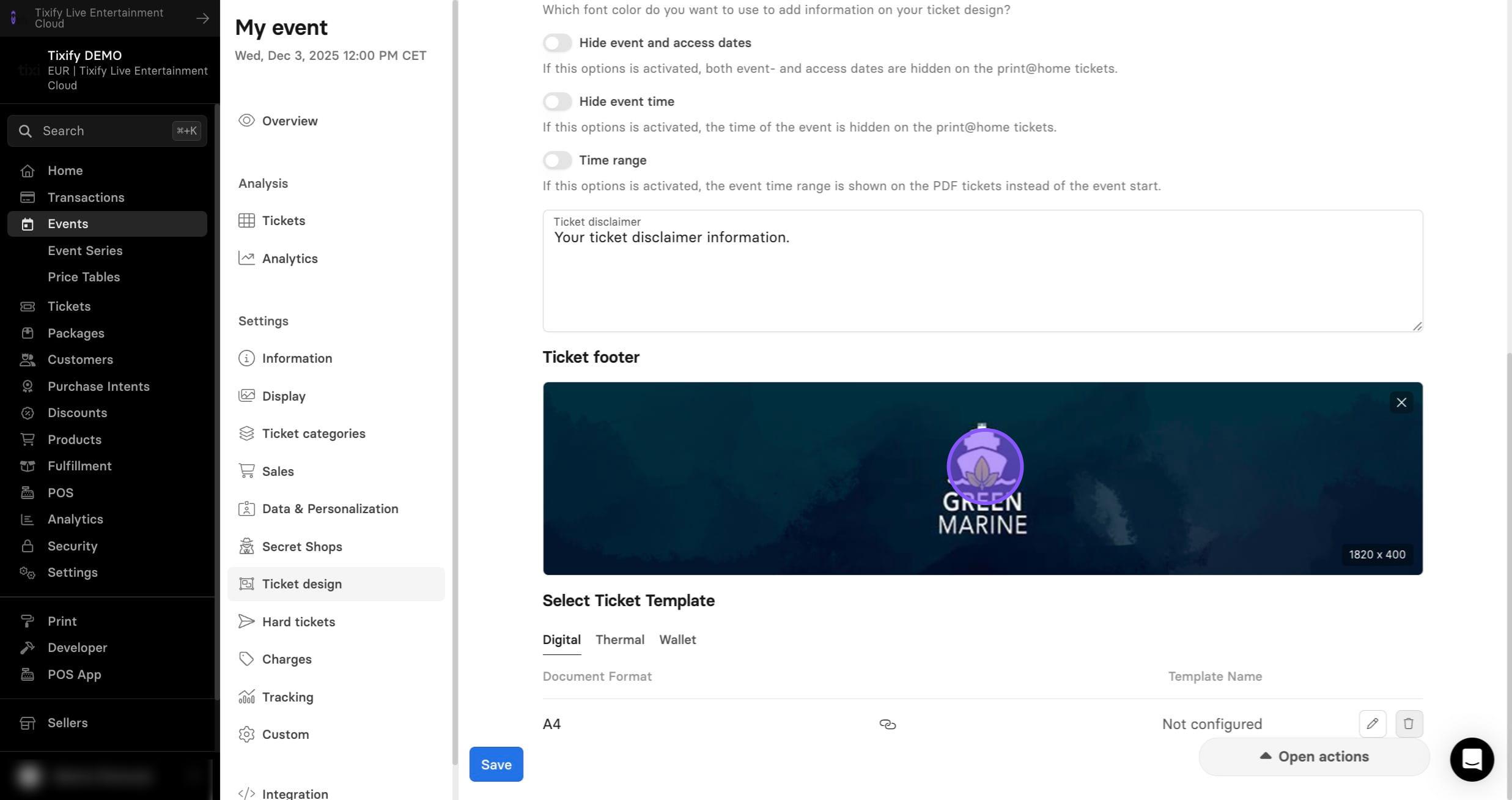
Templates
In the bottom of the page you can choose the ticket template. You can leave this part with default settings to utilize ready-to-go Tixify template or configure your own template.
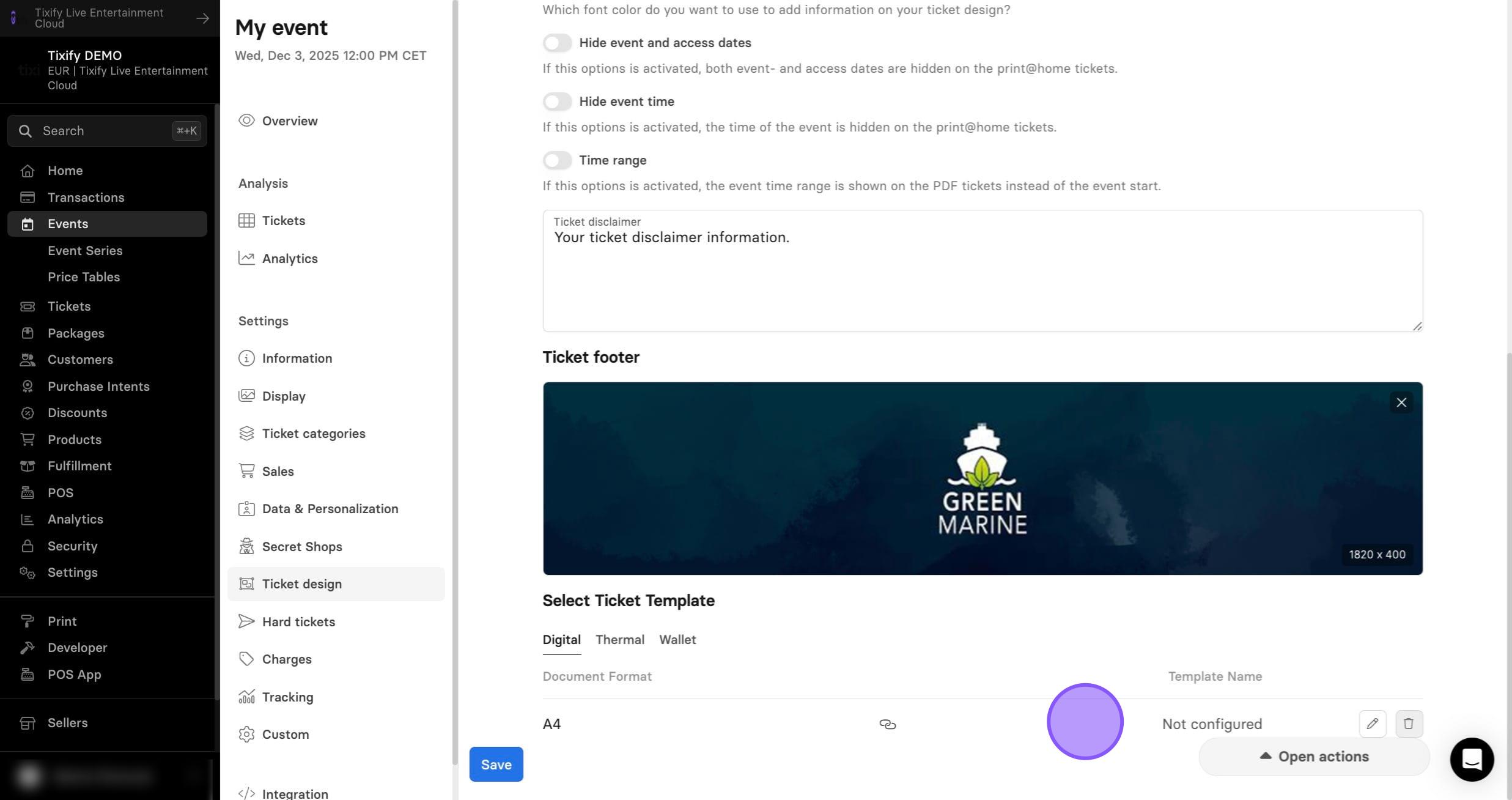
Templates can be set on three levels:
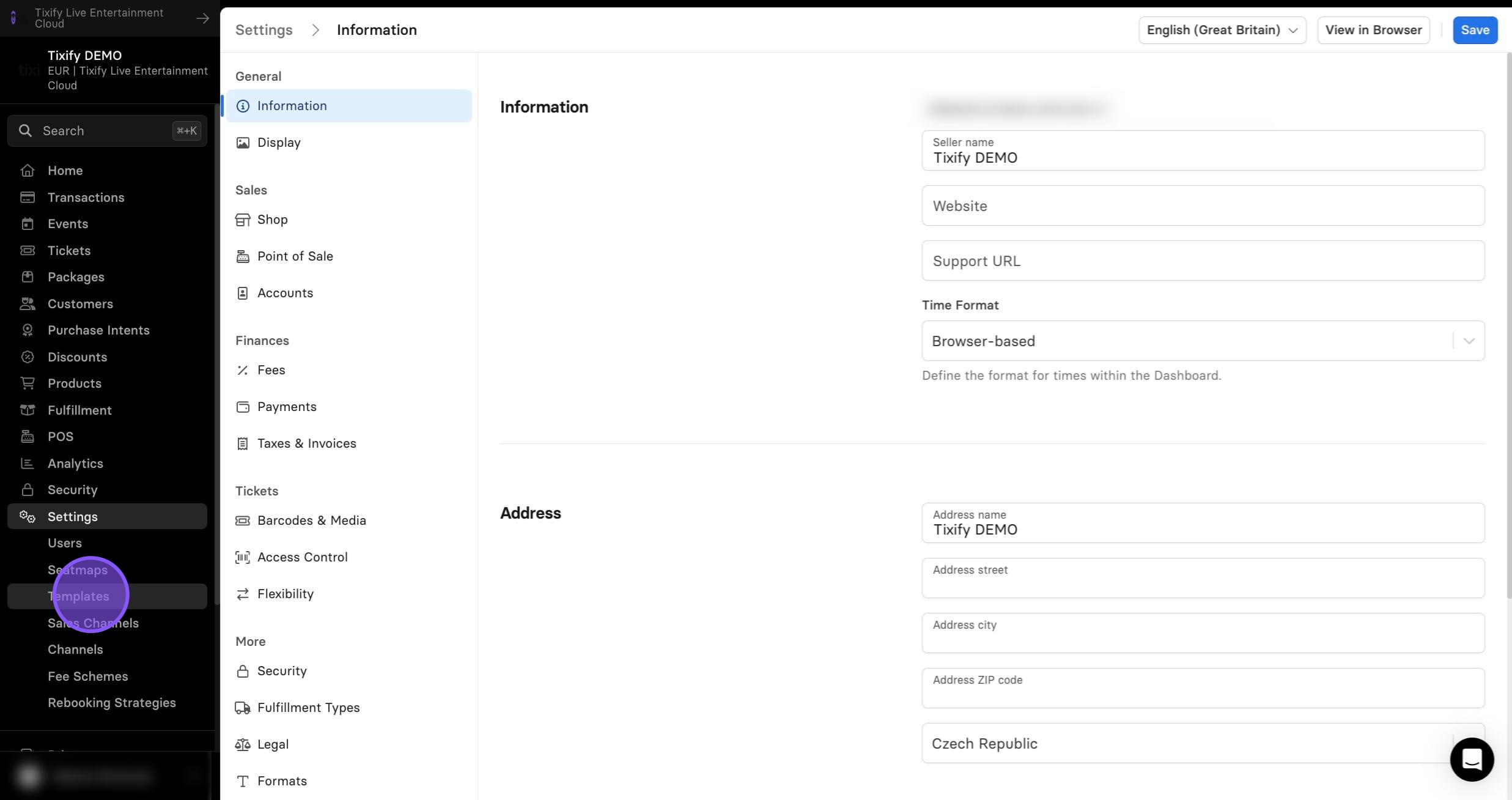
- Organizer Level: Go to the Settings module and select the Templates tab.
- Event Level: Go to your event settings and select the Ticket Design tab.
- Ticket Type Level: Go to your event settings on the tab Ticket Categories and open your ticket type settings via the three dots. Then click on Ticket.
Example: For a single ticket type, you can create multiple designs—for example, a Print@Home (A4 digital) design, a Hardticket (boarding-pass format), and a Plastic Card design. If the ticket purchaser prints their ticket as a Print@Home ticket, they will receive the A4 digital version. When you connect a plastic card printer via POS, the plastic card design will be used. If you connect a hard ticket printer via POS, the boarding-pass design will be printed. Just make sure you select the correct format before printing via POS.
Template settings follow a hierarchy. Lower levels override higher levels:
- A template set at the organizer level applies to all events and tickets.
- If you assign a different template at the event level, it will override the organizer-level template for that specific event.
- The same applies to ticket types, which can override both organizer- and event-level settings.
This allows you to tailor designs without losing your general defaults.
Printed Tickets
If a Print@Home design doesn’t meet your needs, you can also create template designs for printed tickets. Printed Templates work in a similar way to Print@Home templates.
What can printed ticket designs be used for?
- Mailing physical hard tickets
- Producing plastic cards
- Printing tickets via POS
- Creating badges or labels
- And more
With the POS system, you can print tickets in any format using any printer that supports PDF files. This makes it easy to produce hard tickets, plastic cards, stickers, and more.
To do this, simply create the required designs in the Templates module.
1: Go to Settings --> Templates
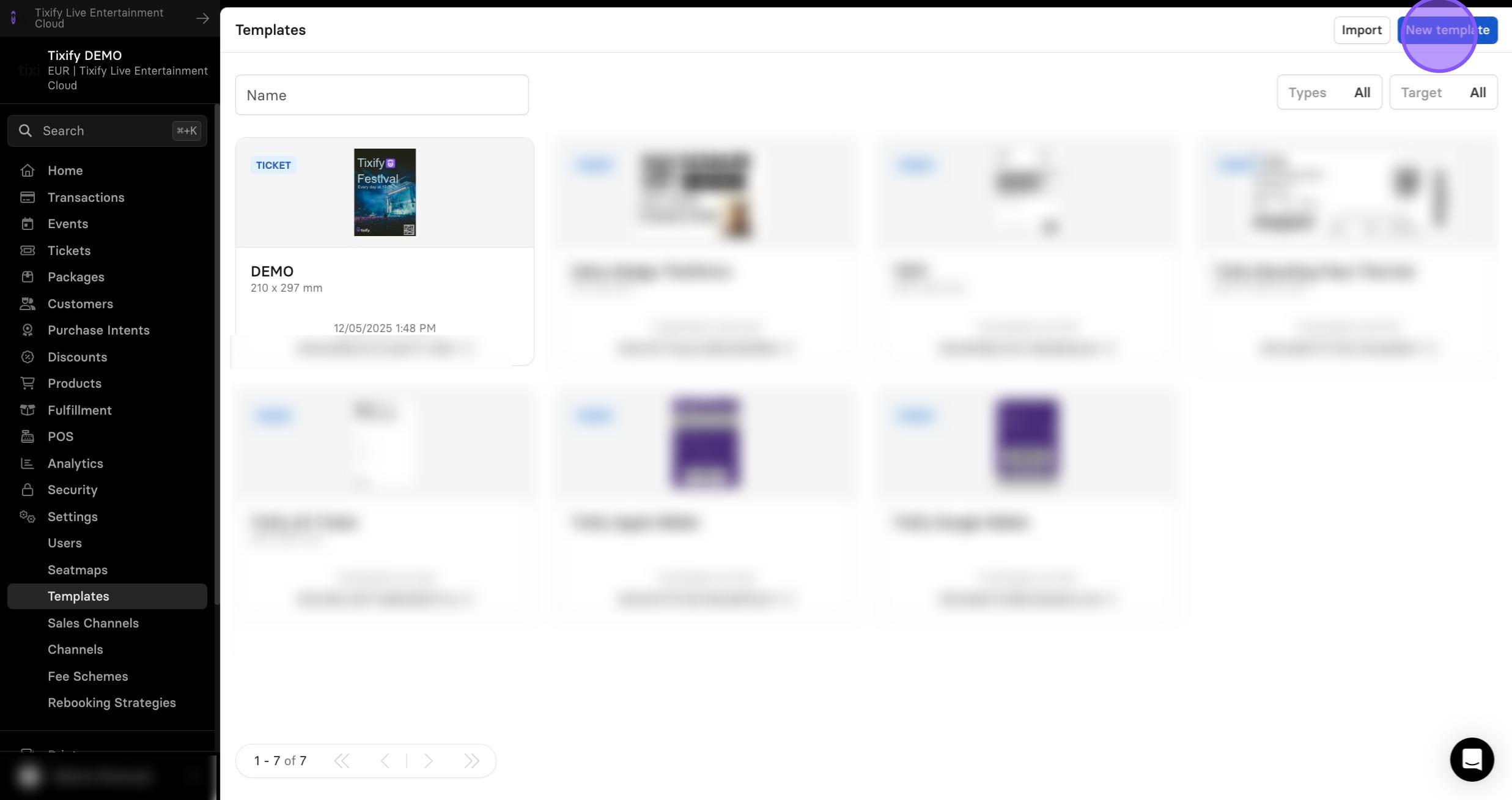
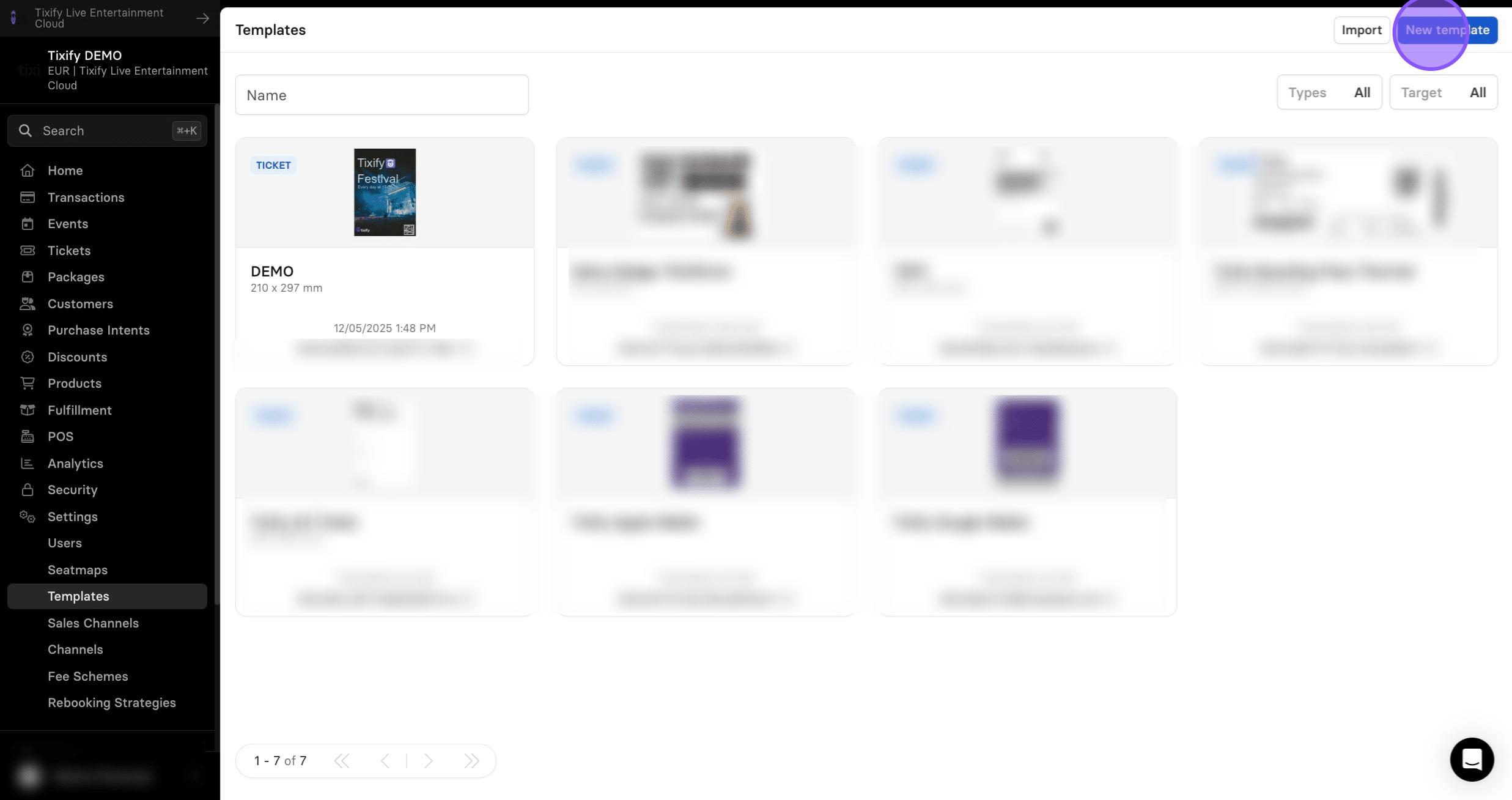
2: Click on "New template"
3: Give your template proper name. This name will be displayed internally in the dashboard when you select the template and should therefore be recognizable by you. A later change of the name is not possible.
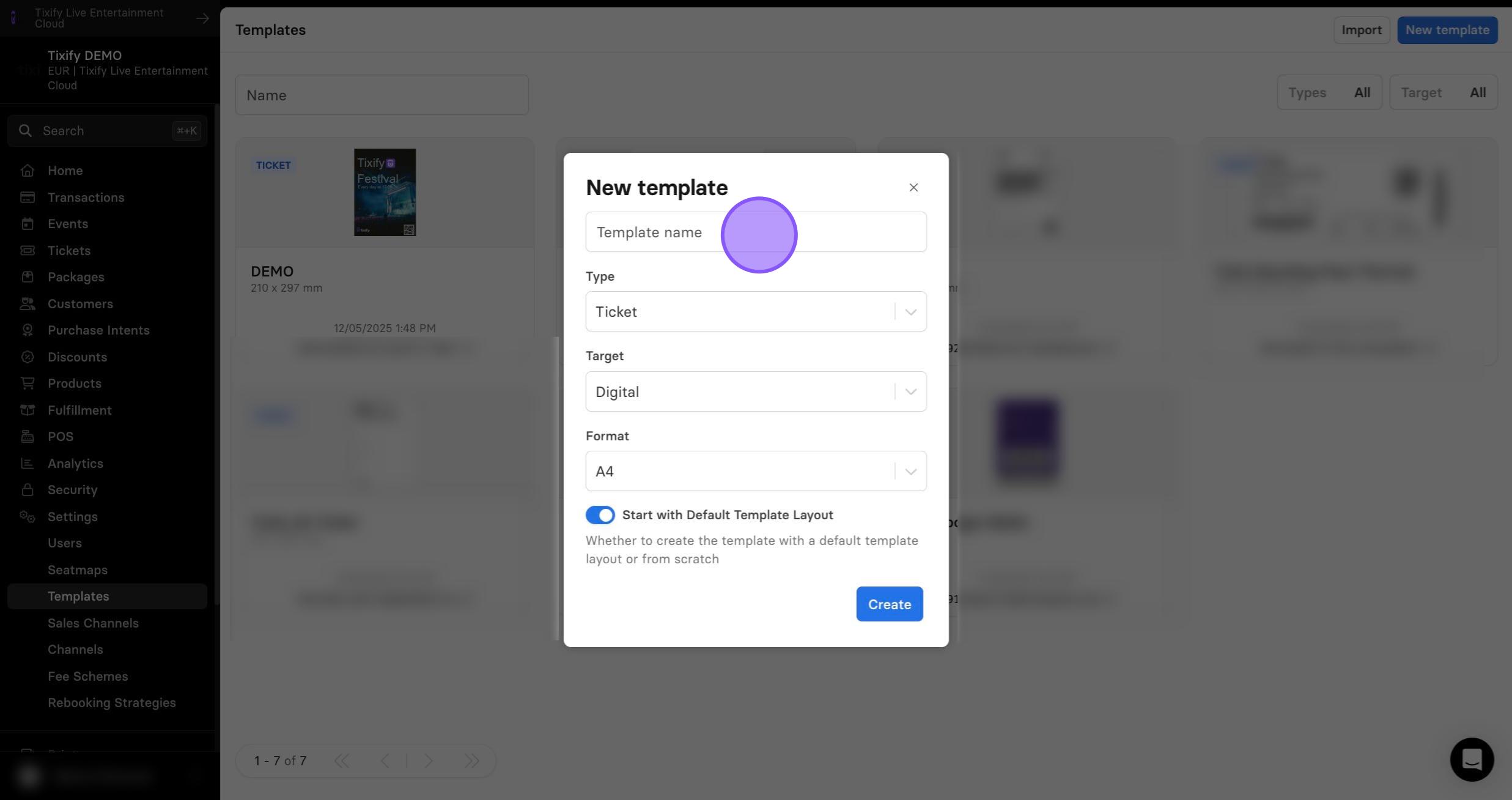
4: Select Thermal as target to create a printed ticket design.
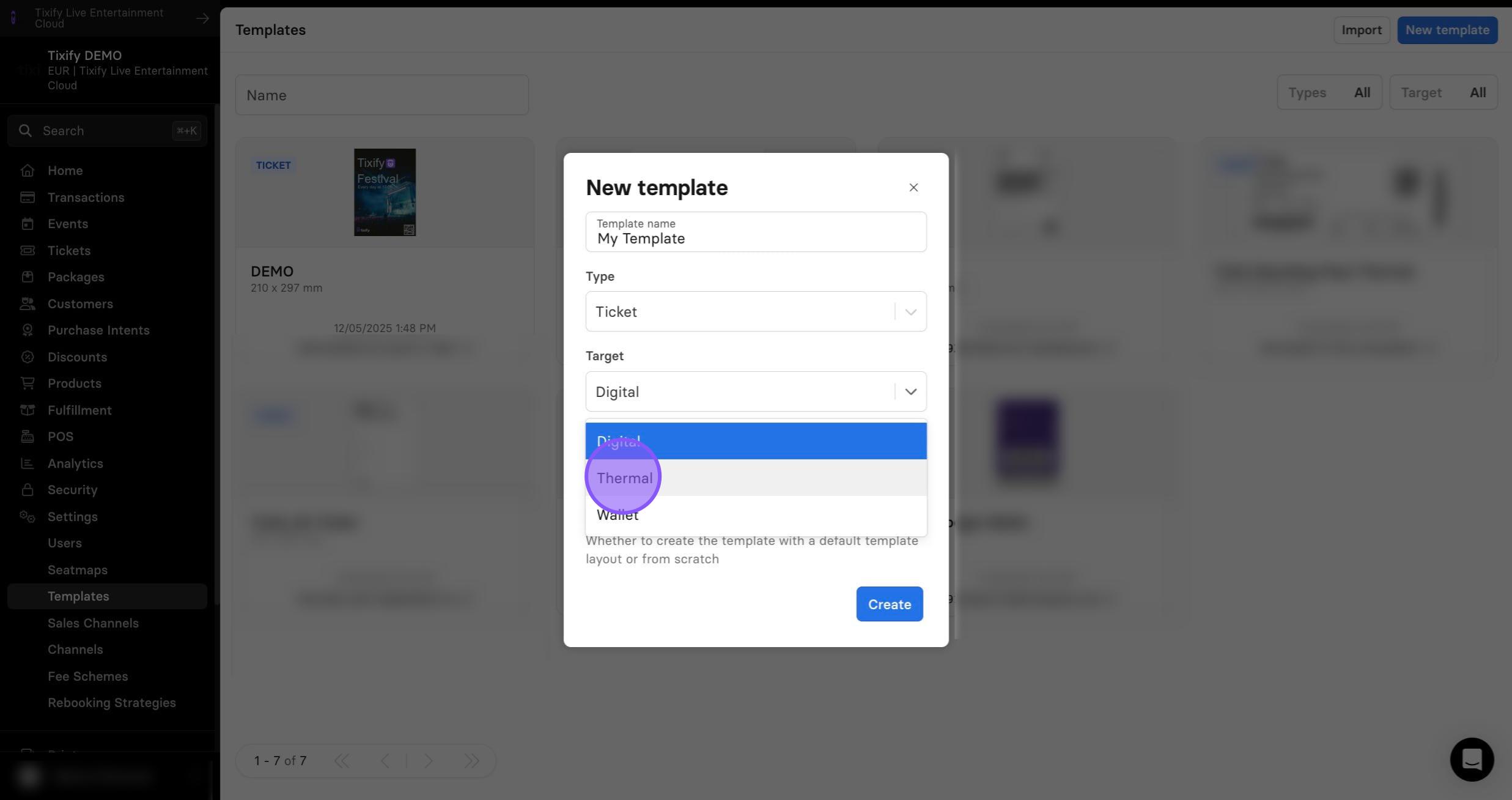
5: Select the desired format. If necessary, you can also select a custom format and specify your own dimensions. Then click on Create. The new template will now appear in your template overview.
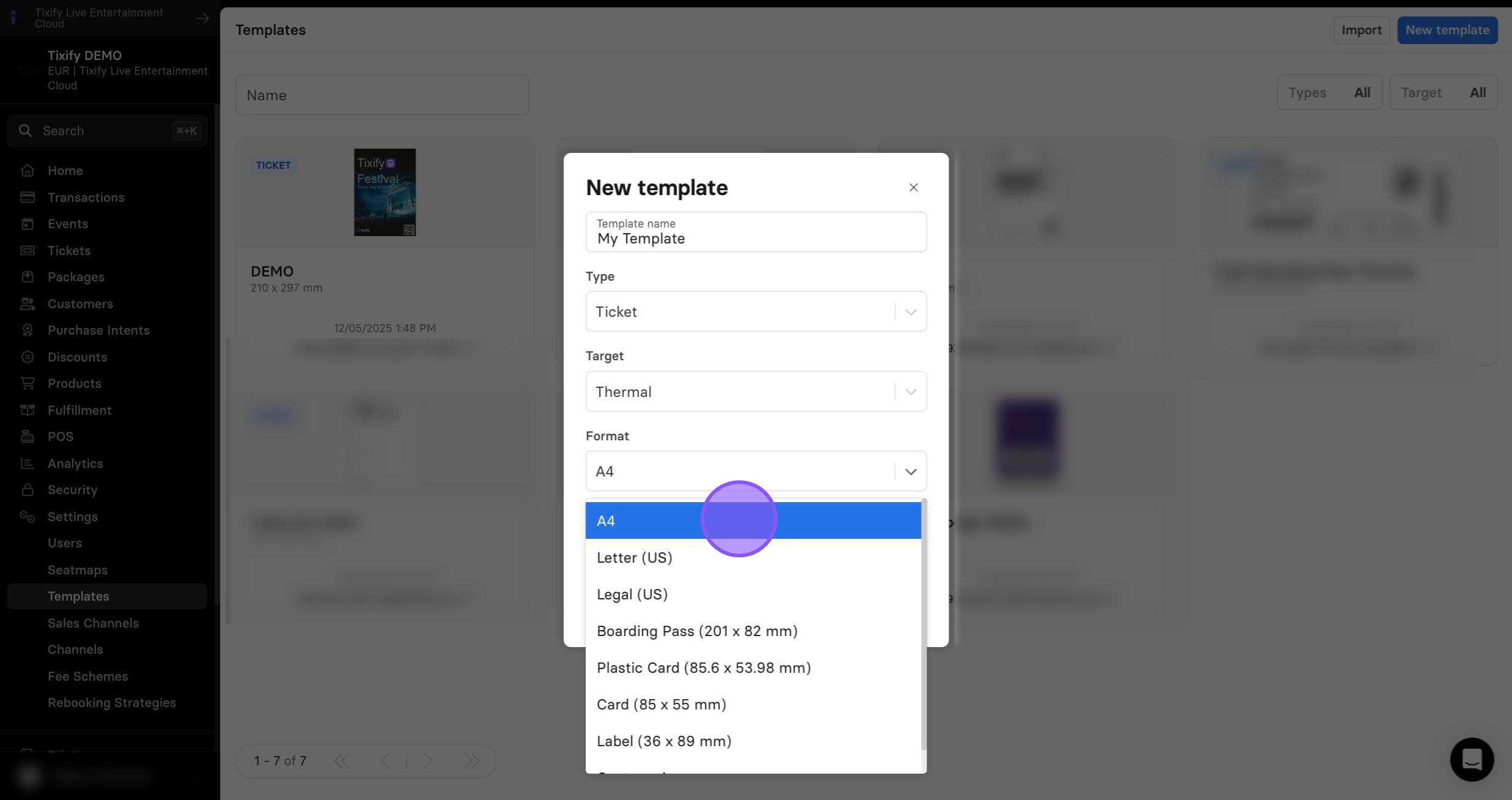
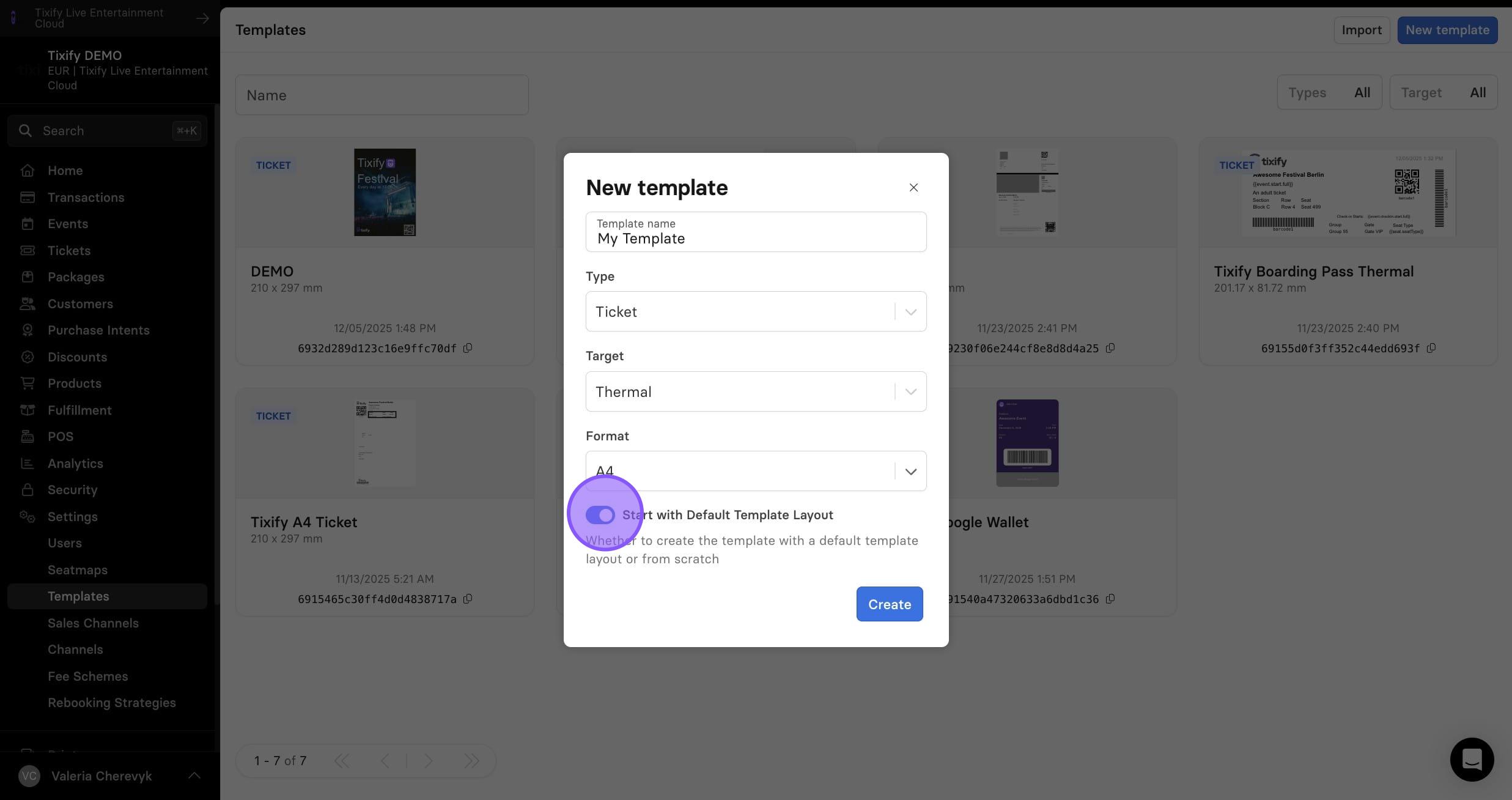
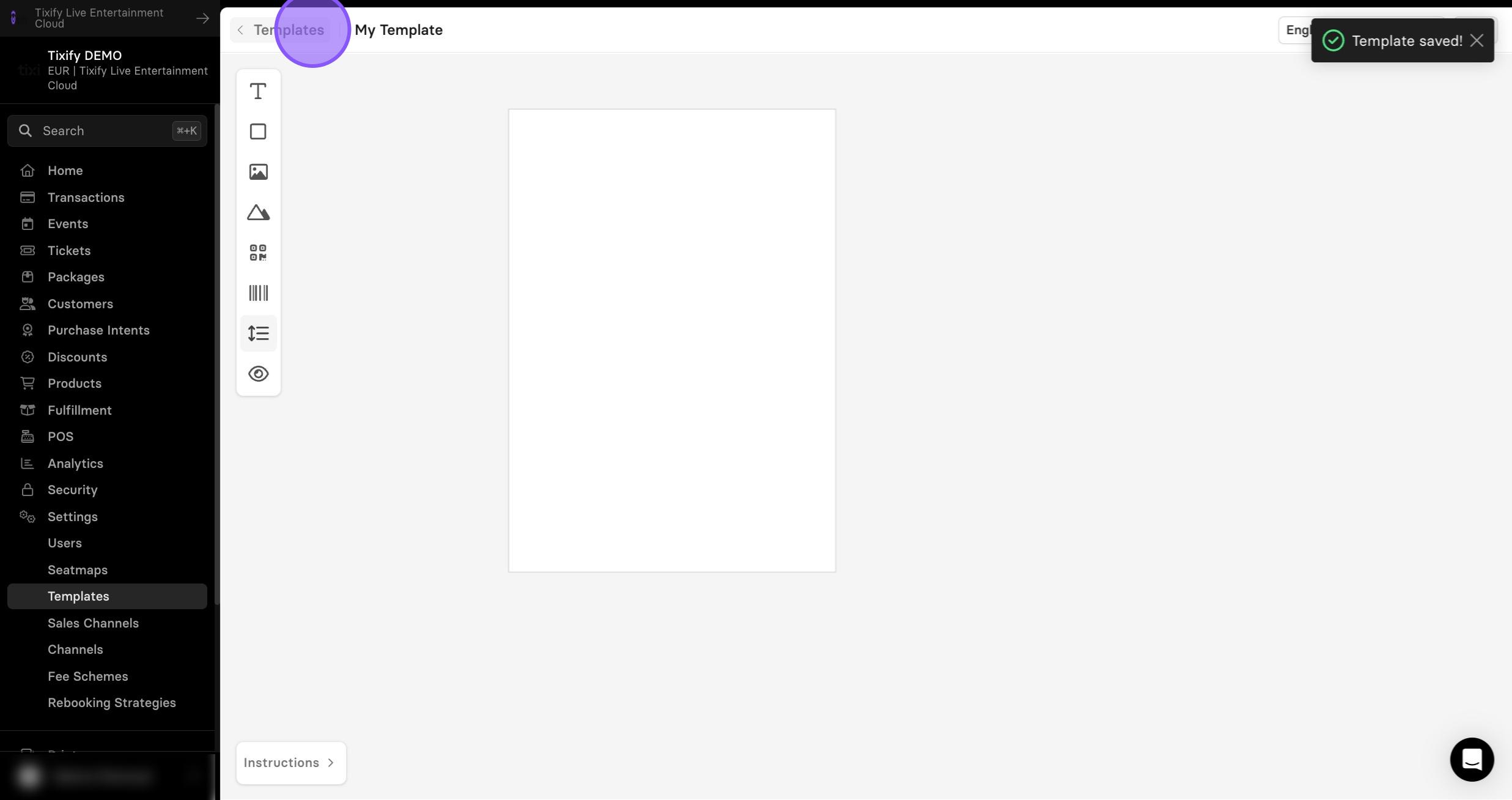
6: Switch off "Start with default template layout" if you wish to create a template from scratch. If not switched off, pre-selected template will be used.
7: In the open editor you can:
- Add an image. For example, use your pre-printed ticket design or a template created by your marketing team. It will help you to determine the positions of individual elements. The template is automatically hidden when a ticket is generated.
- Add the variables via a text field. To do this, enter the {{ character. A list of all available variables will open automatically, which you can position on your ticket.
- Adjust the size and position of your text fields by clicking on them.
- Add more text fields to add information to the ticket.
- Add a barcode or QR code.
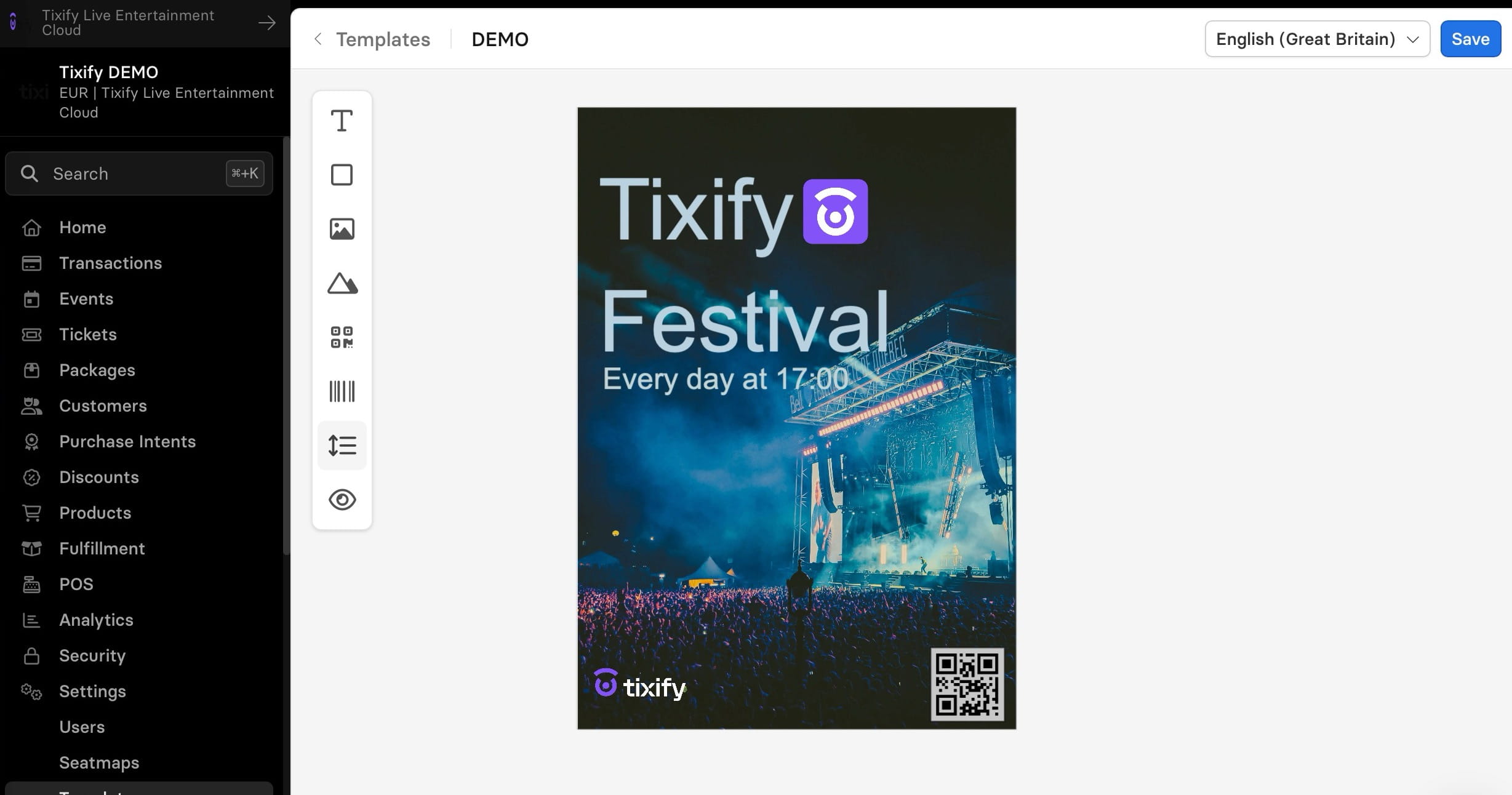
8: As a result you can get your own customized ticket template.
Wallet Tickets
Apple Wallet and Google Wallet tickets are available to buyers through Tixify. These options appear each time a customer downloads their tickets. If needed, this feature can also be disabled on a per-event basis.
Apple and Google Wallet tickets include a few customization options that can be configured at the organizer level. Please note that these options are limited and cannot be customized beyond what is provided.
1: Click on "New template"
2: Select "Wallet" for target.
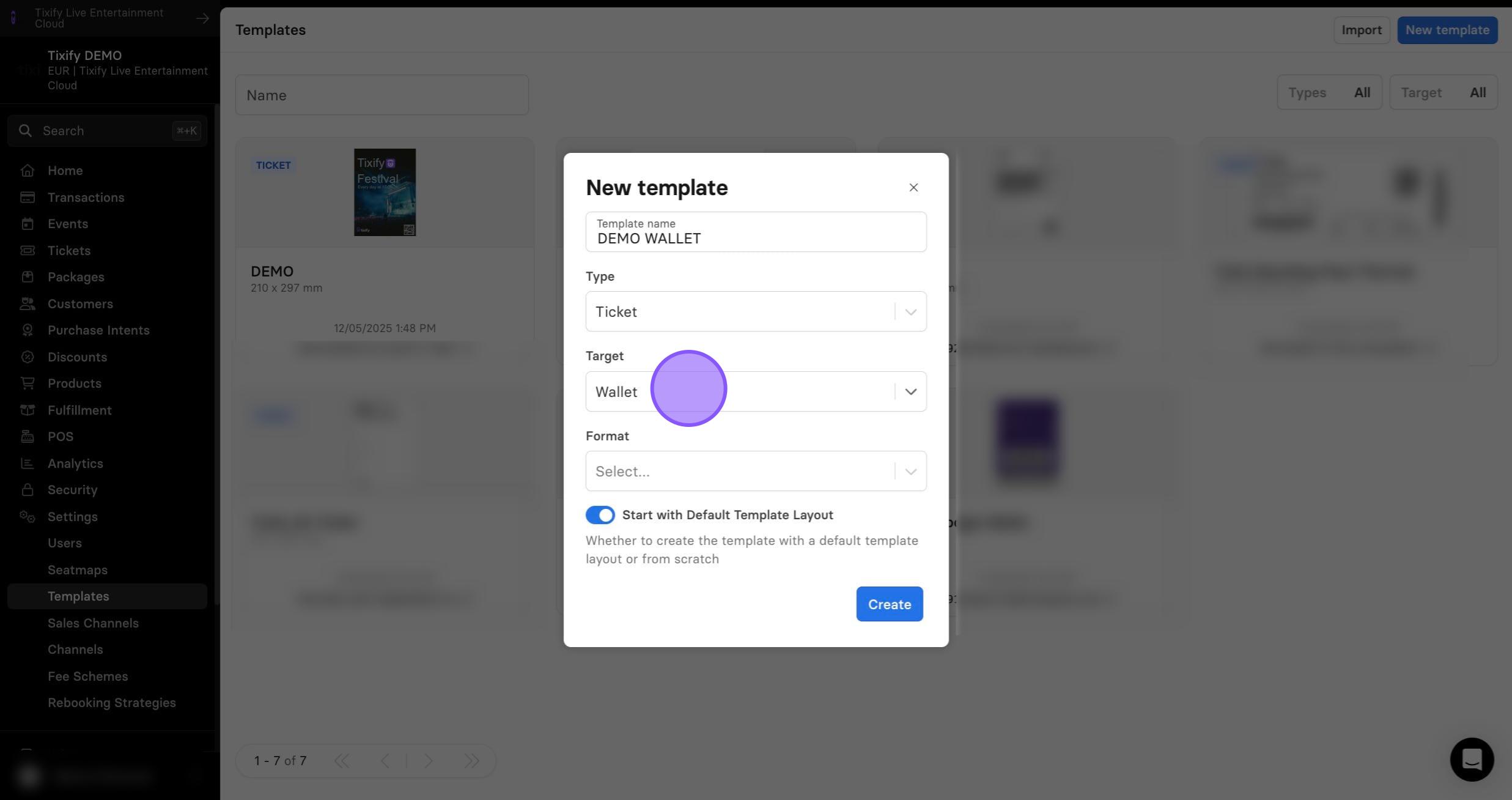
3: Choose between Apple and Google format.
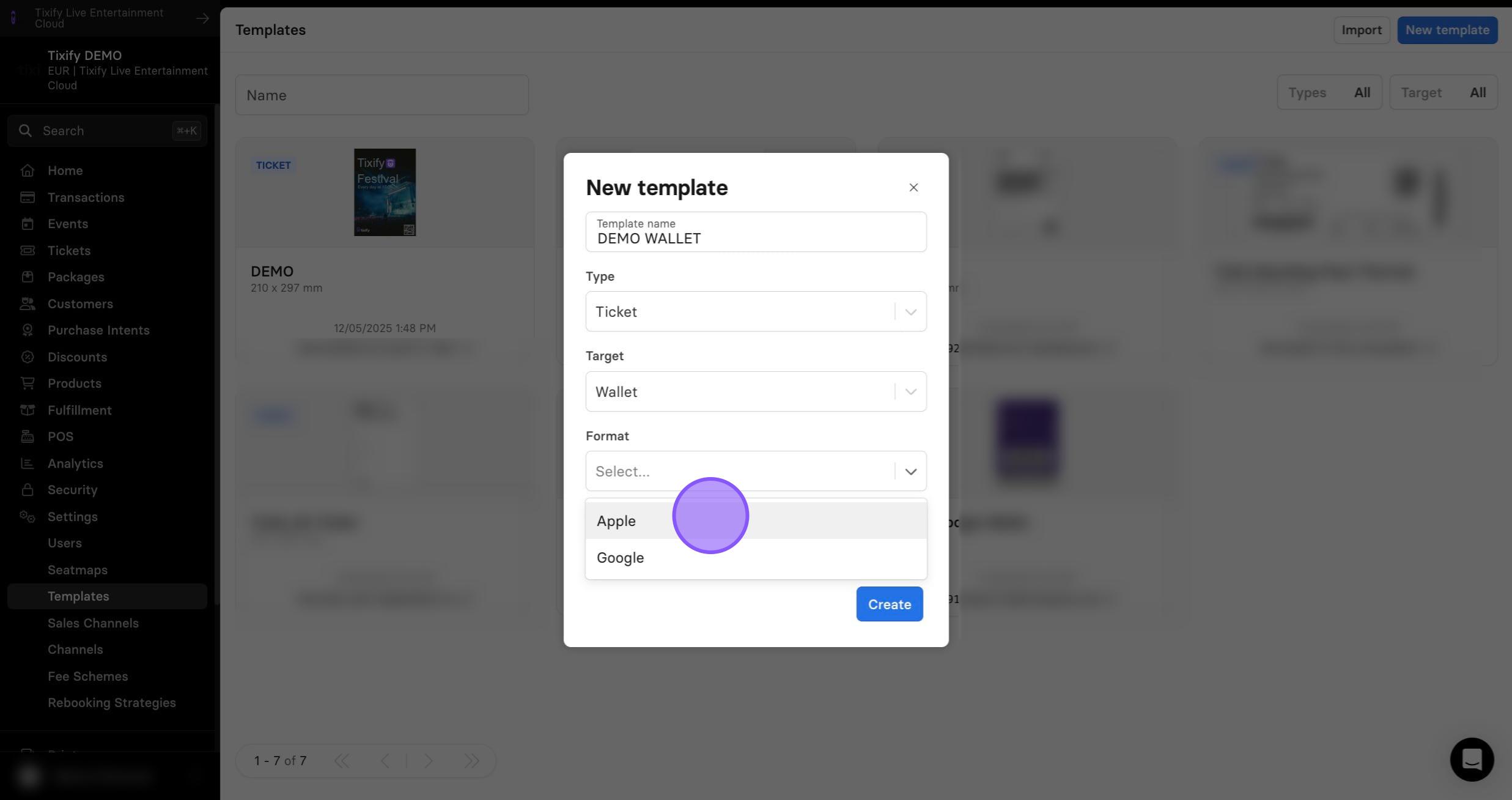
4: Click on "Create"
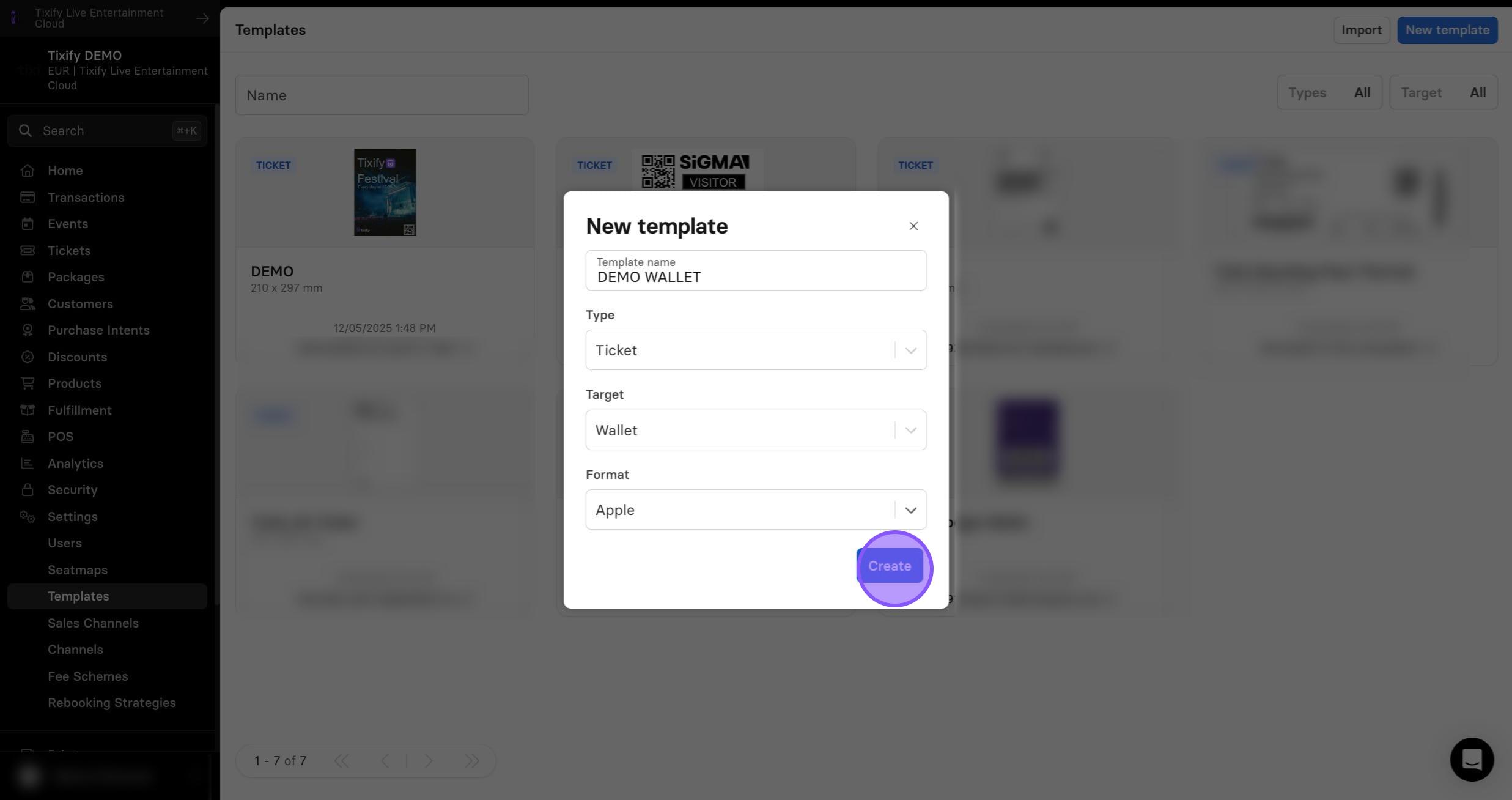
5: In the open editor you can customize few things.
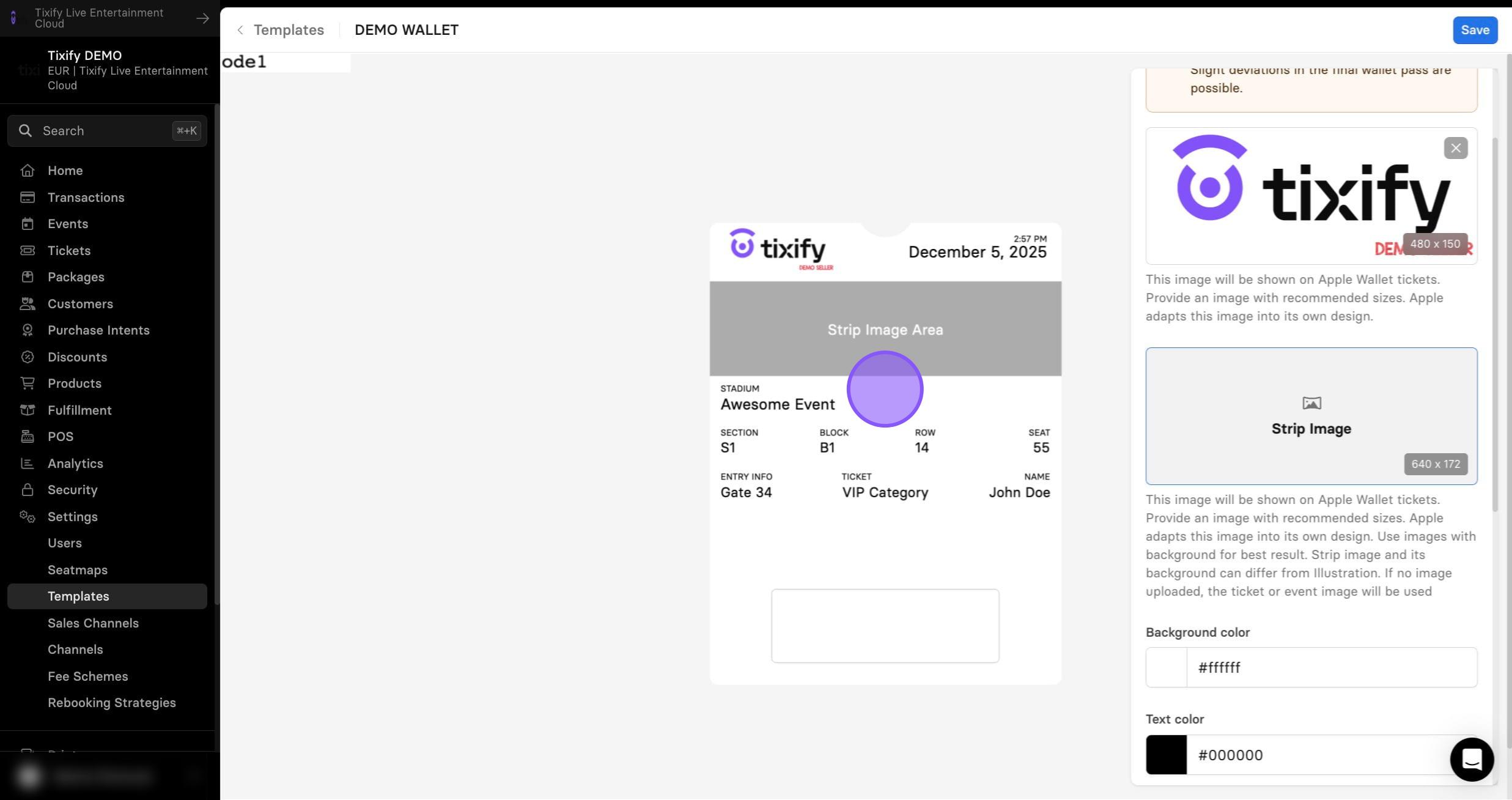
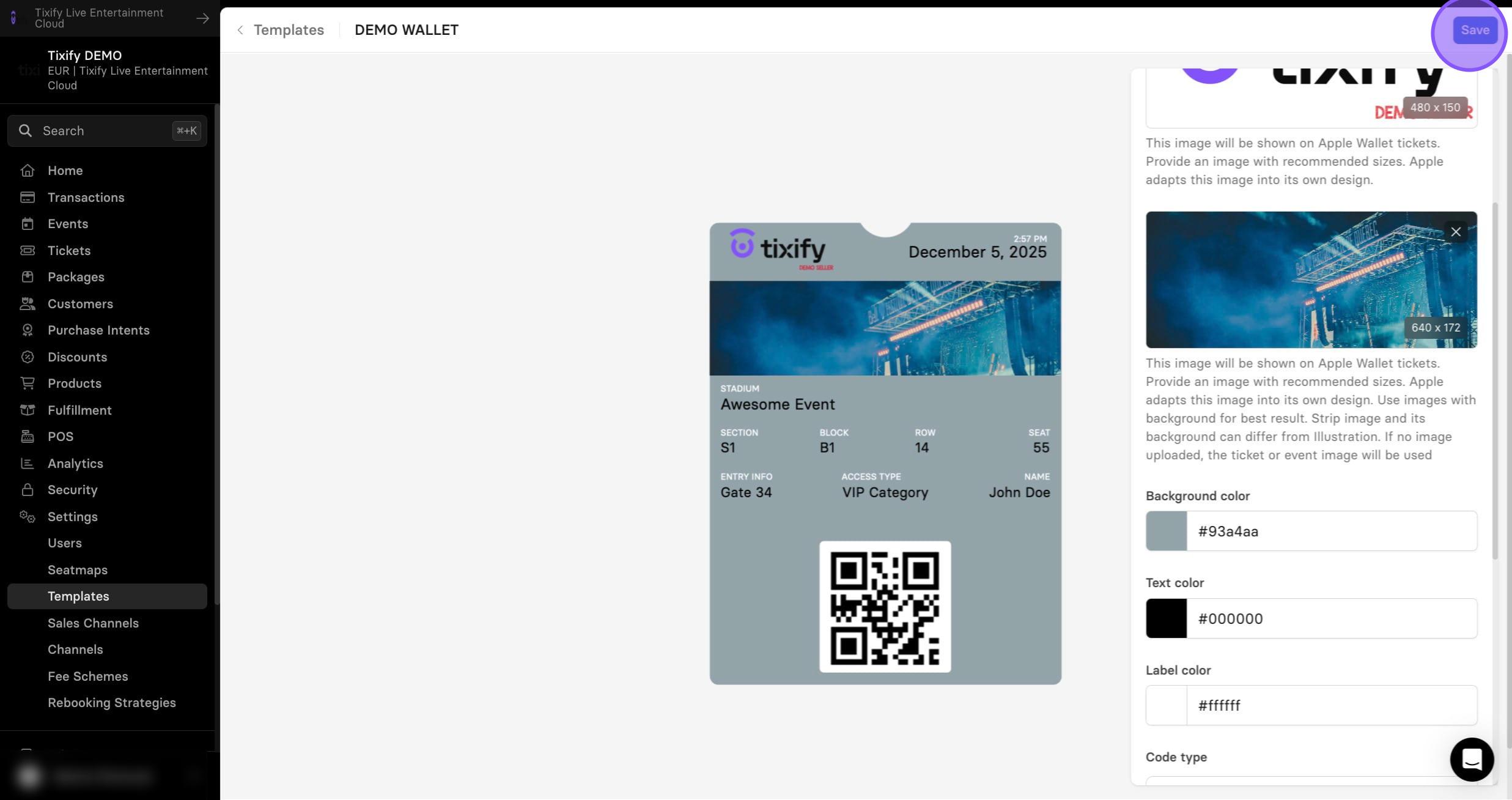
6: You can add your own strip image that will be shown in the middle of the ticket.
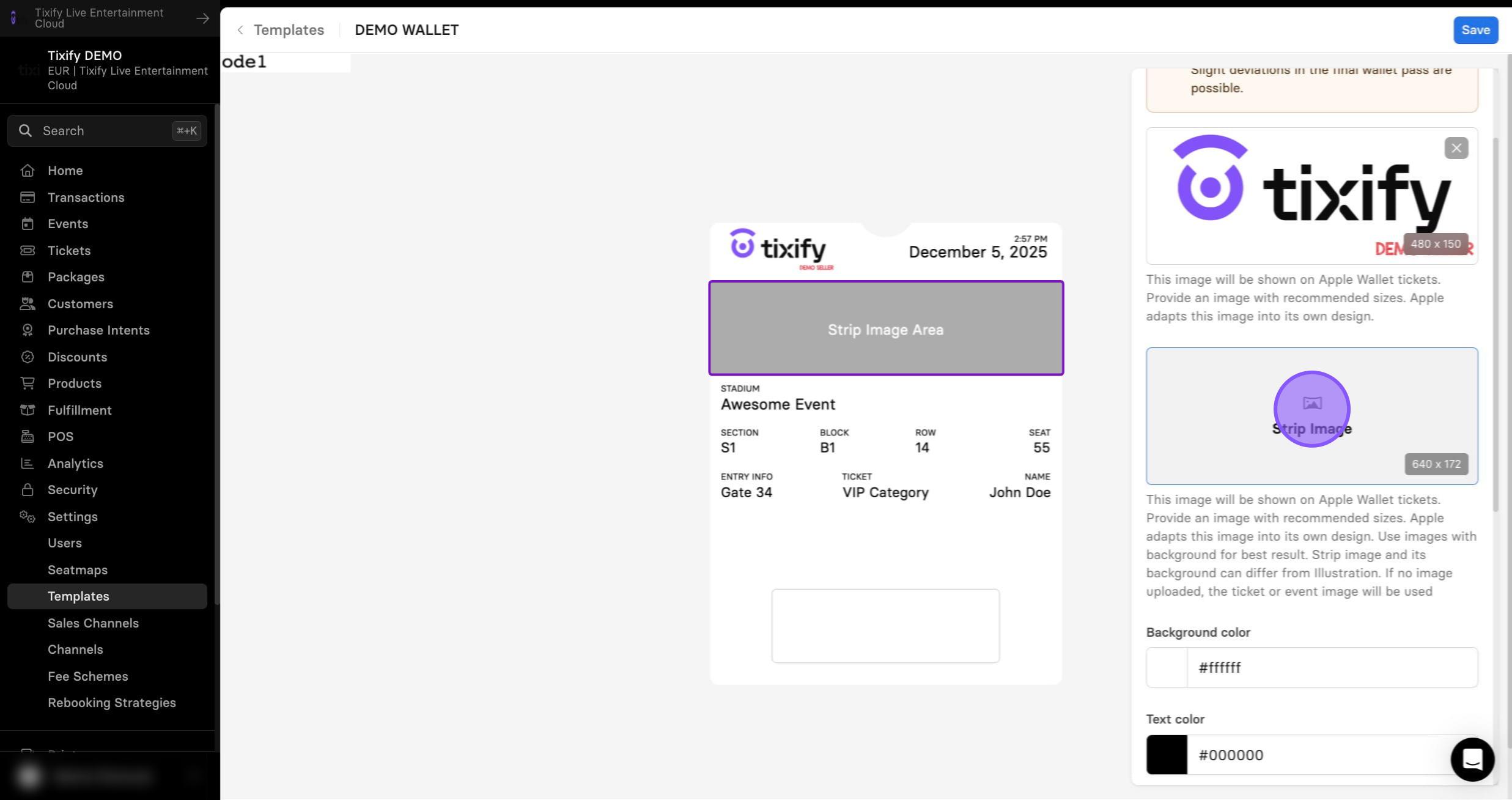
7: Select background color.
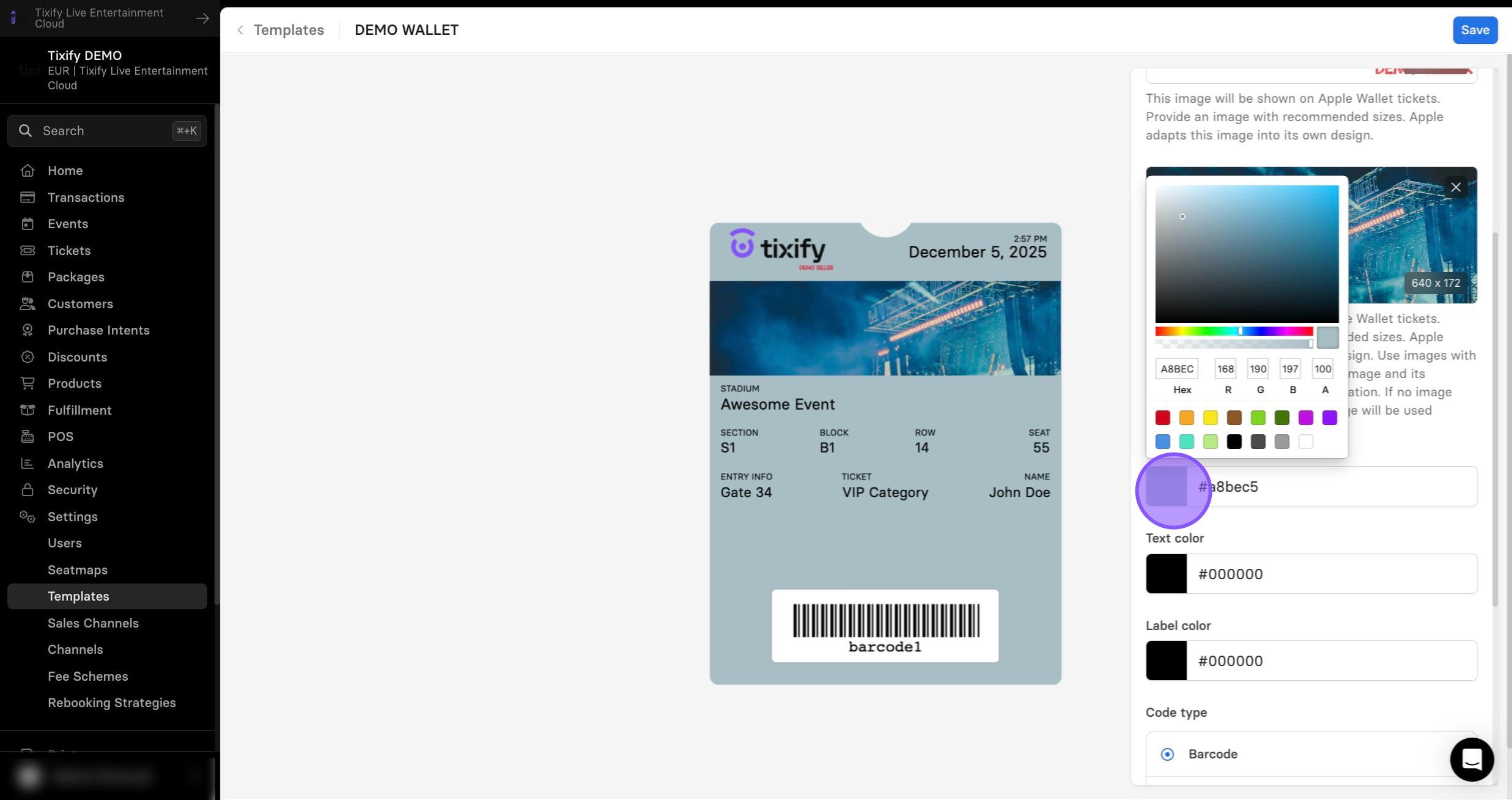
8: You can also change text color.
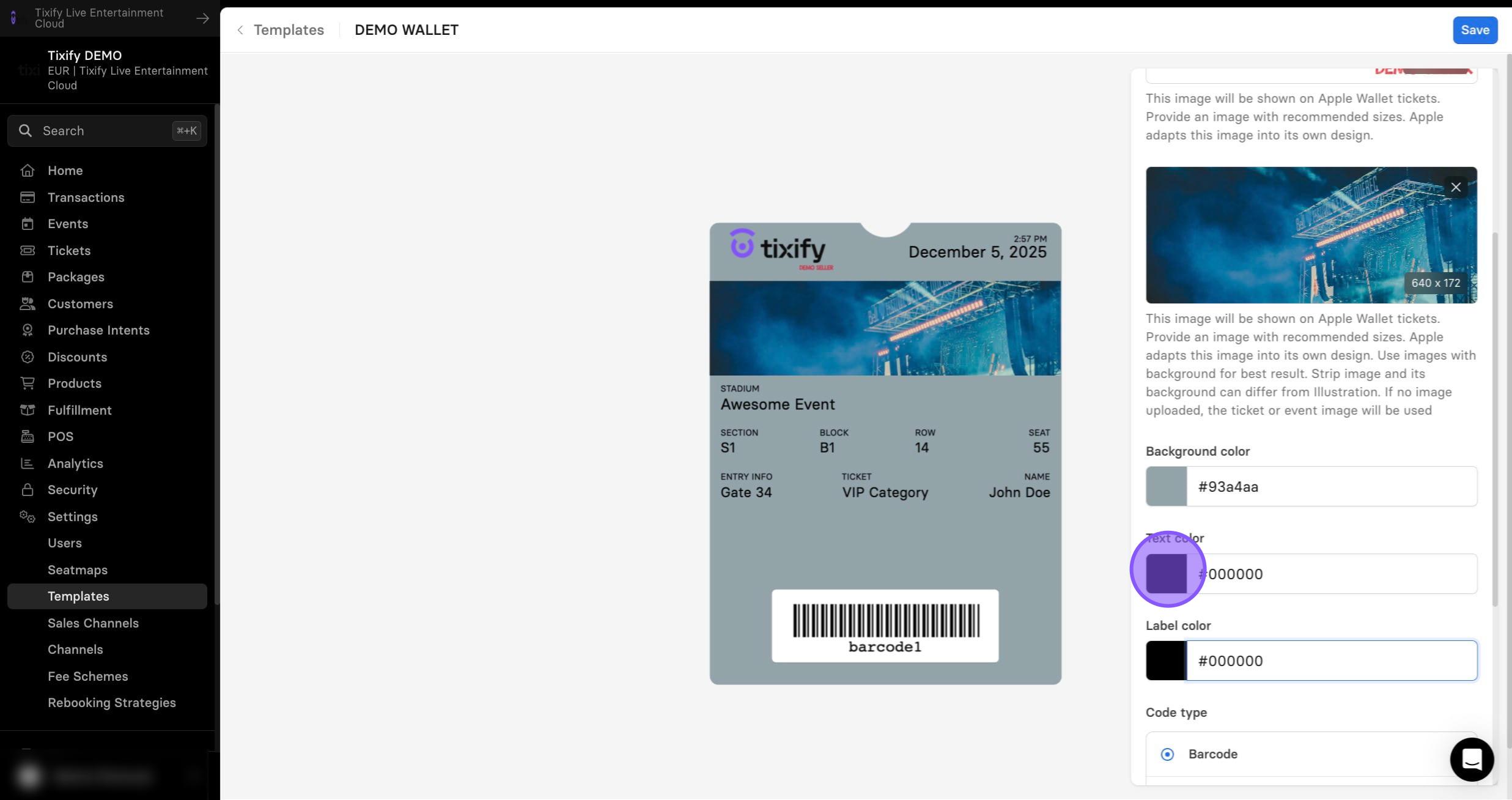
9: And label color.
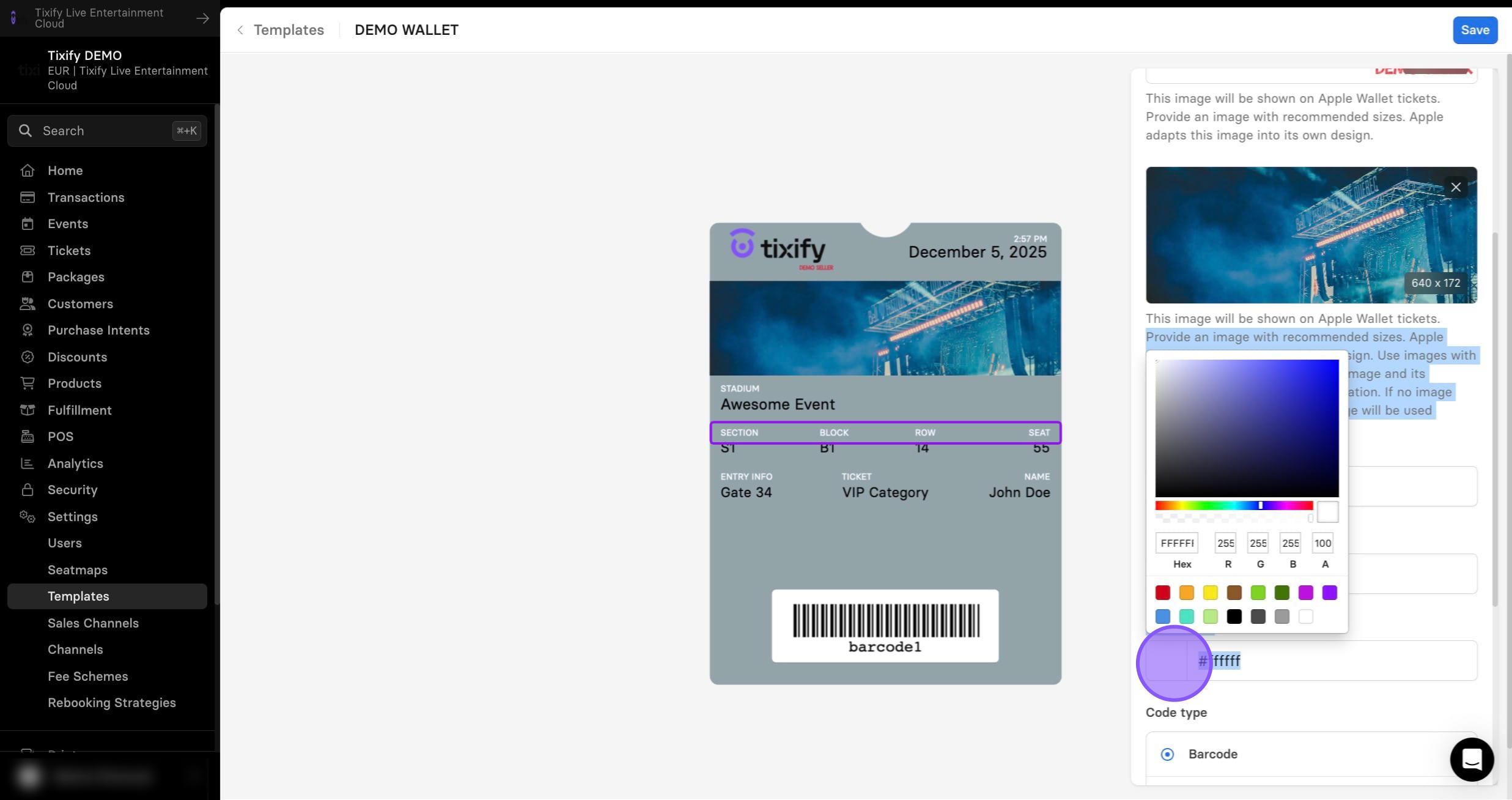
10: Choose between Barcode or QR code.
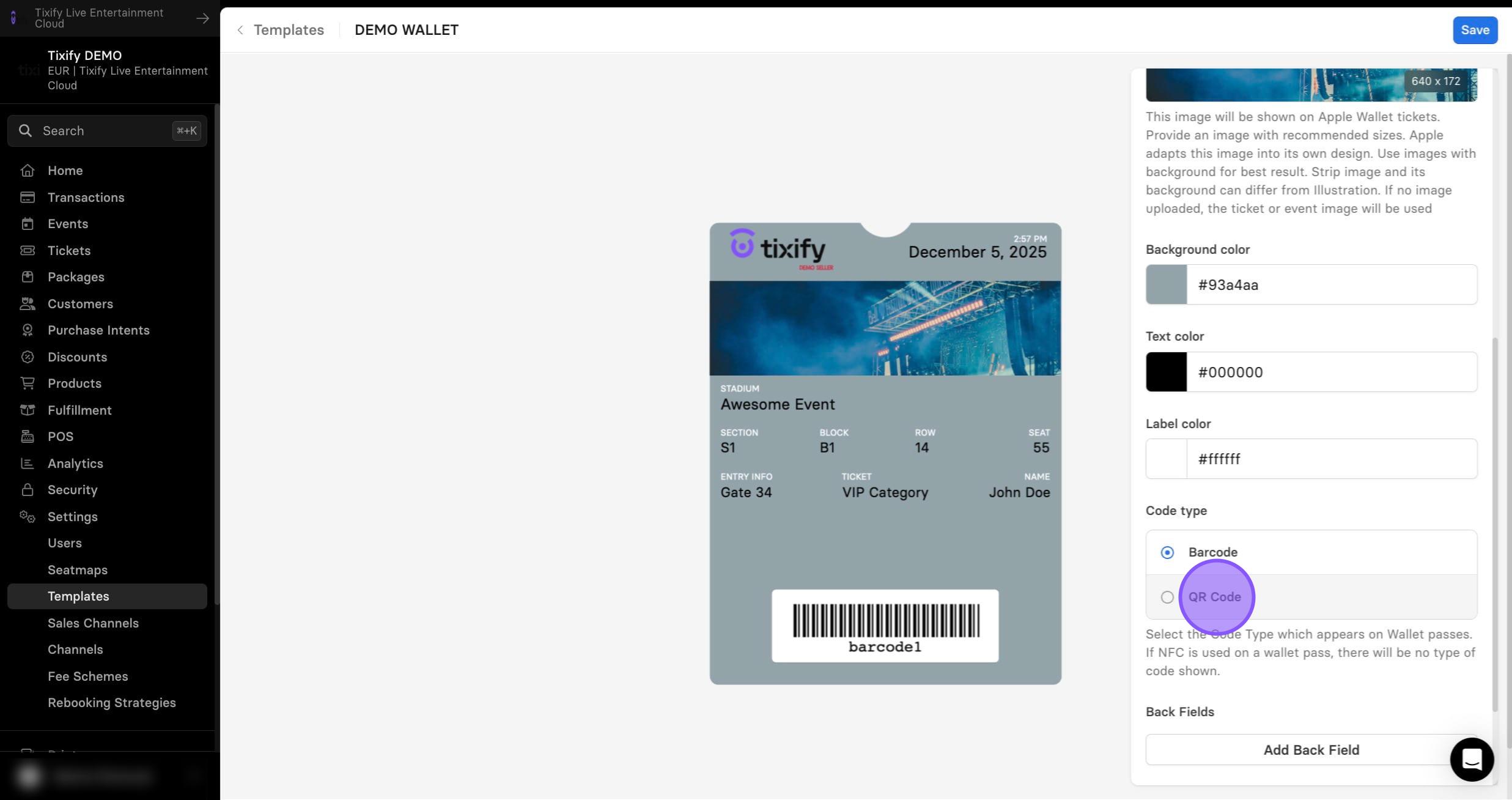
11: If necessary, you can add back field that will be stored in the ticket info.
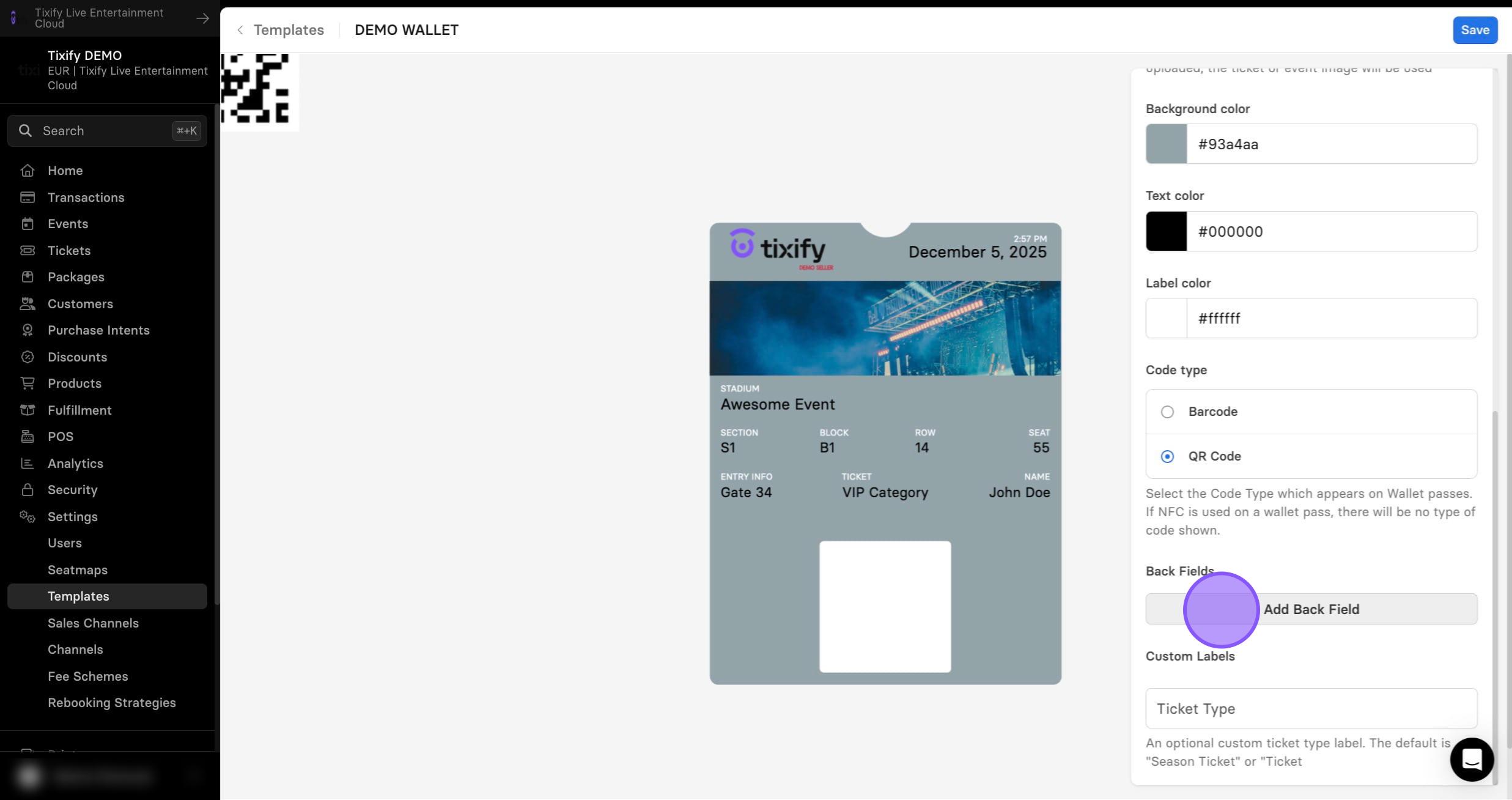
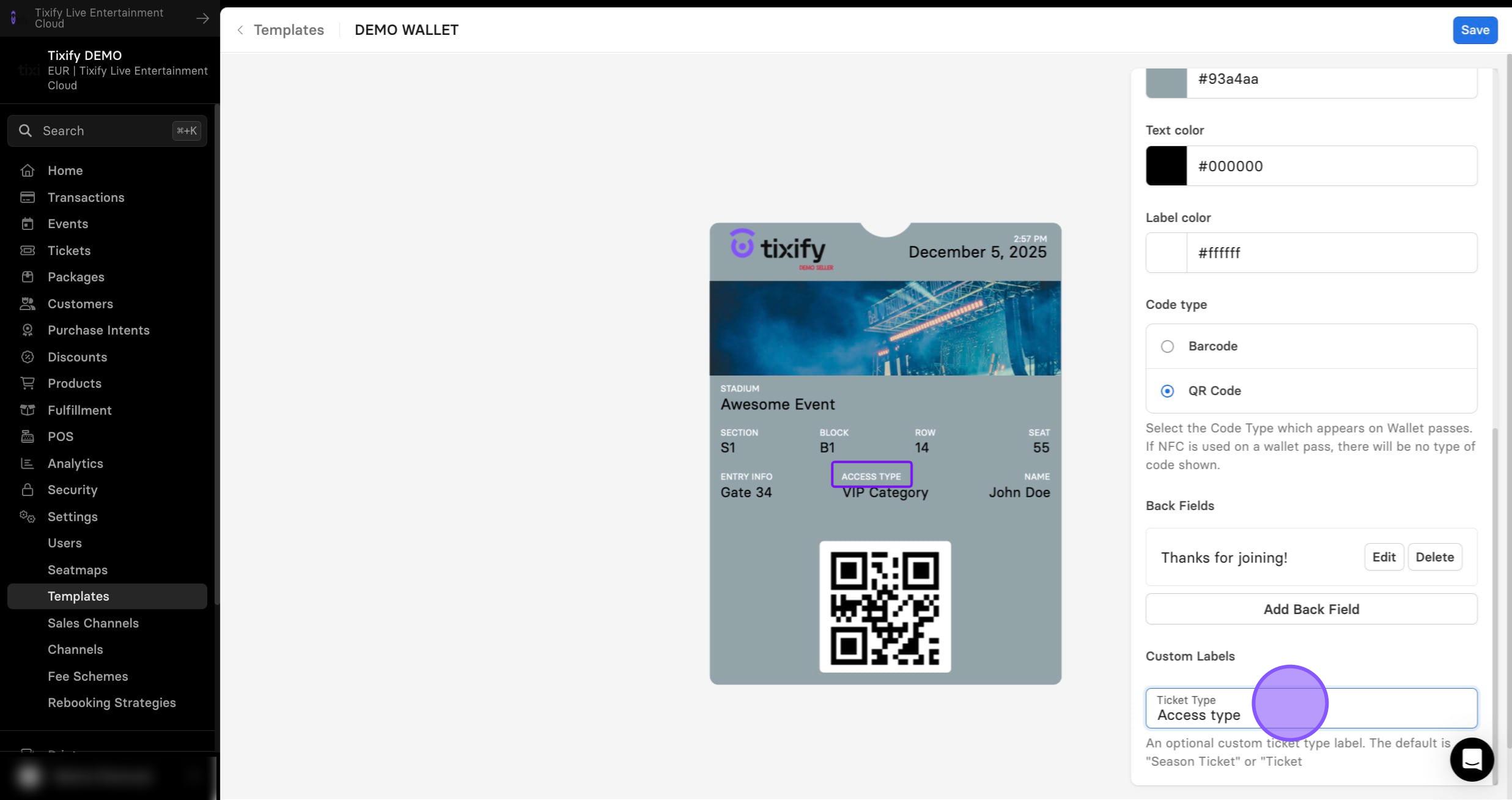
12: Lastly, you can customize the ticket type label.
13: Click on "Save"
Note: The settings mentioned above can only be configured at the organizer level and will apply to all tickets and events. For individual customization, you can use the ticket image.
The ticket image can be customized in the event settings through the ticket design. The image set here will apply to all tickets generated for the event. If you want a different image for specific ticket types, it can be overridden in the ticket type settings.
If no ticket image is selected, the event image will be used automatically.
Note: The dimensions of the Apple Wallet image depend on the screen size. Accordingly, it may happen that the ticket image is cut off.