How do I customize event page?
Each event you create comes with its own event page. You can use it to provide information for ticket buyers, add images, and further promote your event. While the page follows a consistent structure, you can customize it to fit your needs. The ticket checkout is always accessible via a modal integration on the event page.
How to customize event page?
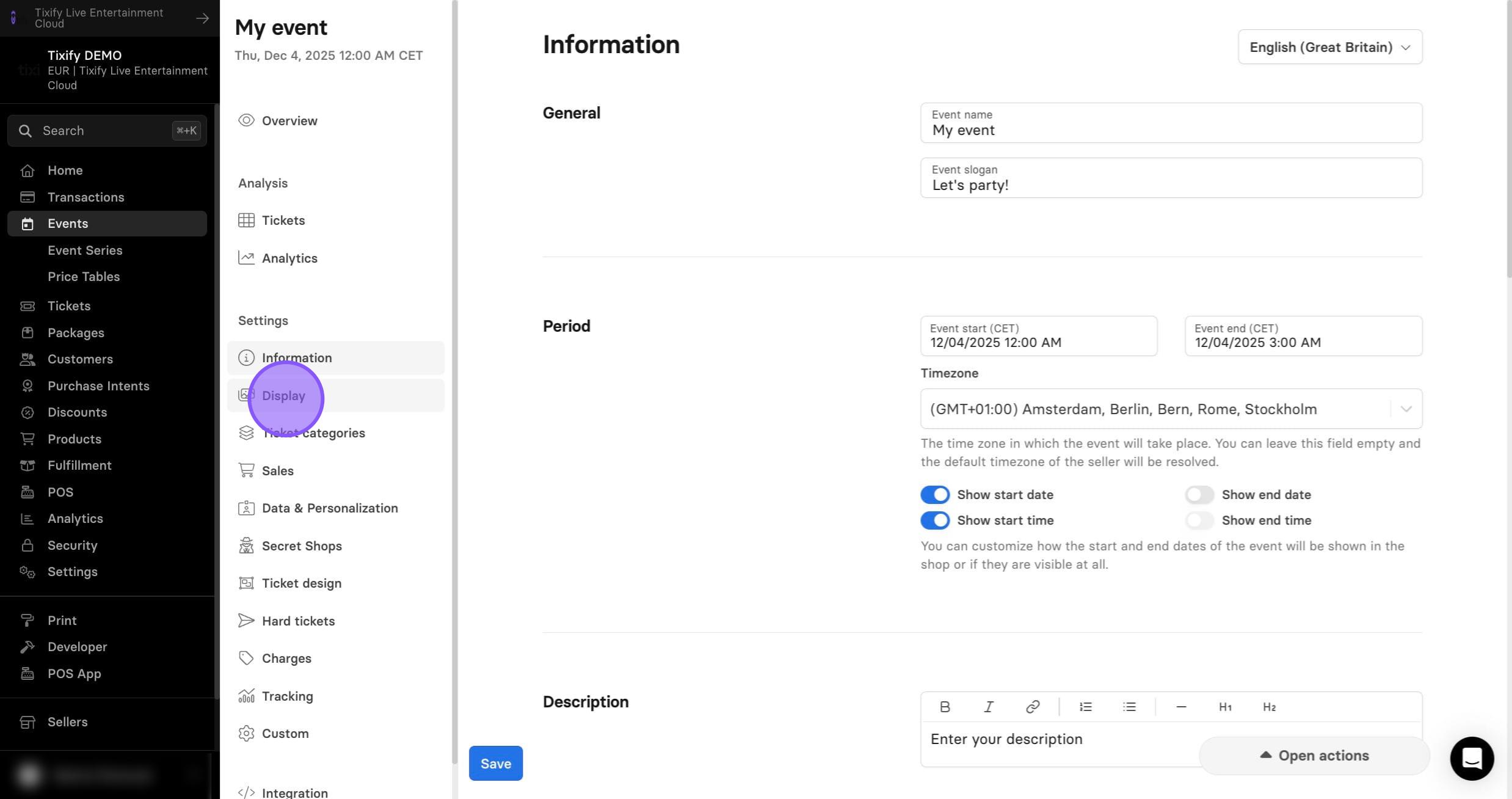
1: Go to "Display"
Design
1: Here you can change your event logo.
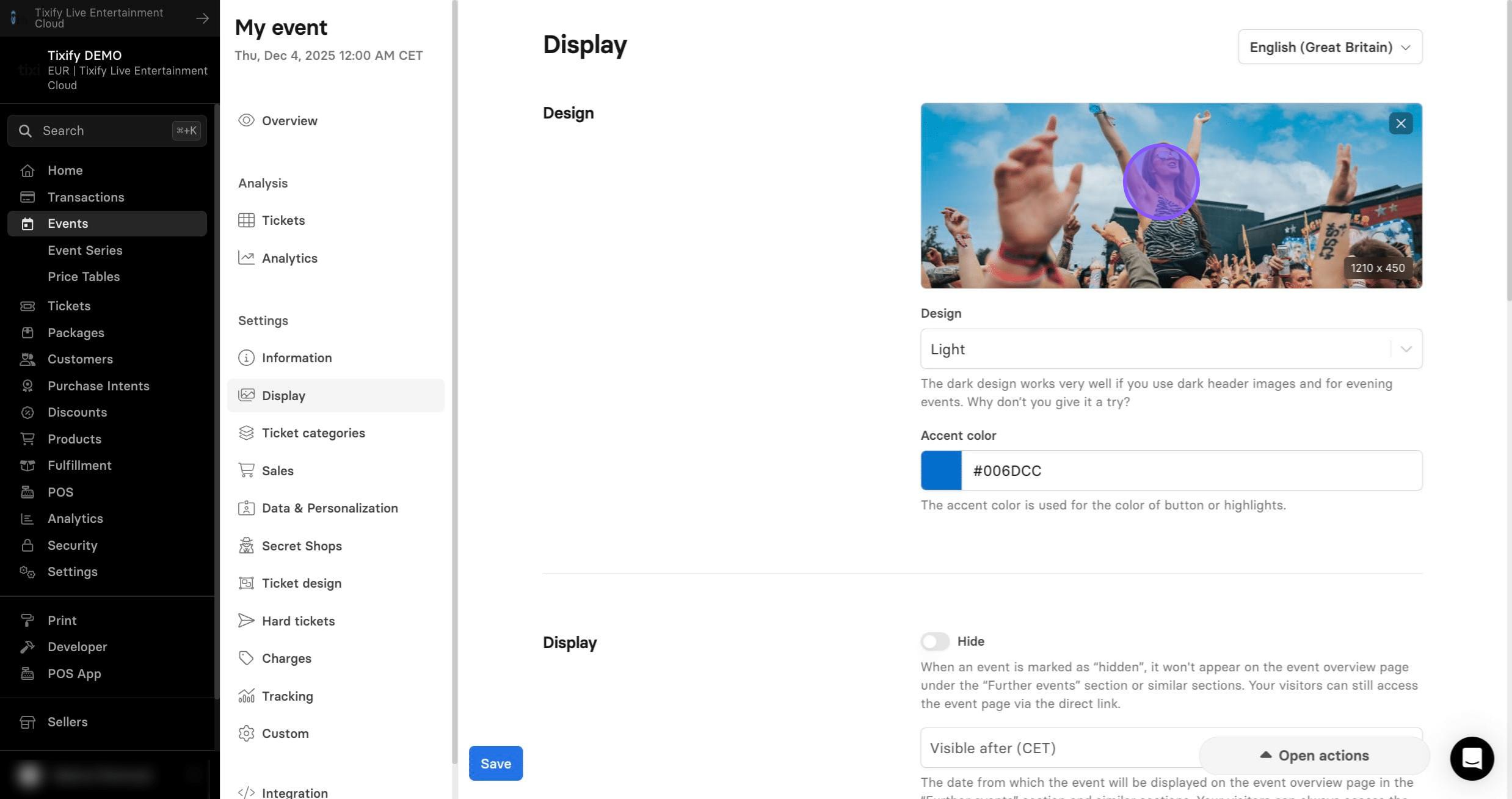
2: Select the design depending on your preference.
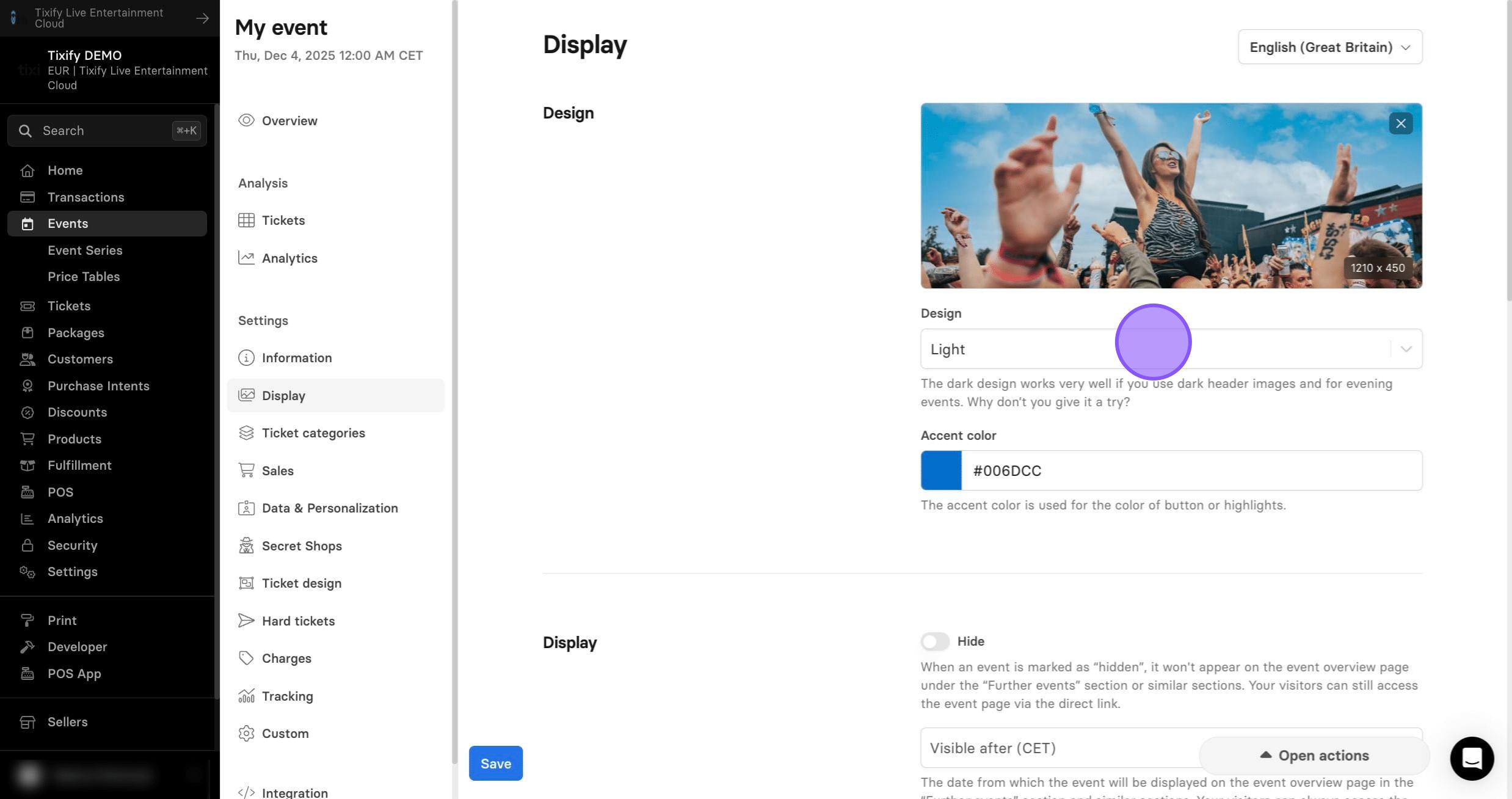
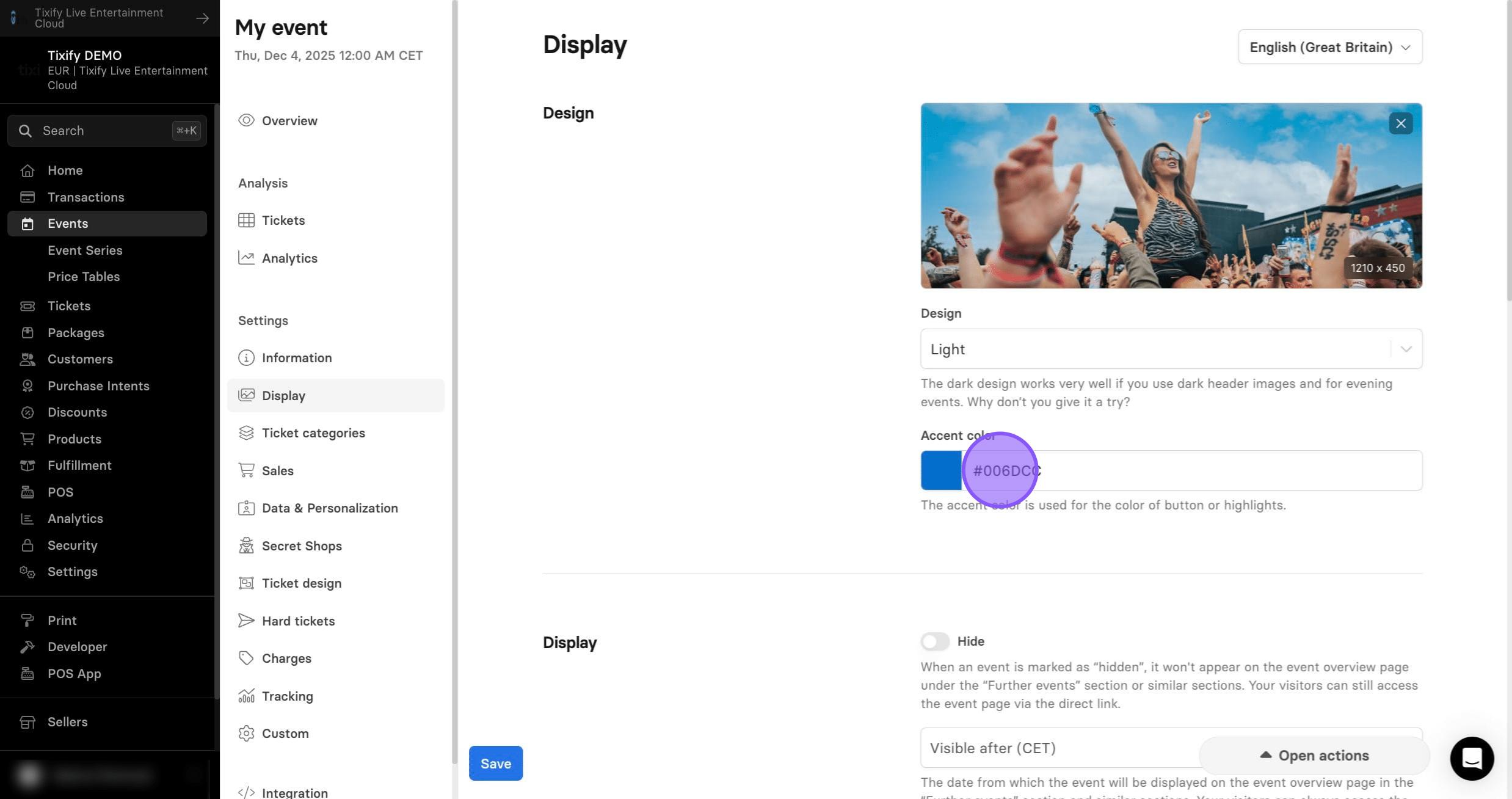
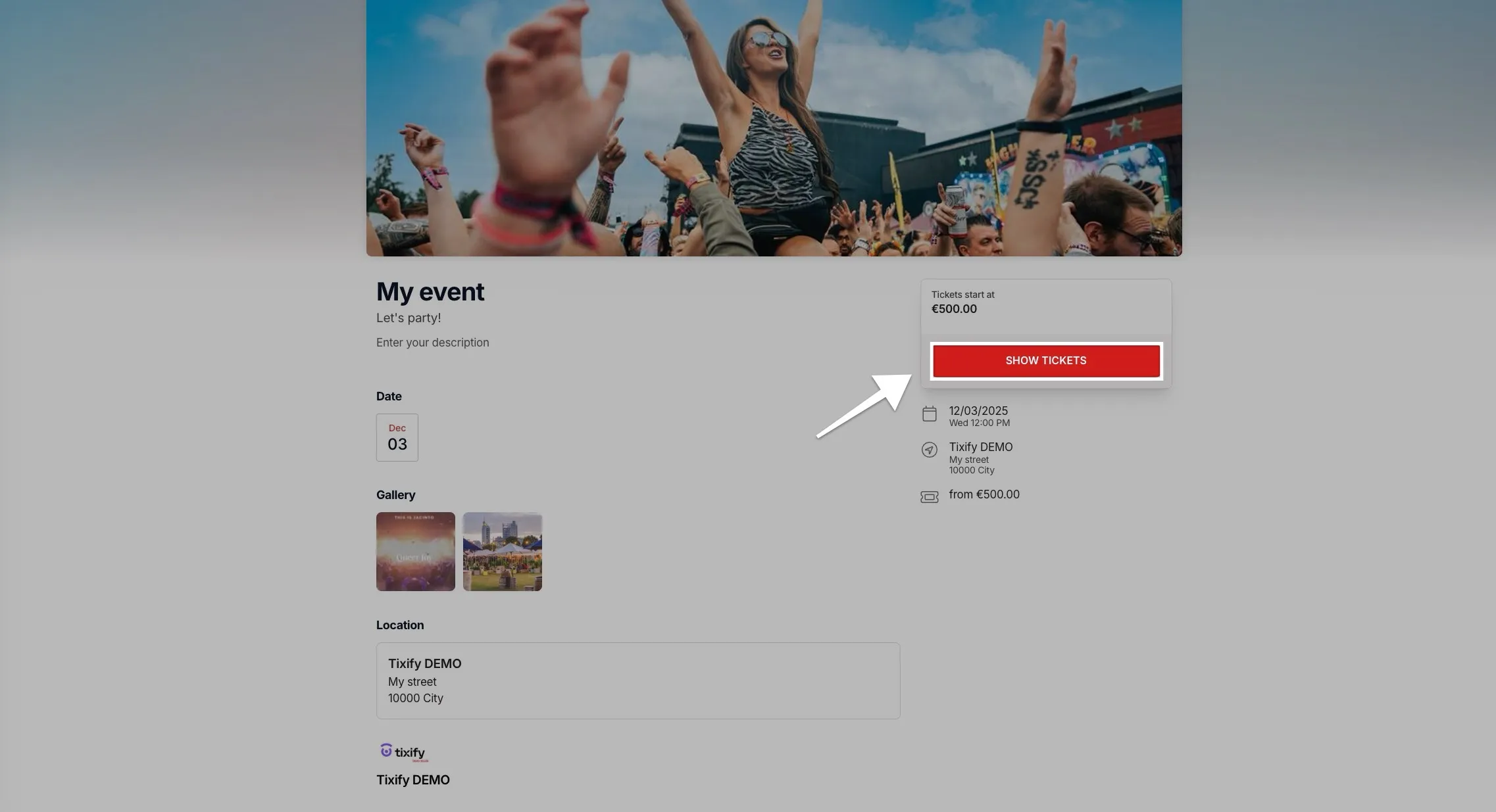
3: Select accent color. This color will be reflected in the ticket button or when highlighting tickets.
Display
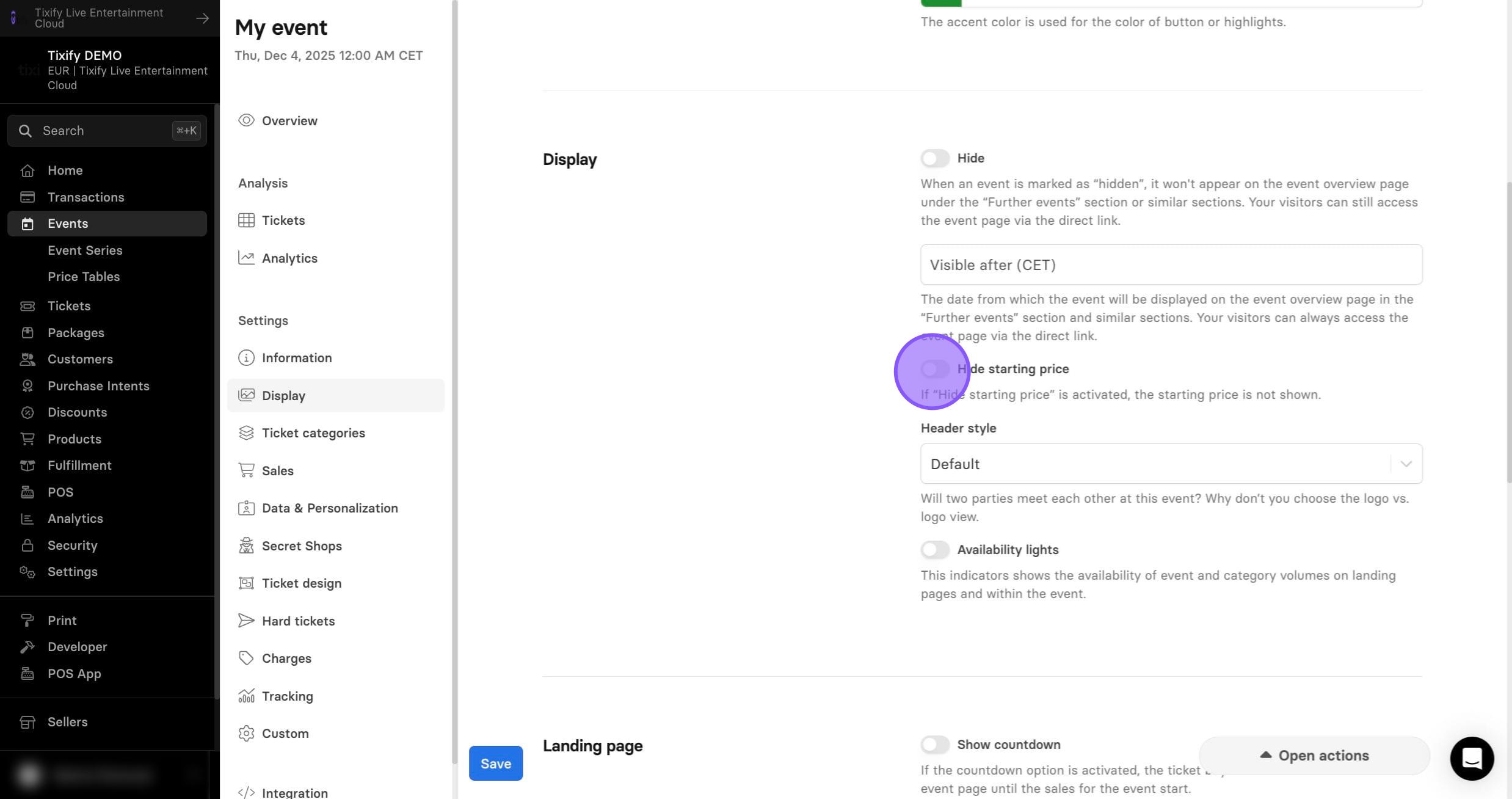
1: Hiding an event will remove it from your shop or selected sections, but customers can still access it via a shared link.
You can also schedule when your event becomes visible in the shop. This is useful, for example, to offer tickets to a select group of customers or to start a pre-sale.
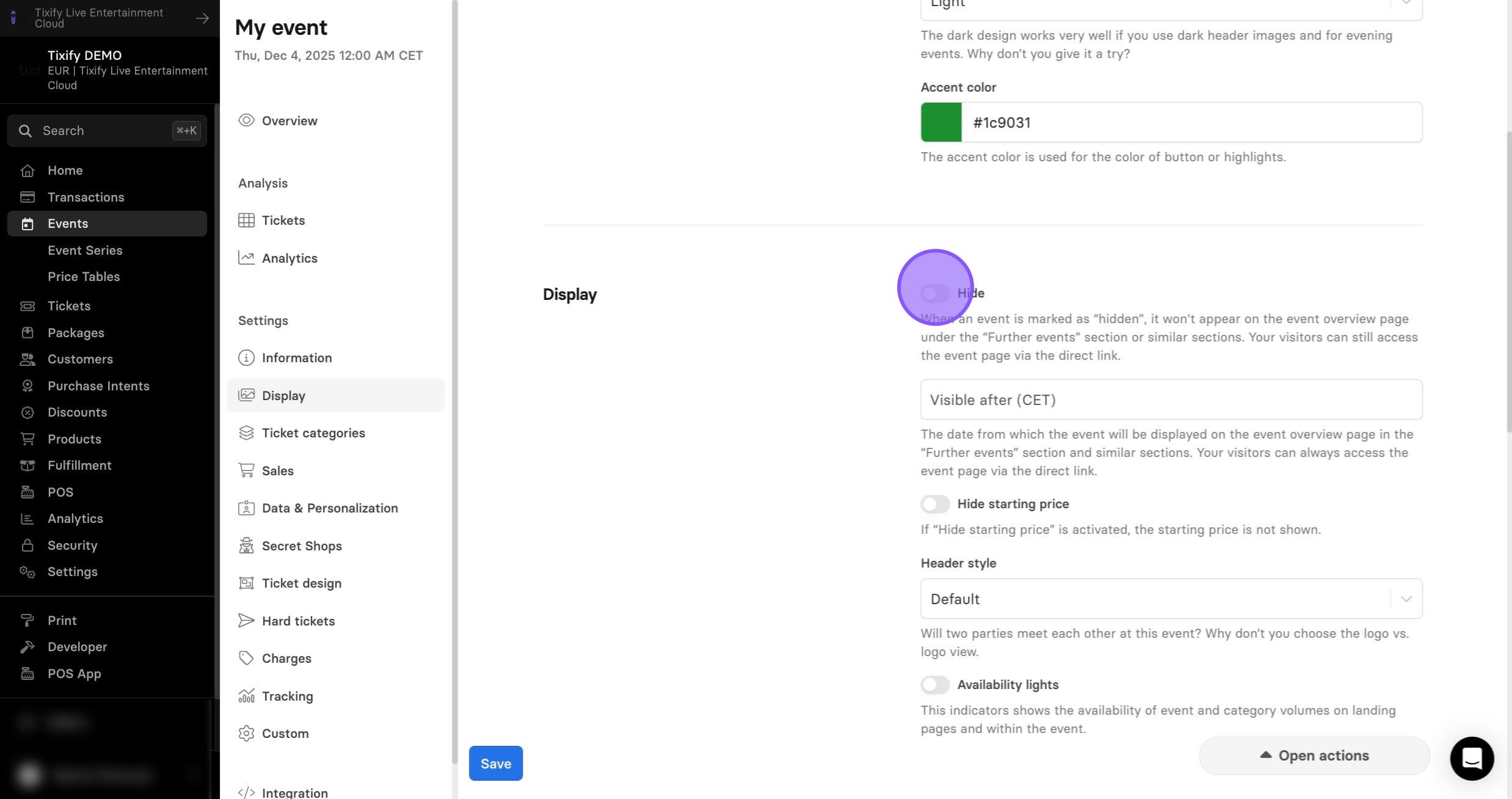
2: Starting Price refers to the lowest price among all tickets for the event, similar to “Buy from XXX amount.” You can choose to show or hide this price at any time.
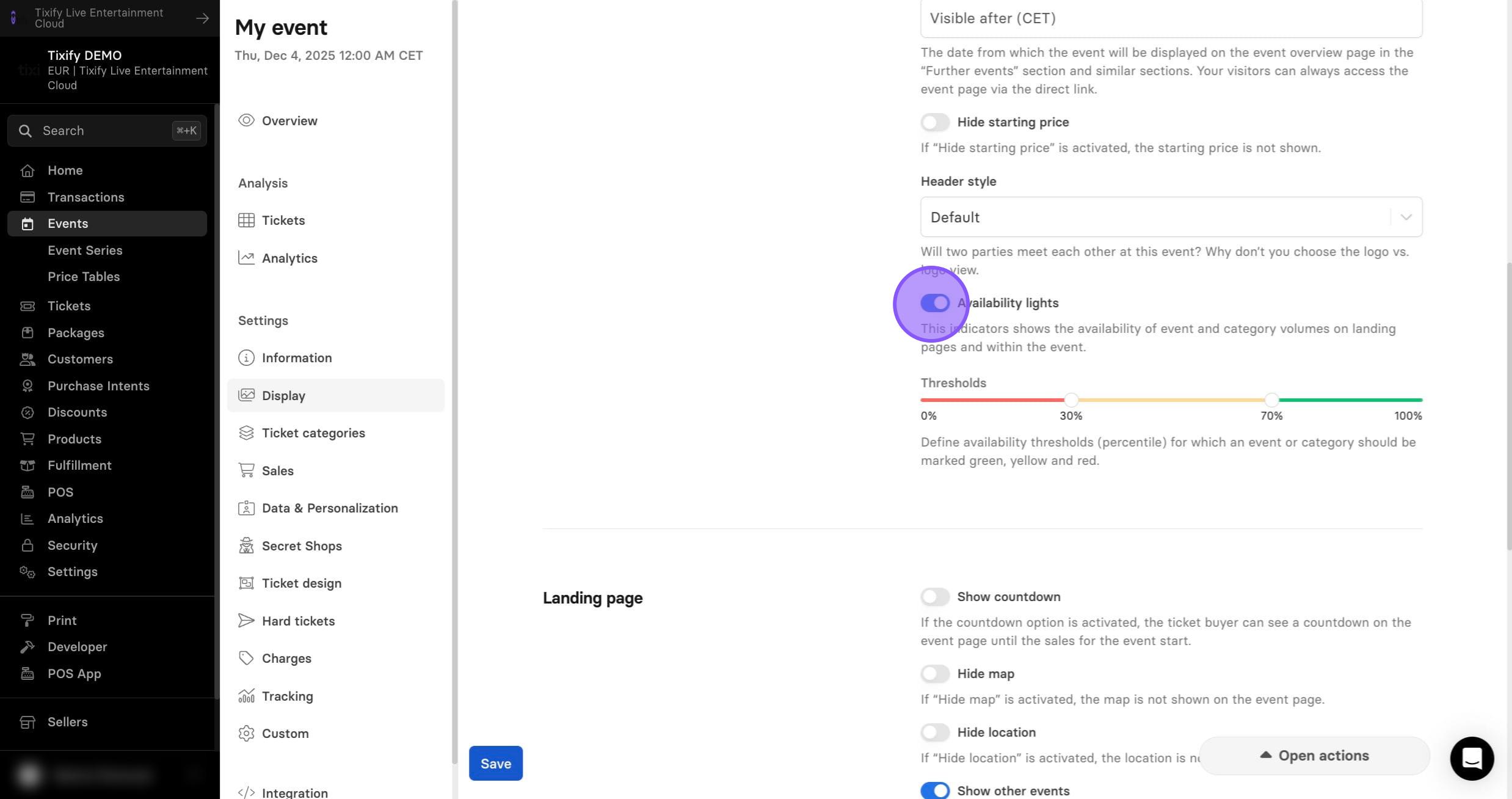
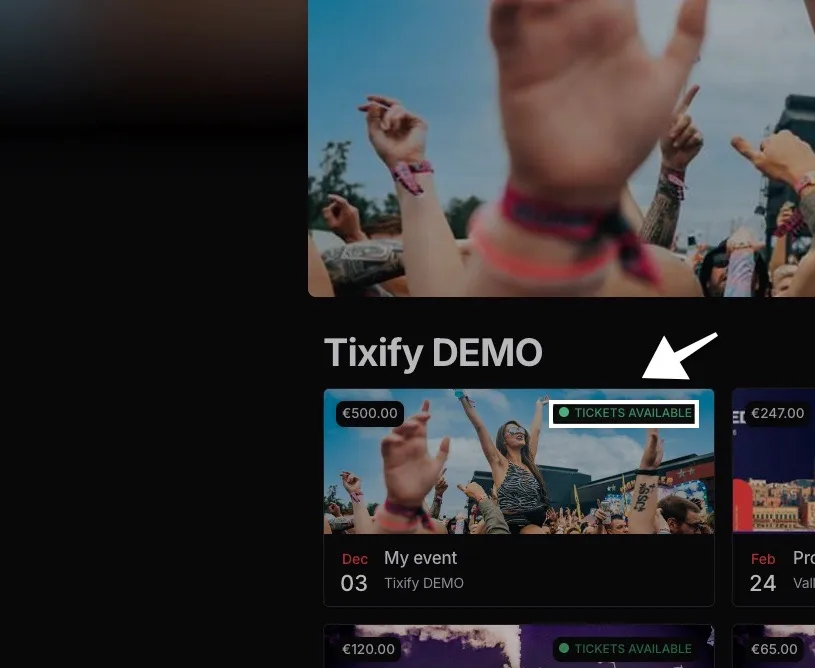
3: Availability lights allows you to determine how many tickets are still available in the shop. You can determine at which percentage of availability green, yellow or red should be marked.
Landing Page
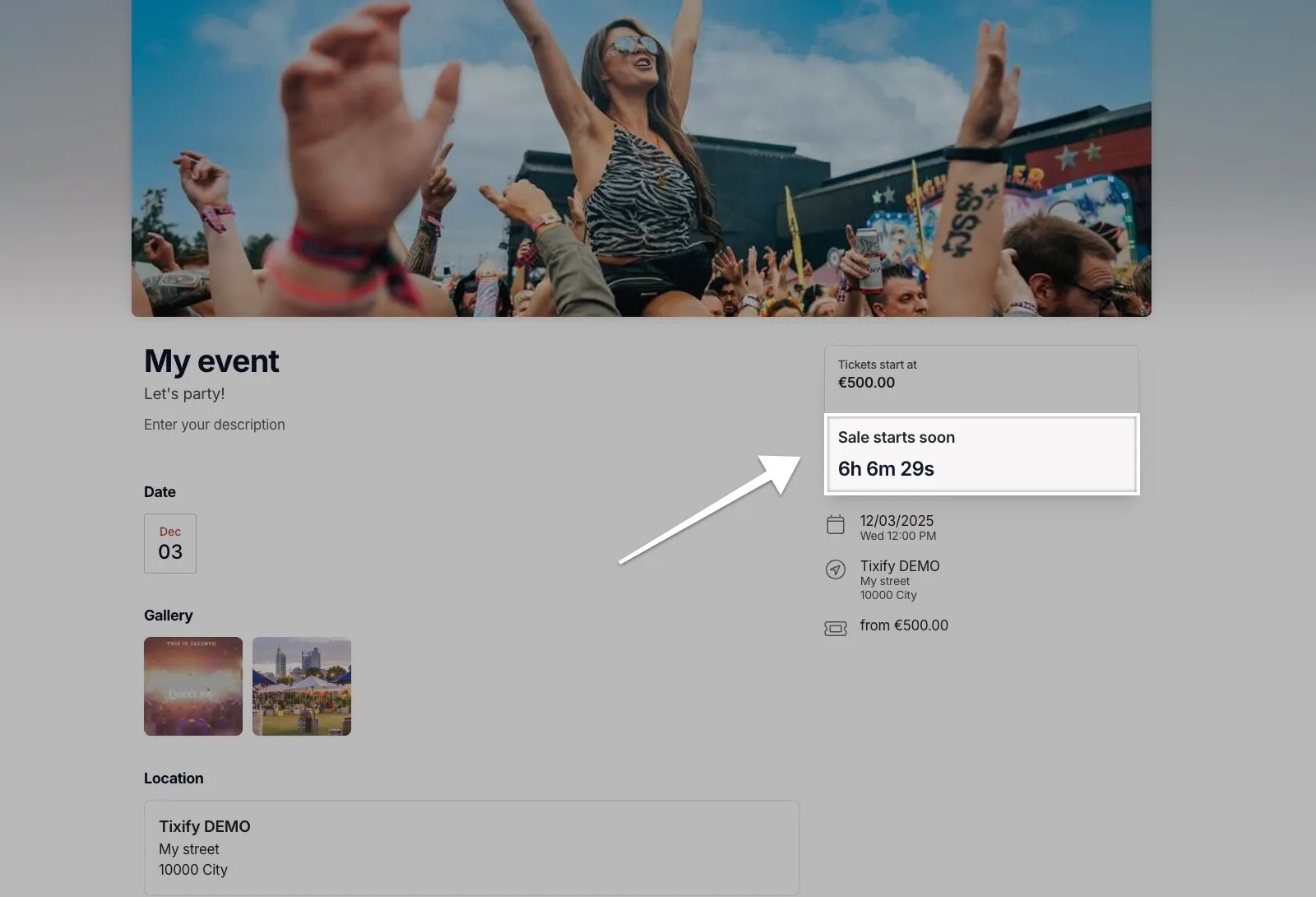
1: The Countdown on the event page shows how much time is left until ticket sales open.
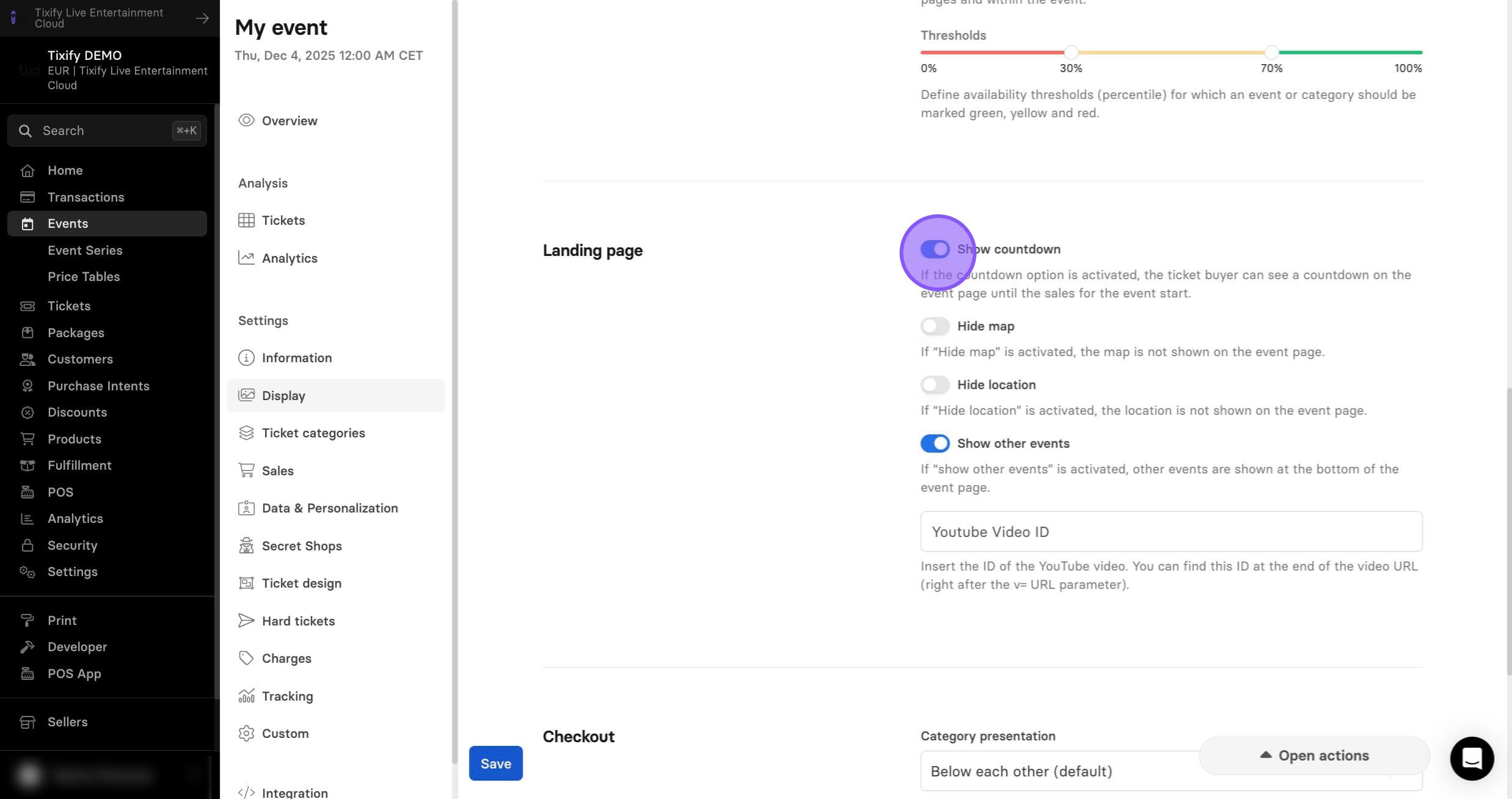
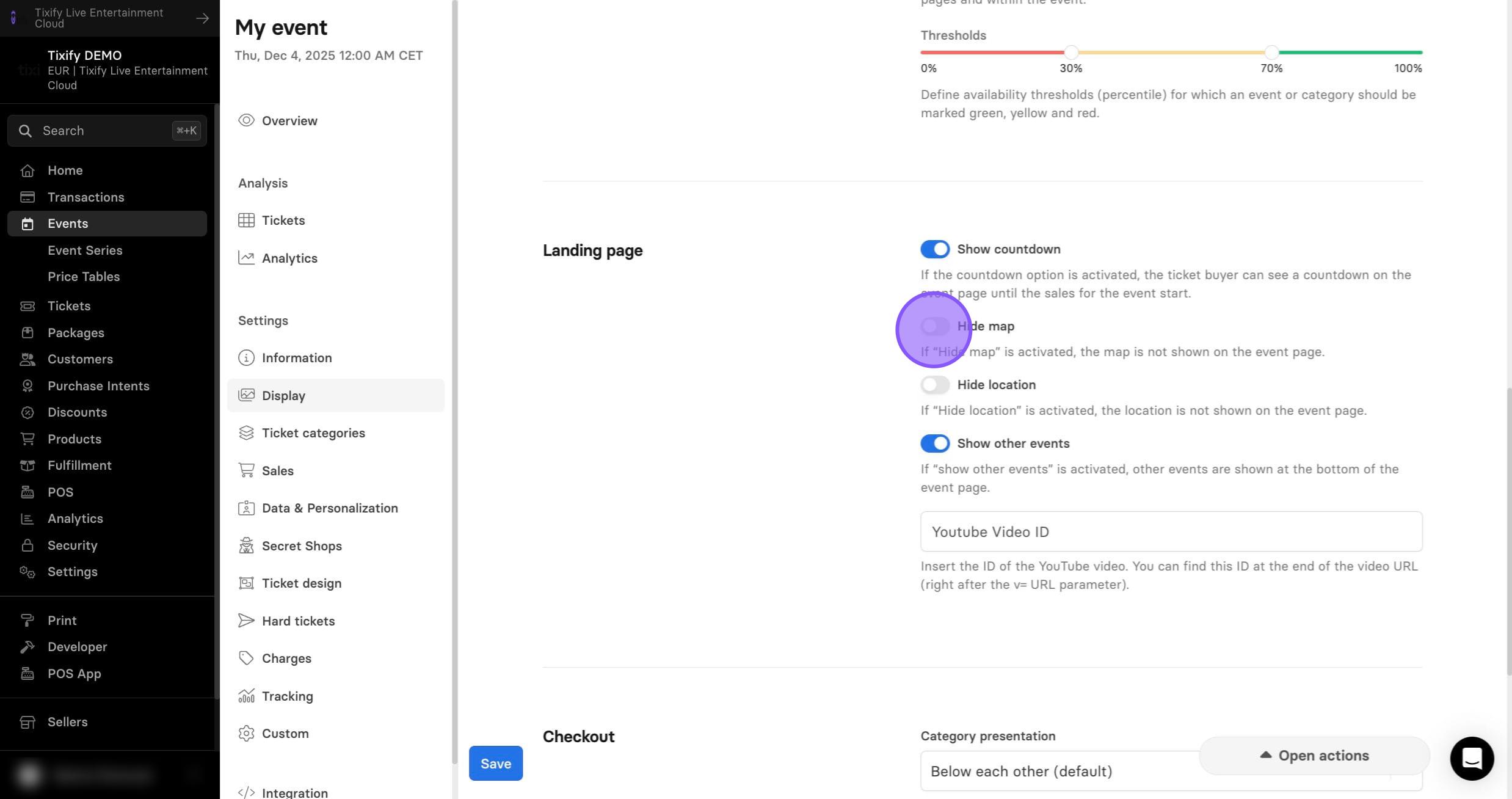
2: Hide map or hide location will hide this information from the event page.
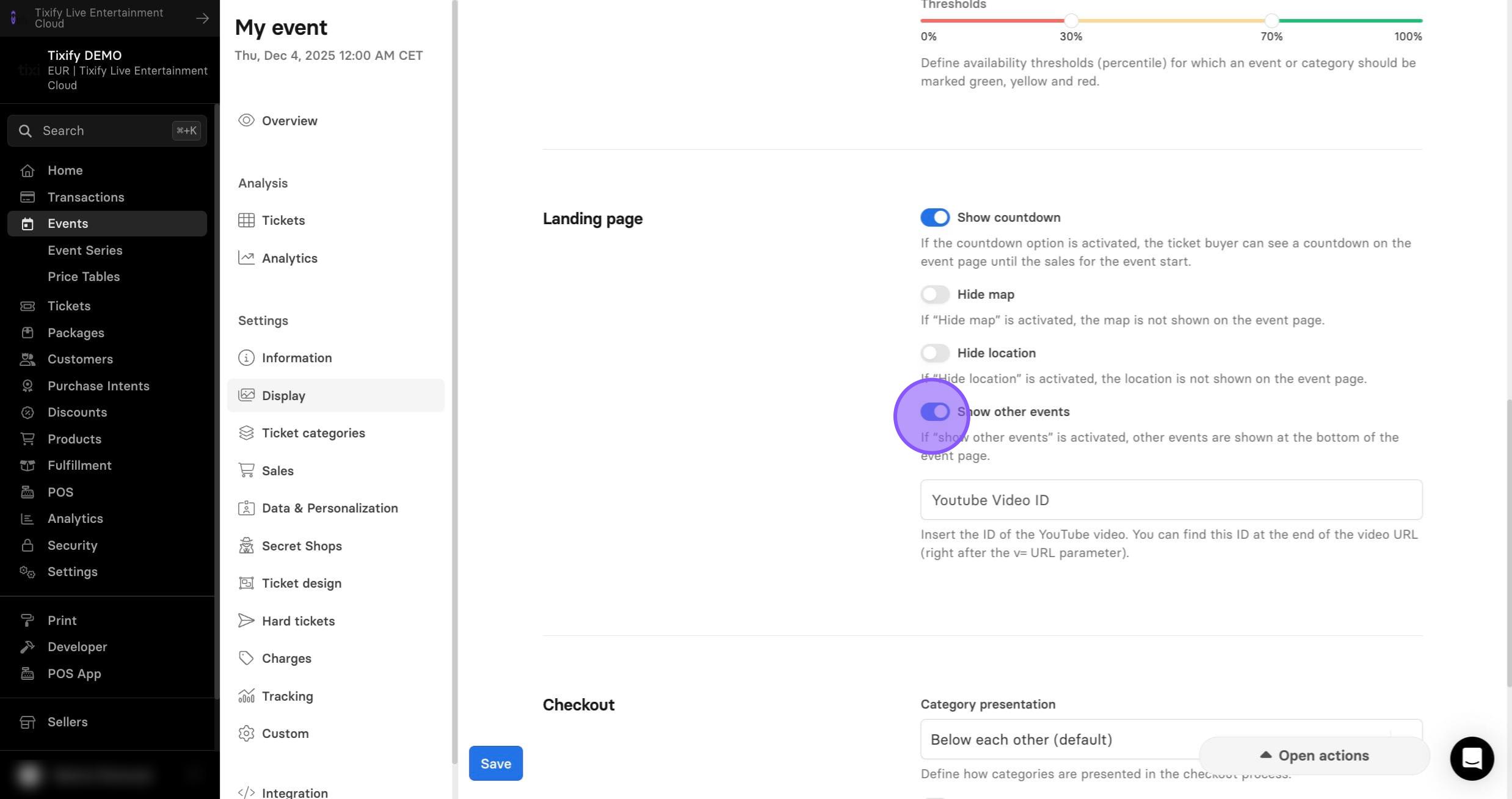
3: All events you offer that are not hidden appear in the footer of the event page and on the order confirmation page. If needed, you can deactivate this display.


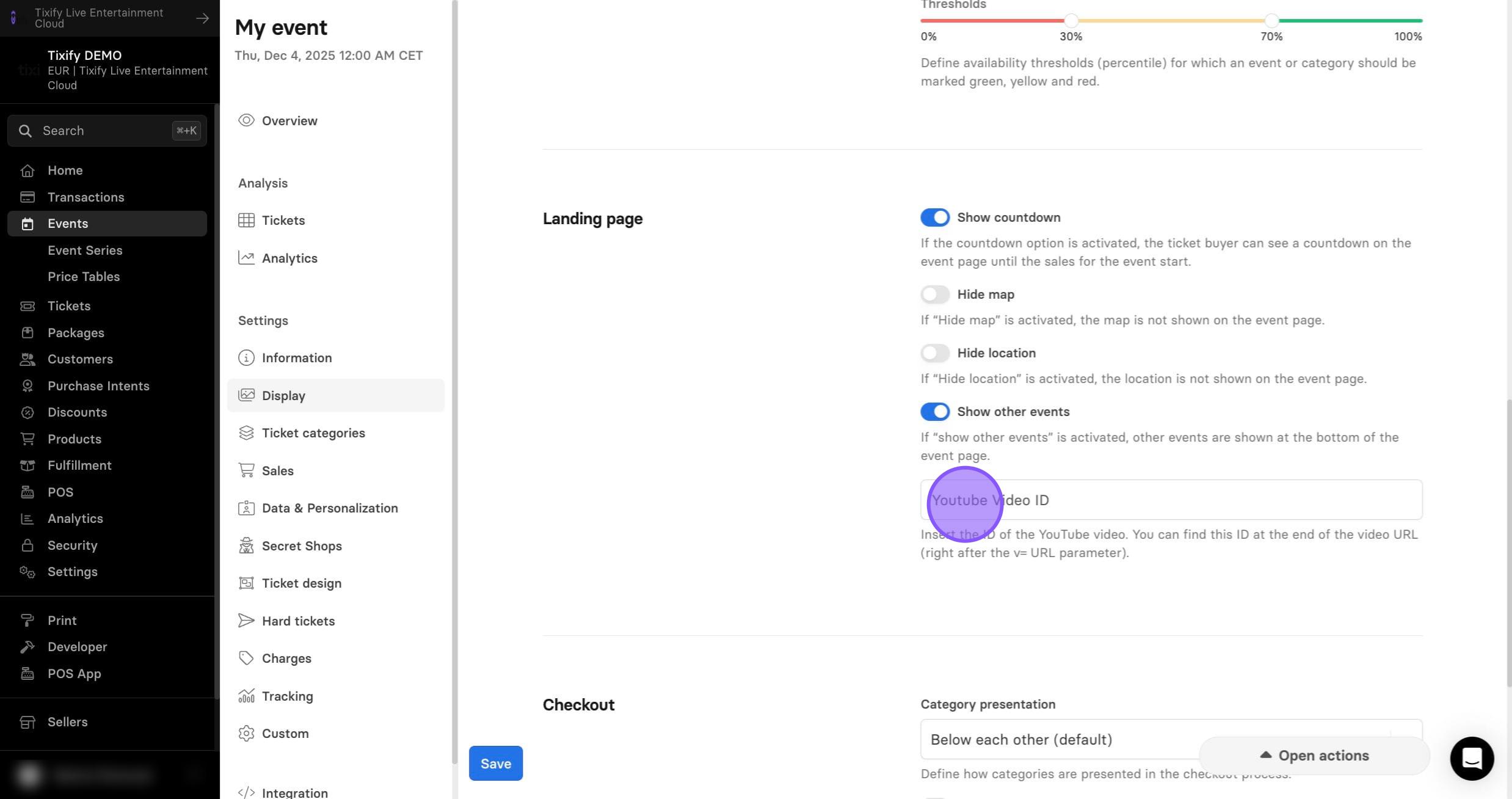
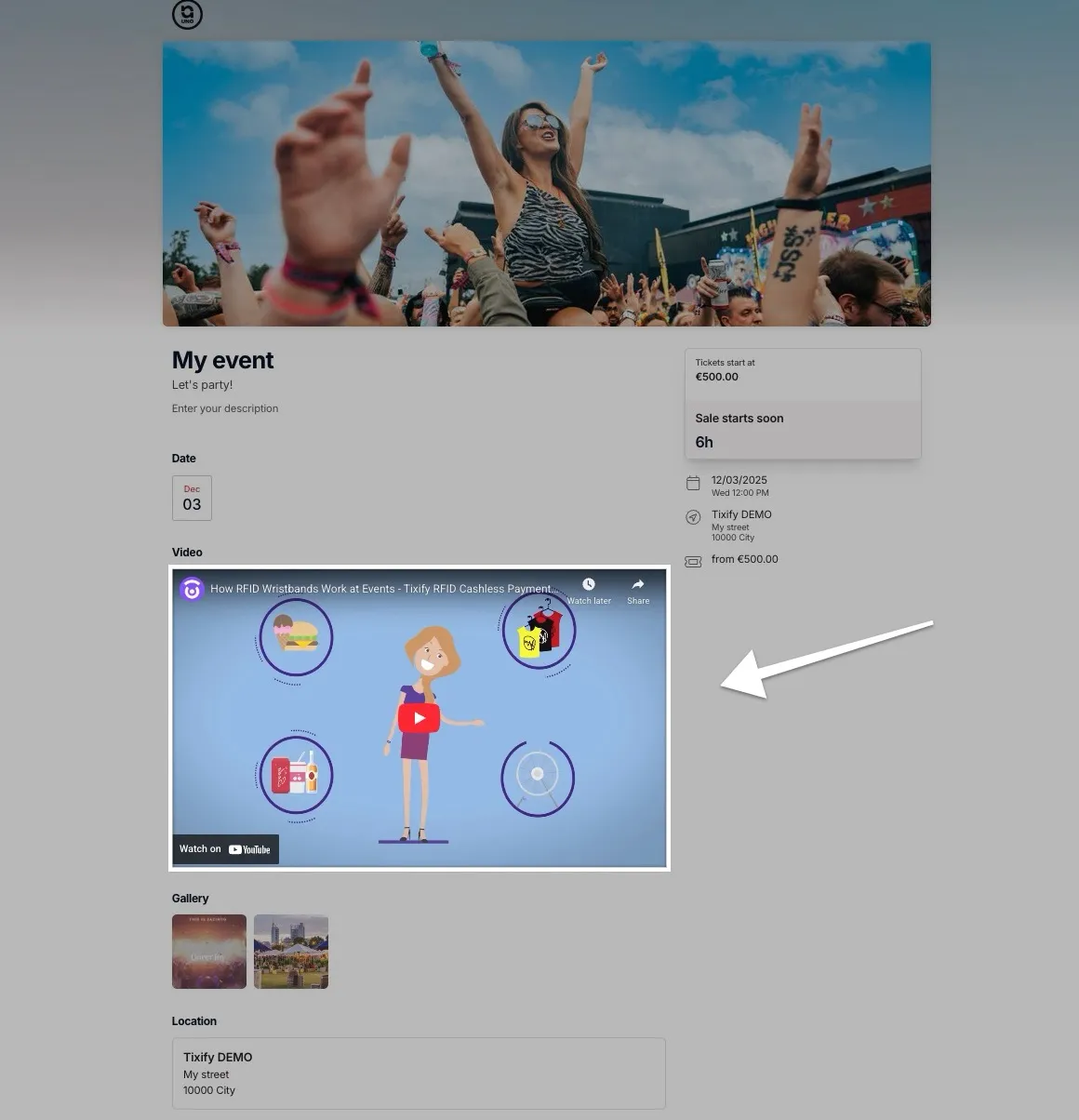
4: Additionally you can add video of your event to the event page for better visual representation.
Checkout
1: Category Presentation allows you to select how your tickets are displayed. Ticket categories can be displayed one below the other, as boxes or as tabs. If you use several ticket categories without a seatmap, the box and tab view is particular suitable.
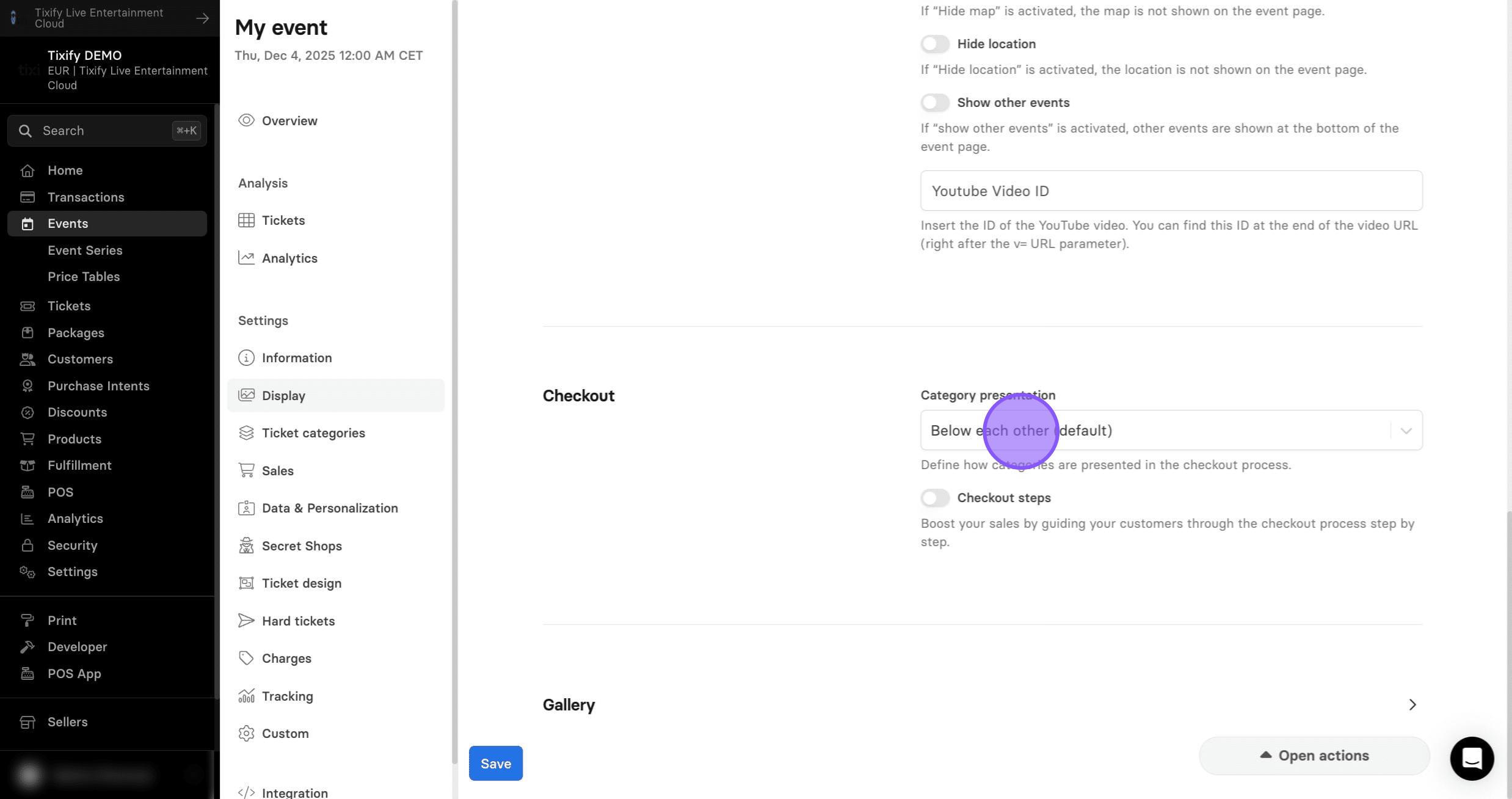
Note! Category presentation is not available in the seatmap mode due to different settings.
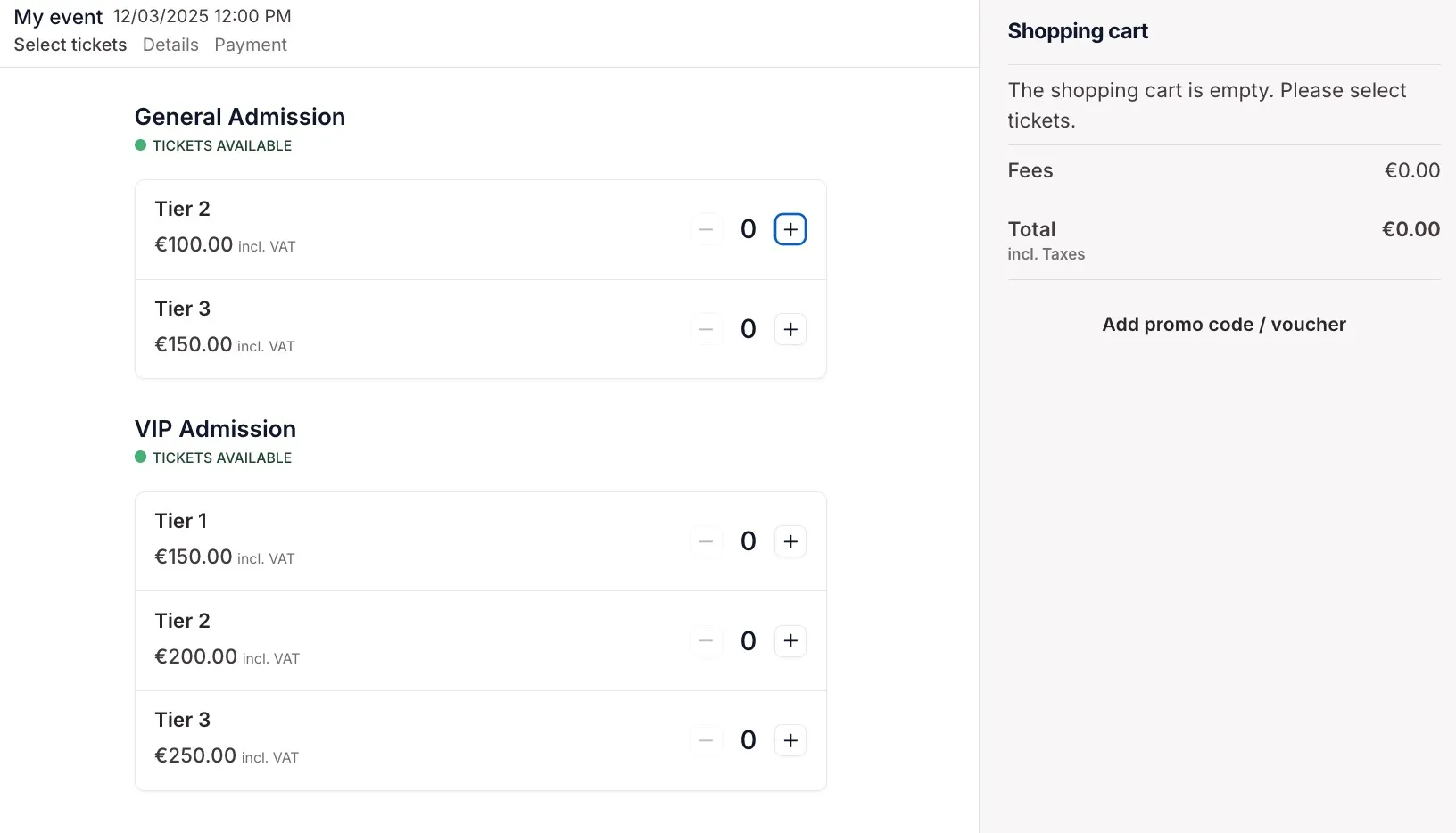
Below each other
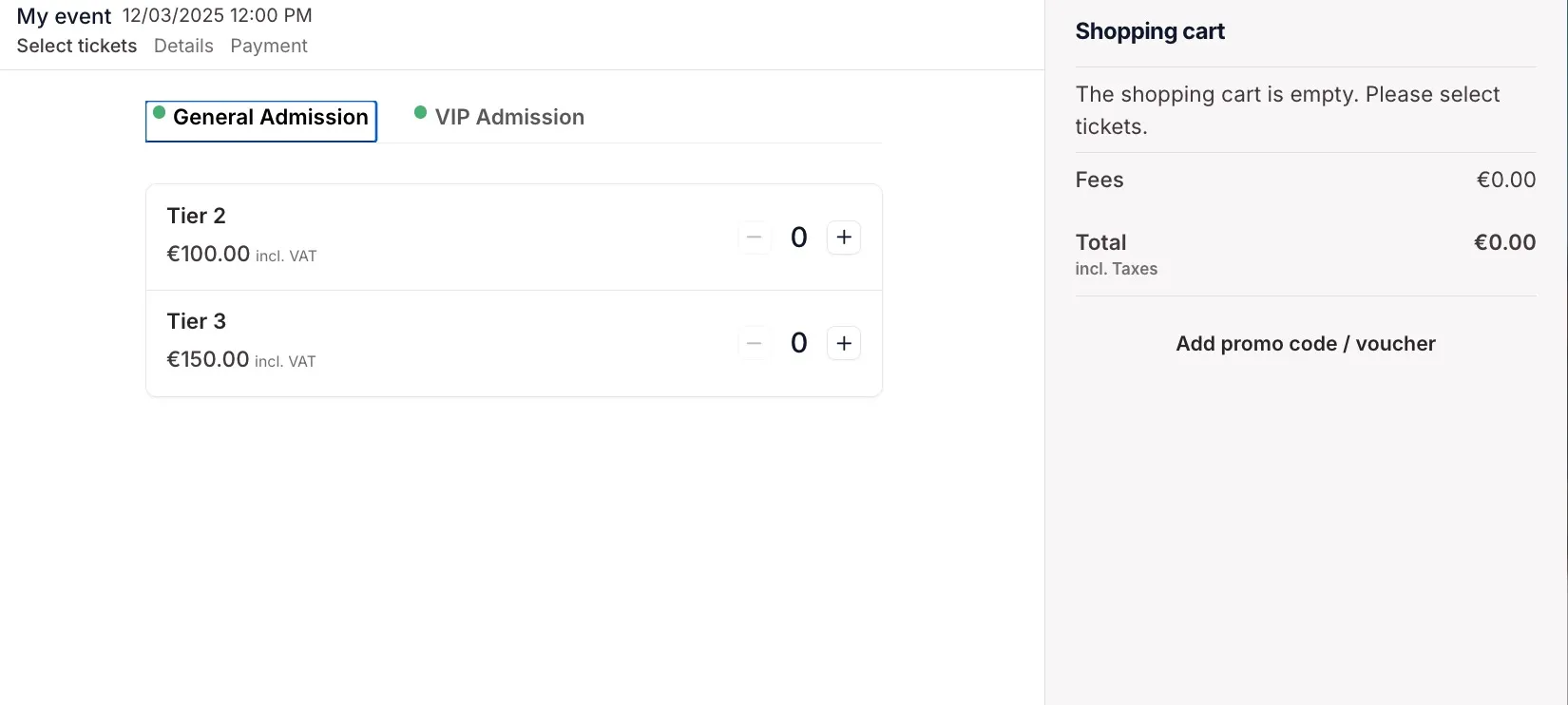
Tabs
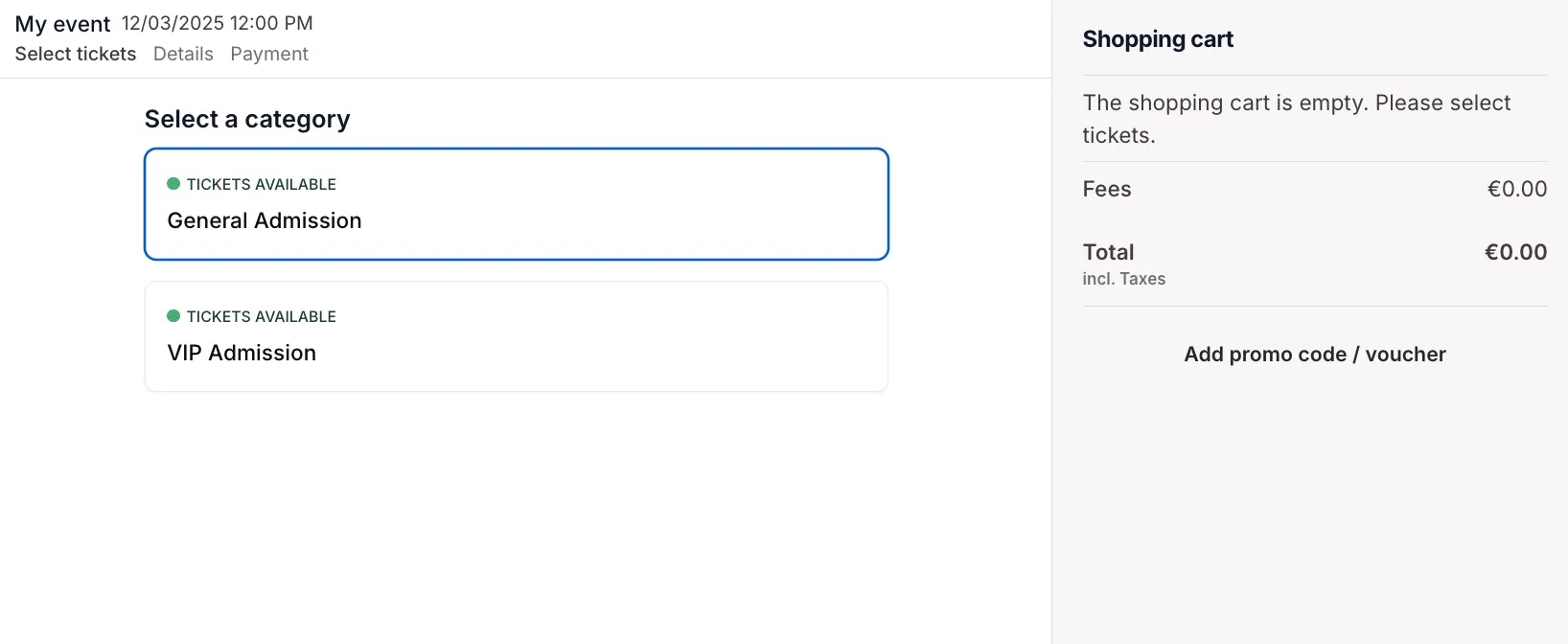
Boxes
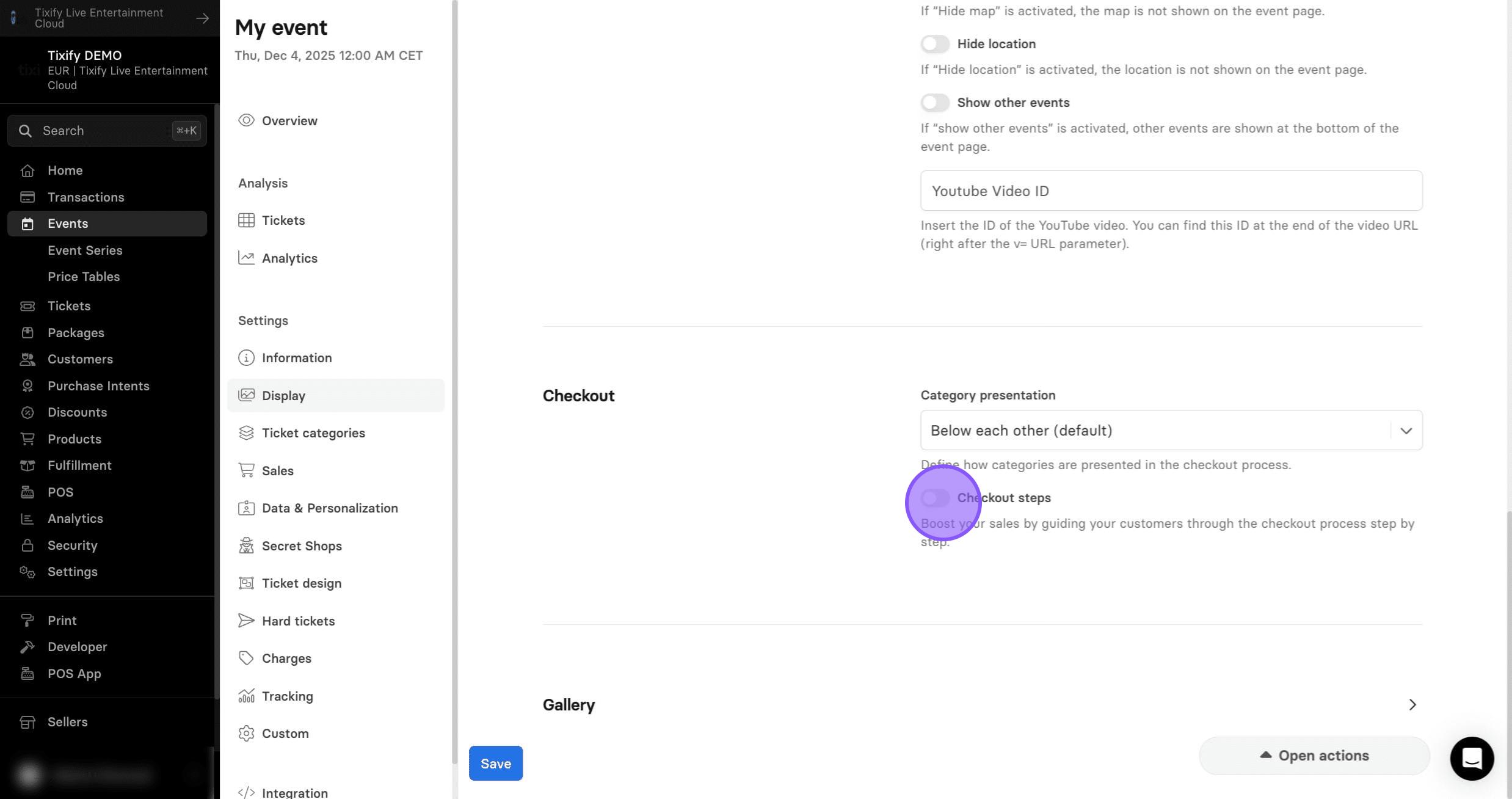
2: Checkout Steps allow you to customize the checkout flow and guide customers step by step through the purchase process. This feature gives you the flexibility to design the sales journey exactly as you envision. You can decide which tickets, products, or vouchers are offered at each step, and add descriptive text and images to enhance the experience.
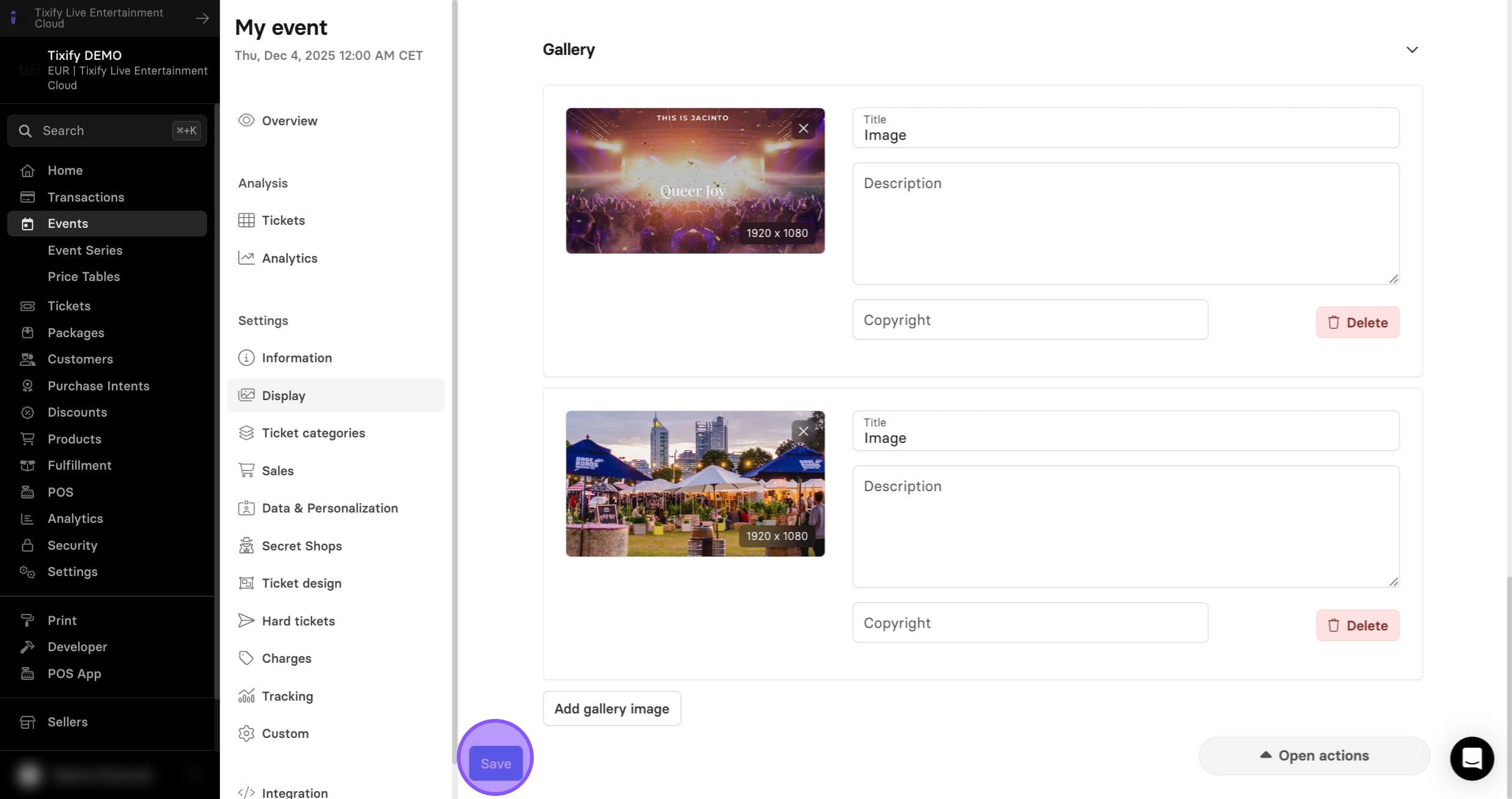
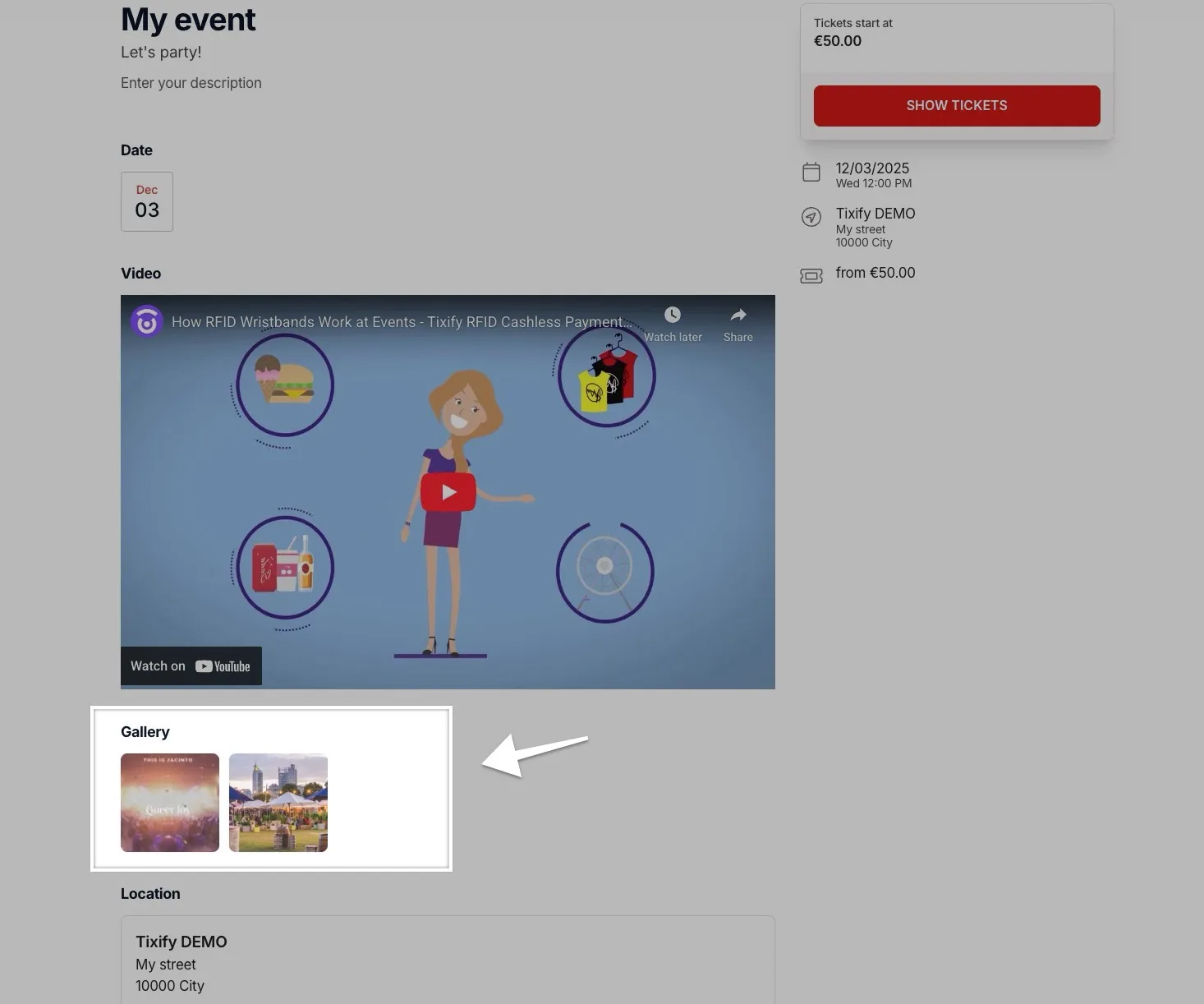
Gallery
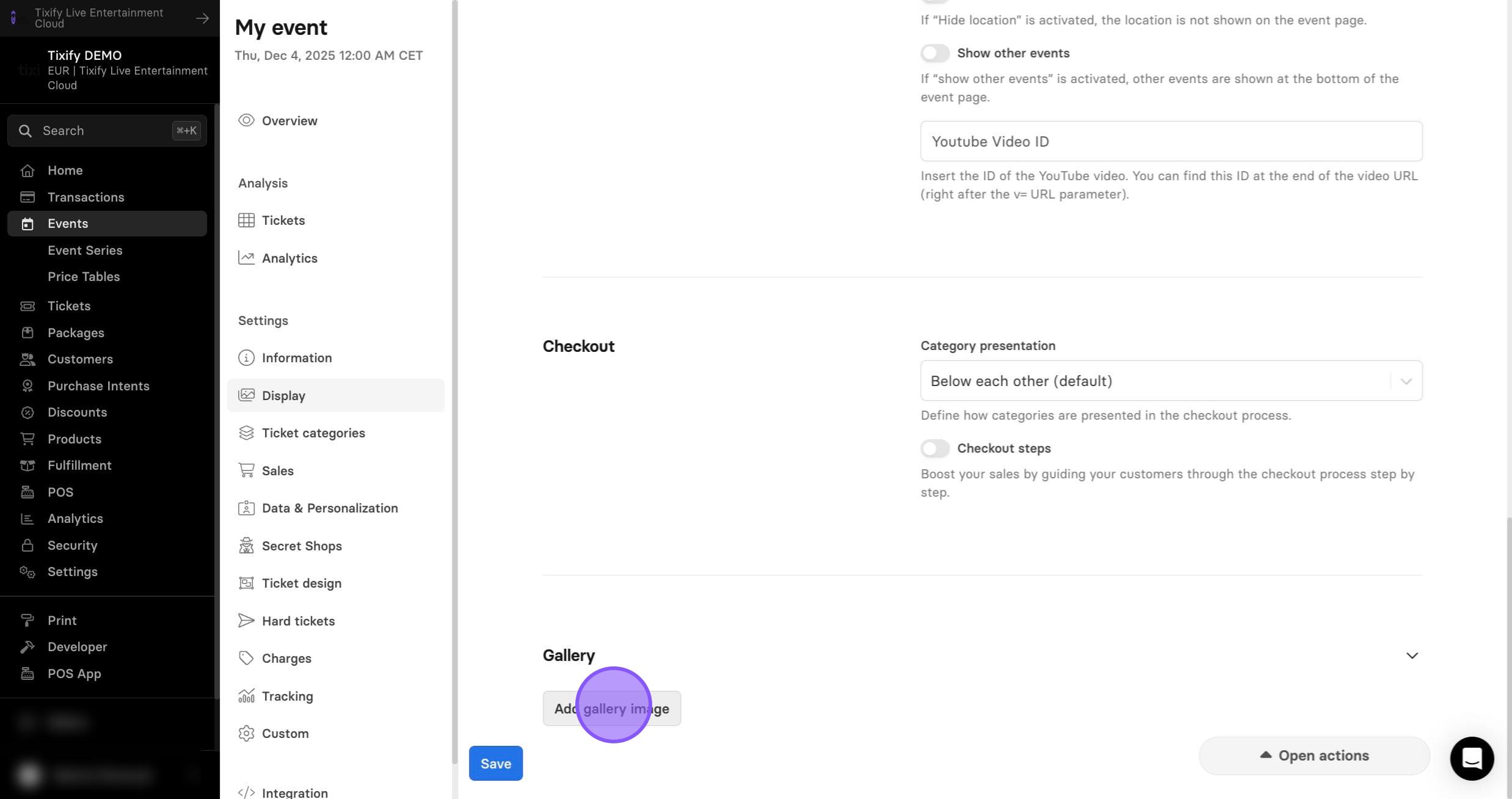
1: You can add images to your event page to enhance its presentation and make it more appealing to potential attendees.
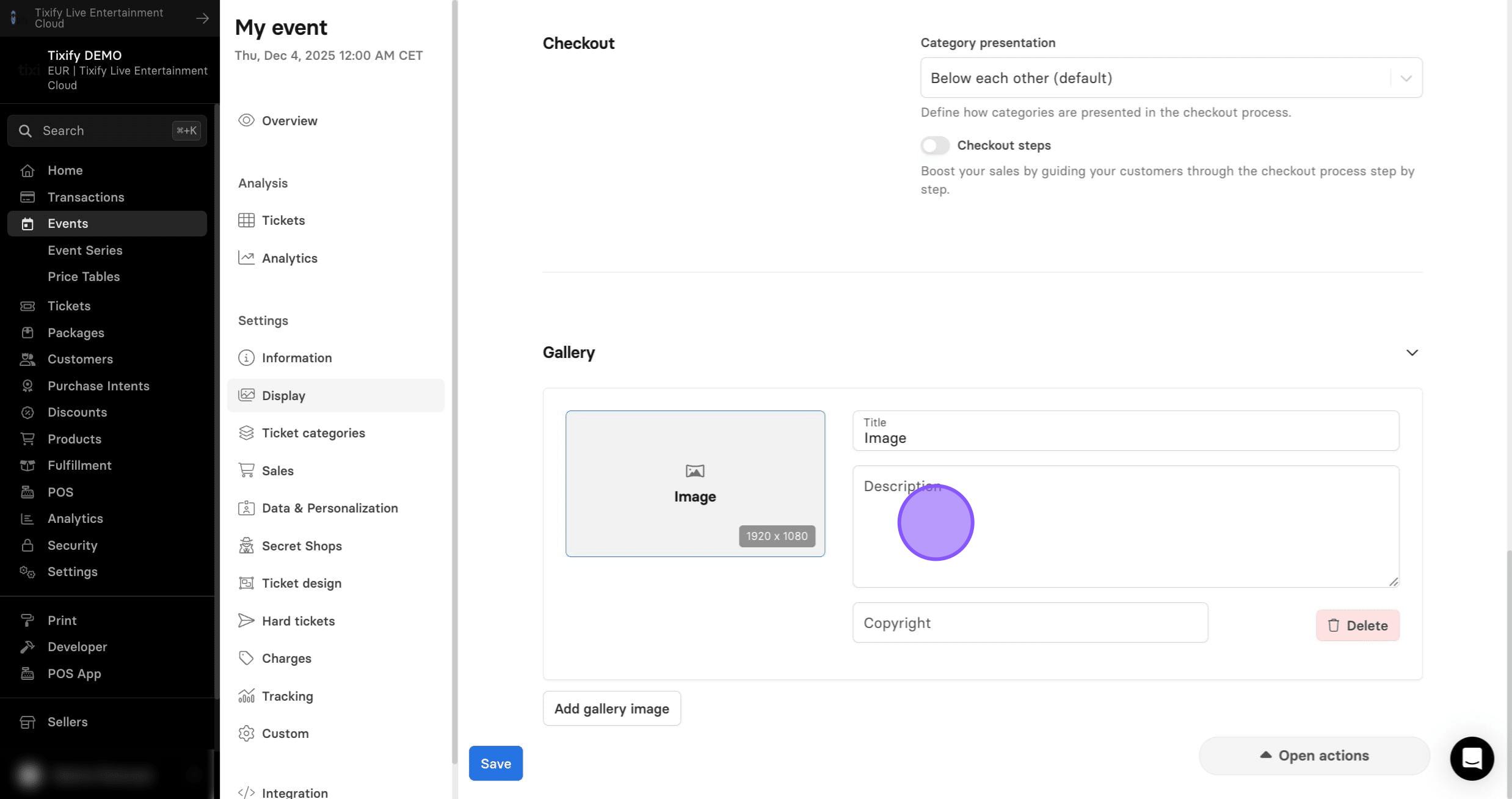
2: Add the image from the gallery, give it name, description and copyright (if applicable).
3: Click on "Save" to apply settings to your event page.
Custom Settings
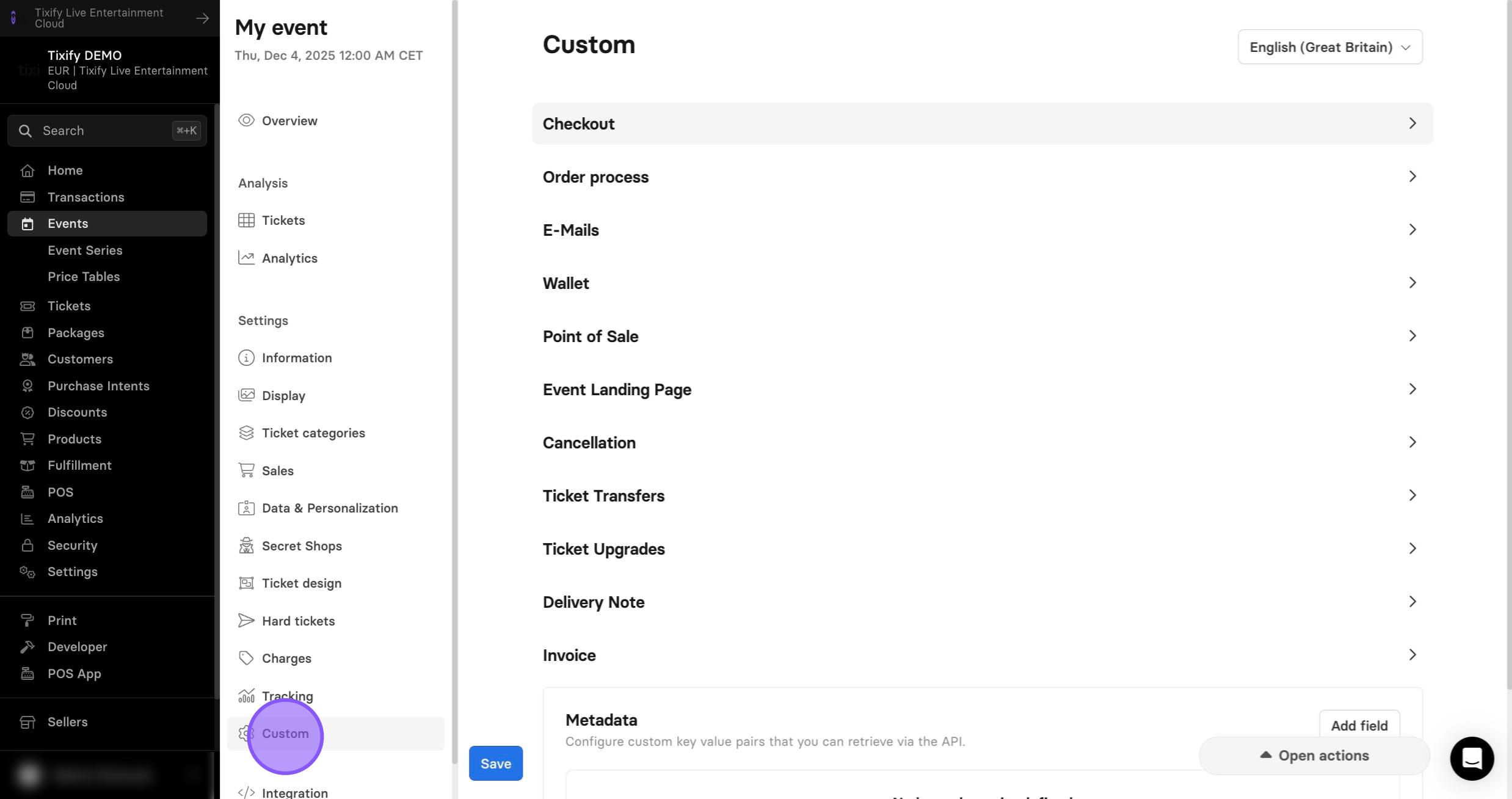
1: If you are happy with your event page, we can stop here. However there are few things that you can customize even further on your event page!
2: Click on "Custom"
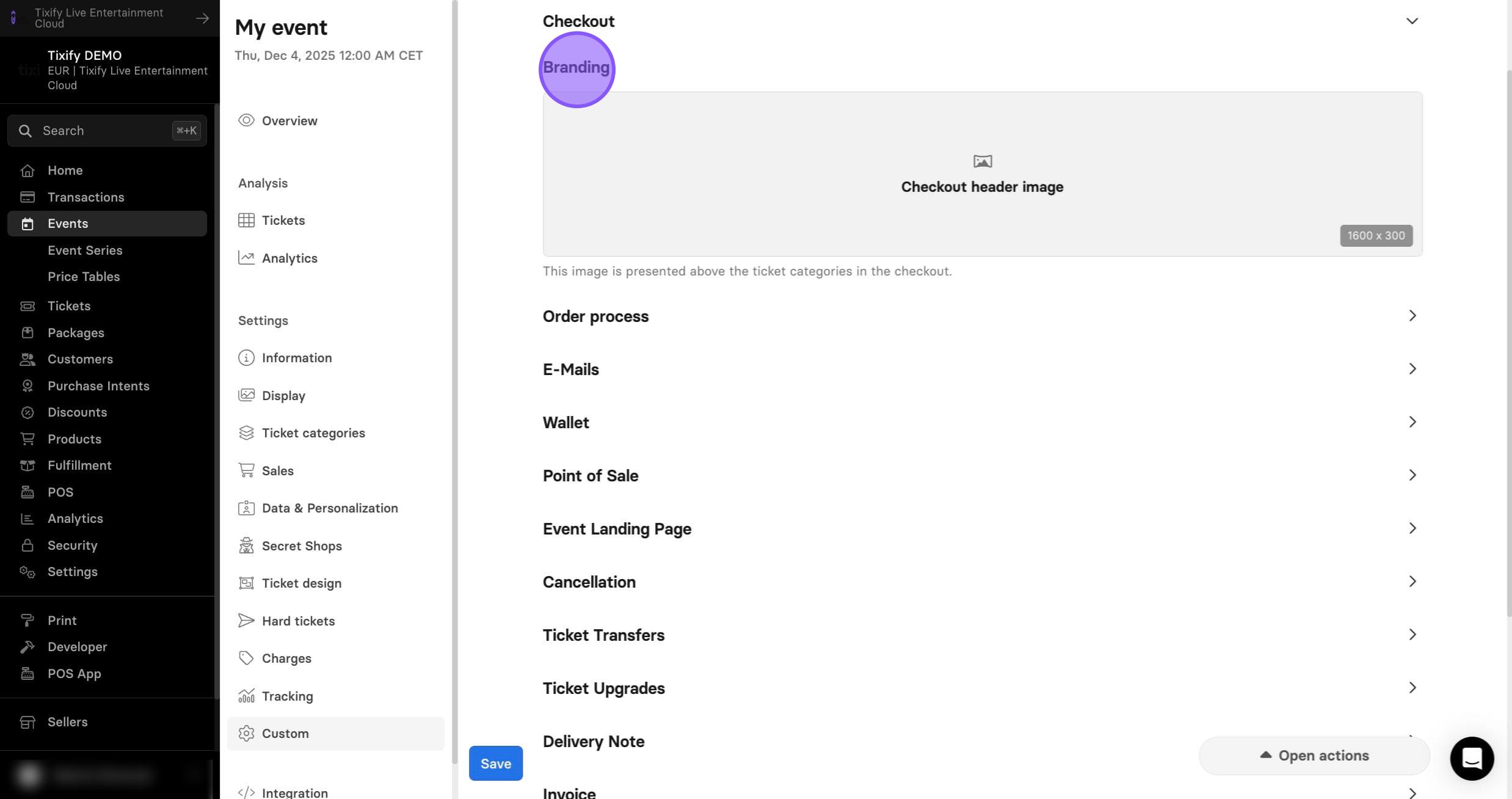
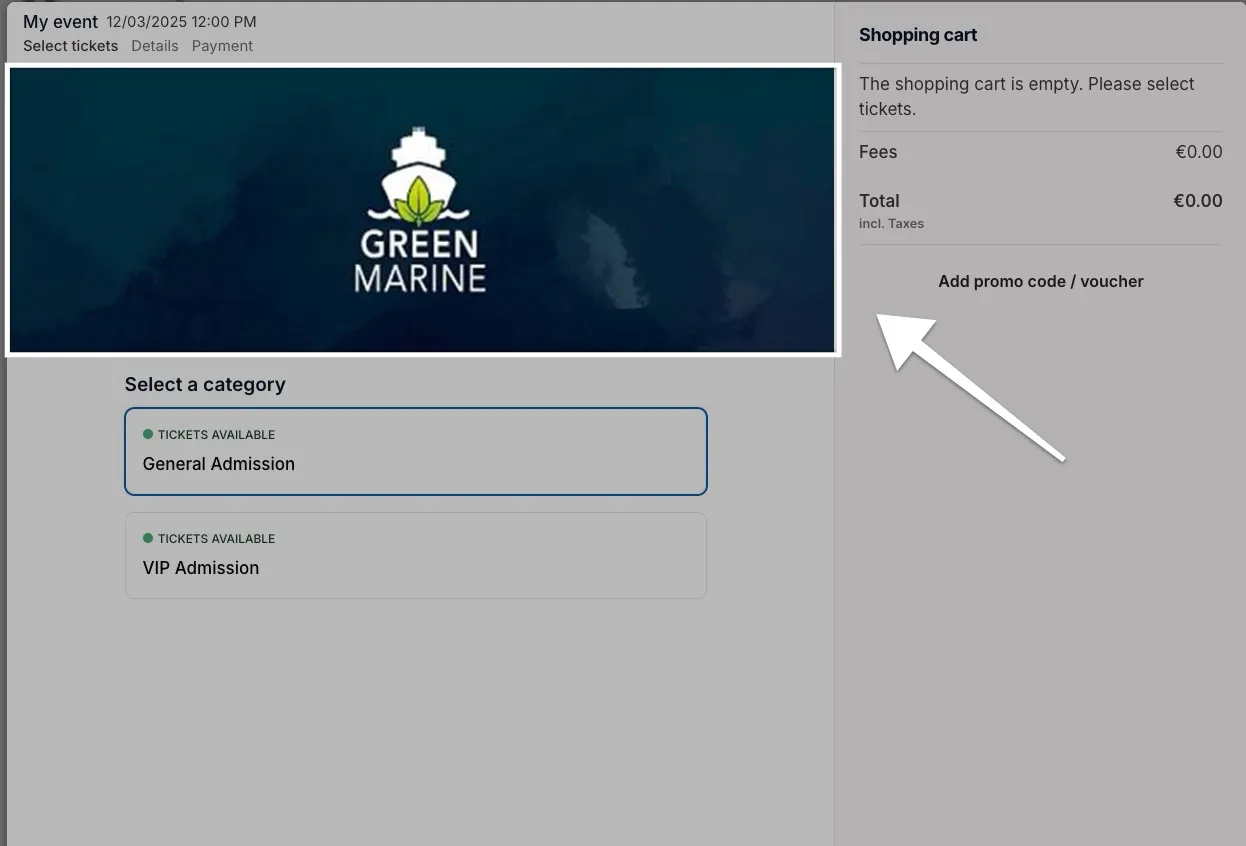
3: Click on "Branding". Here you can add logo that will be visible in your ticket categories.
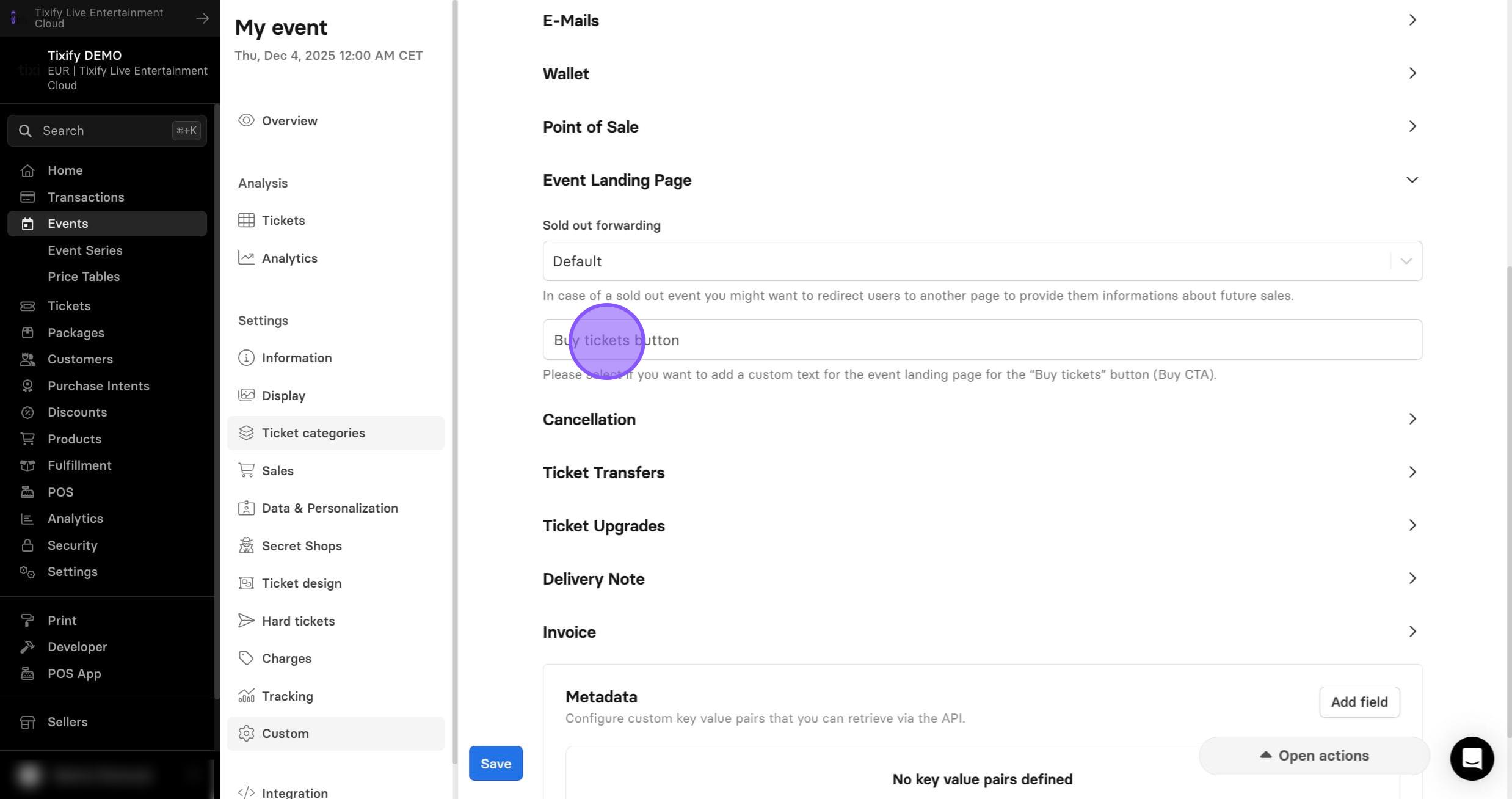
4: Click on "Event Landing Page"
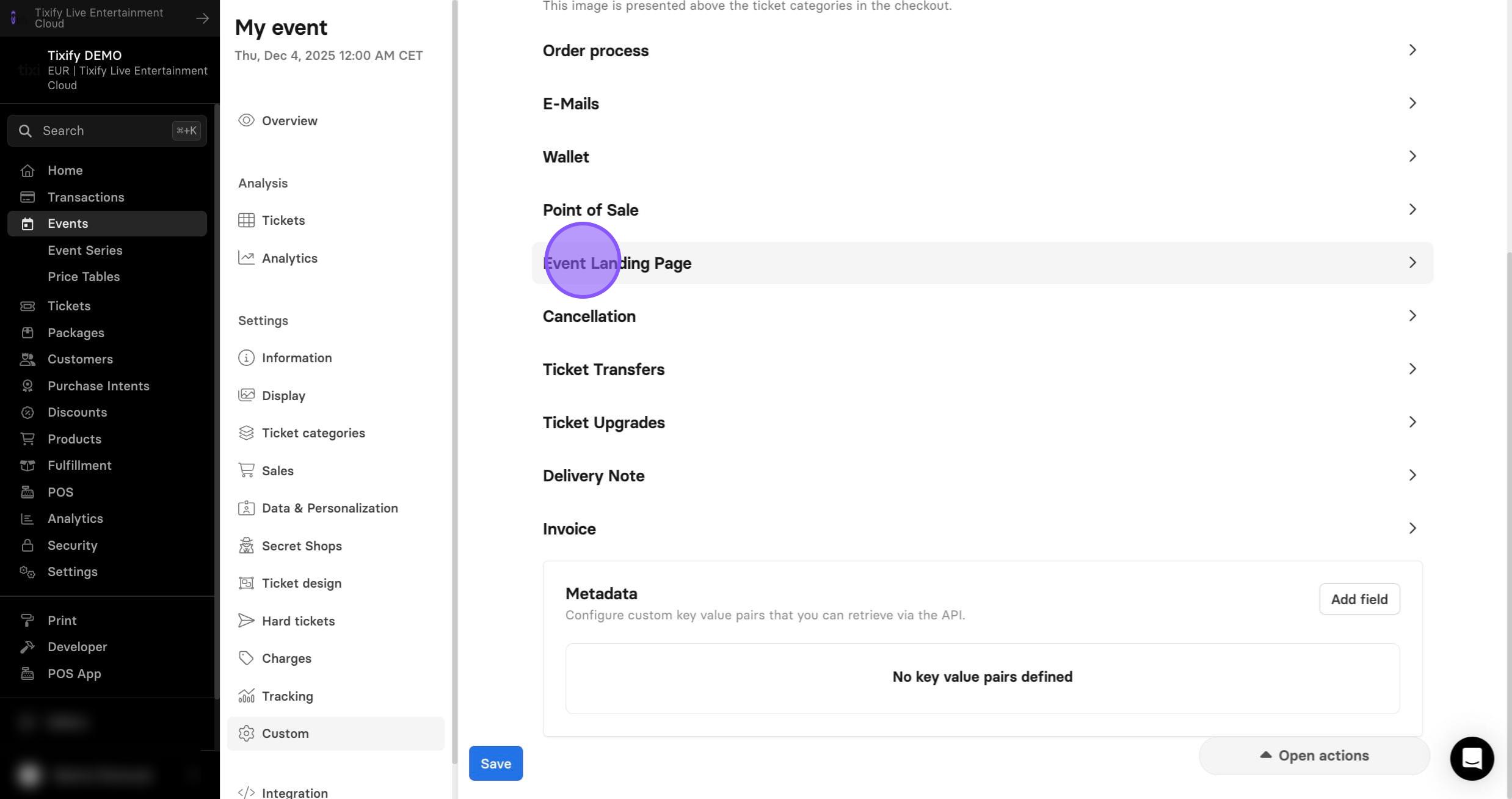
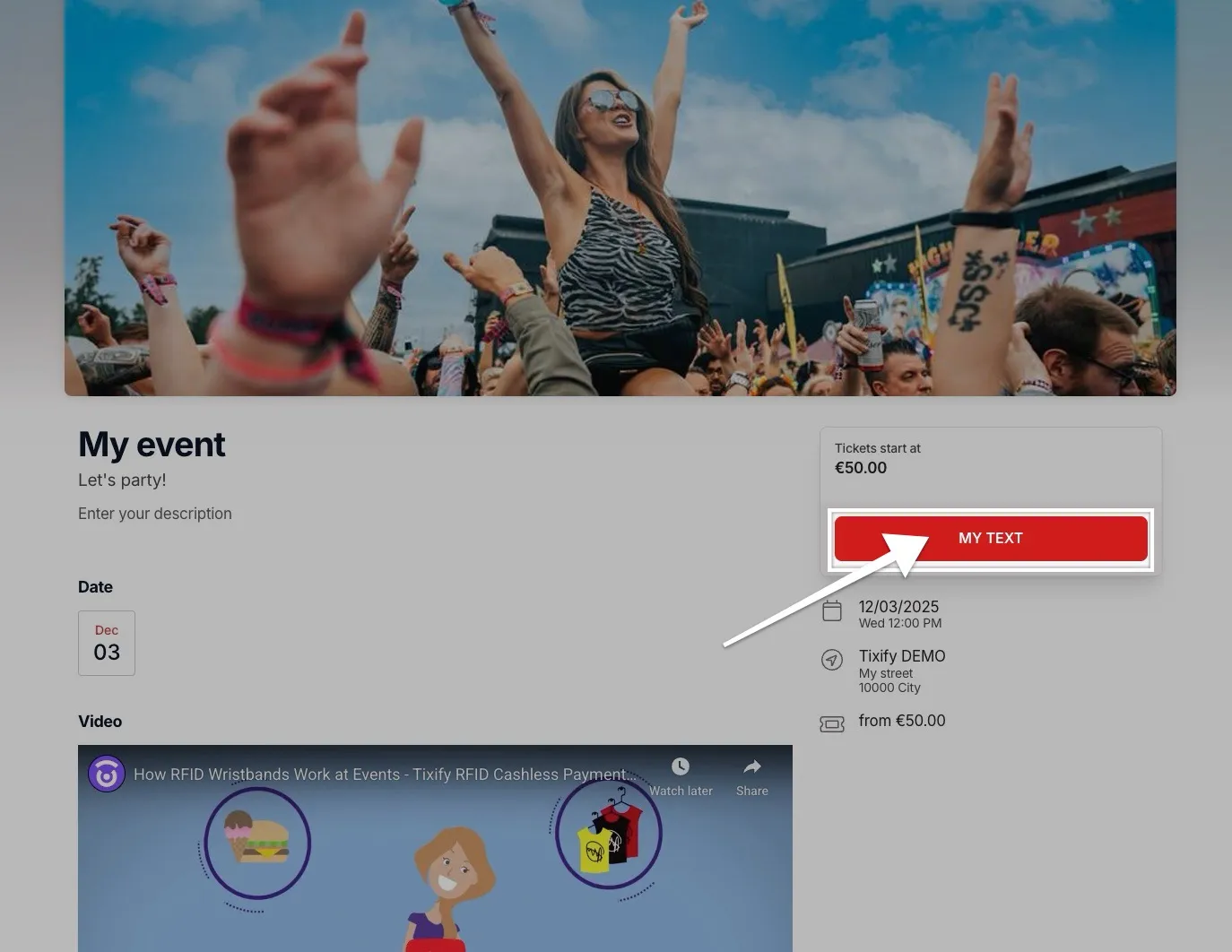
5: You can add custom text to your "Buy Tickets Button".