Order Confirmation Page
After completing a transaction, the ticket purchaser is redirected to the order confirmation page. This page displays the key details of the event, provides a link to ticket purchaser support, and shows all purchased tickets.
First let's find out how to view your order confirmation page.
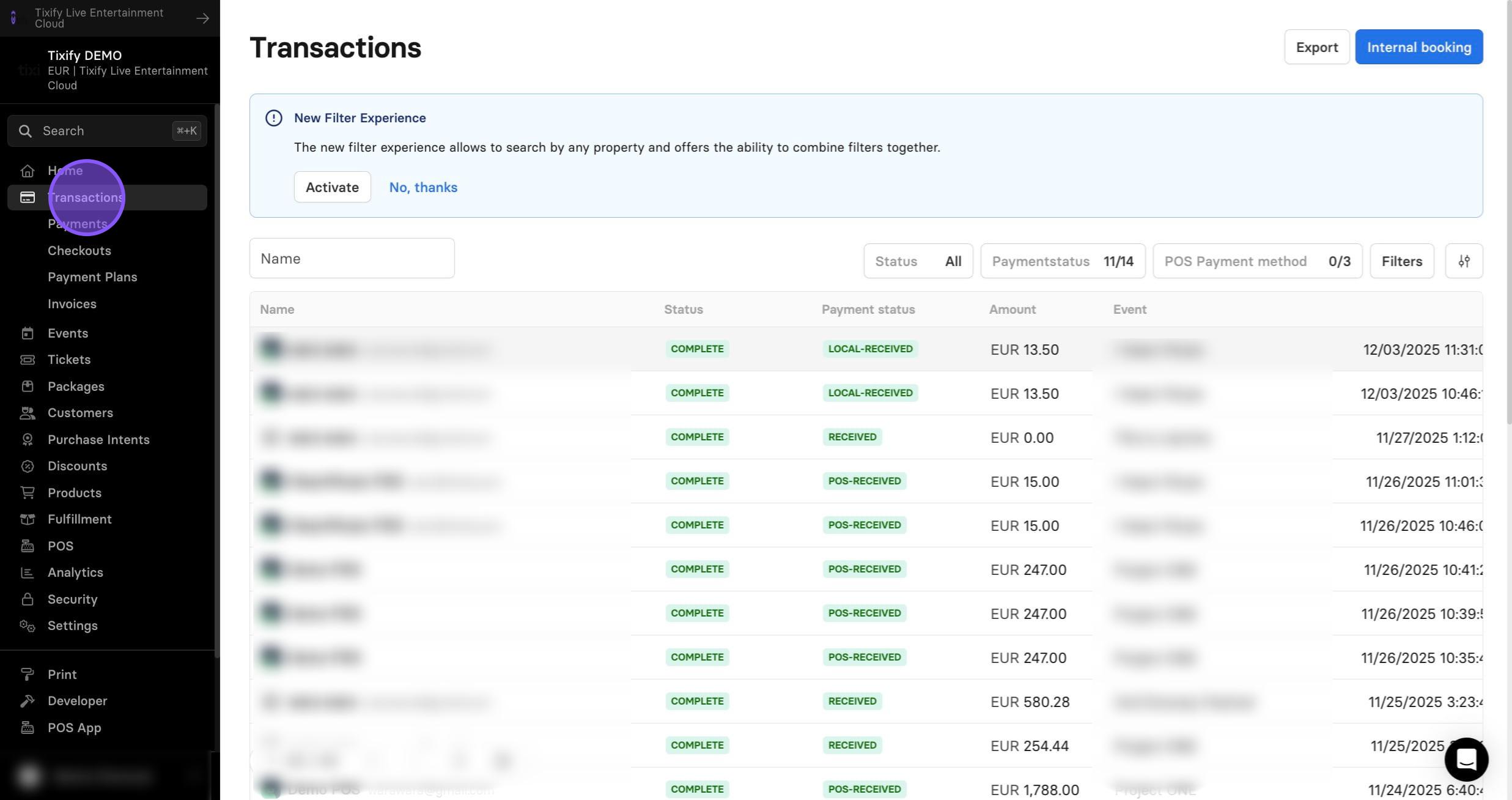
1: Go to "Transactions"
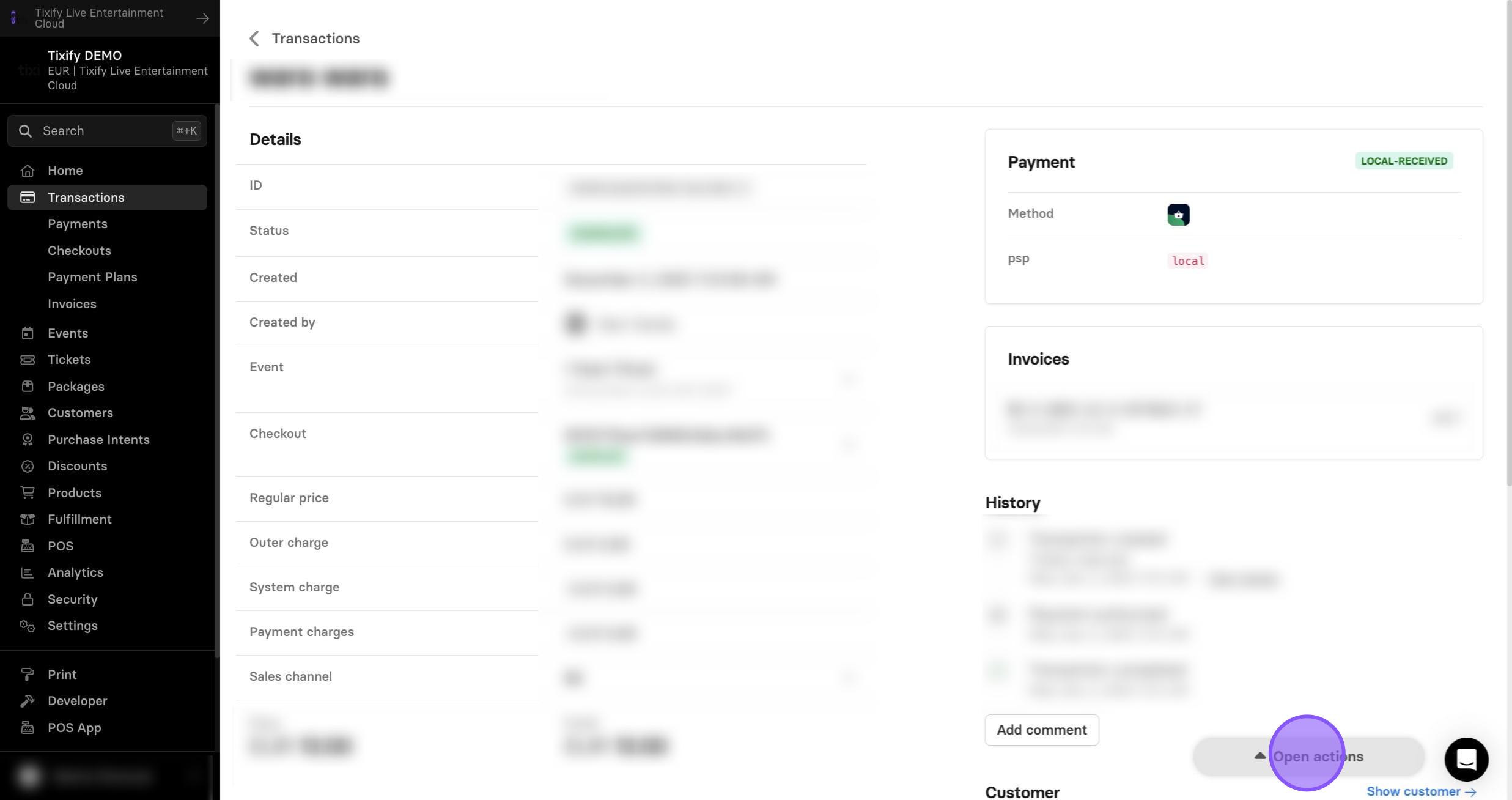
2: Open one of the transactions from your event. In the right-bottom corner choose "Open actions"
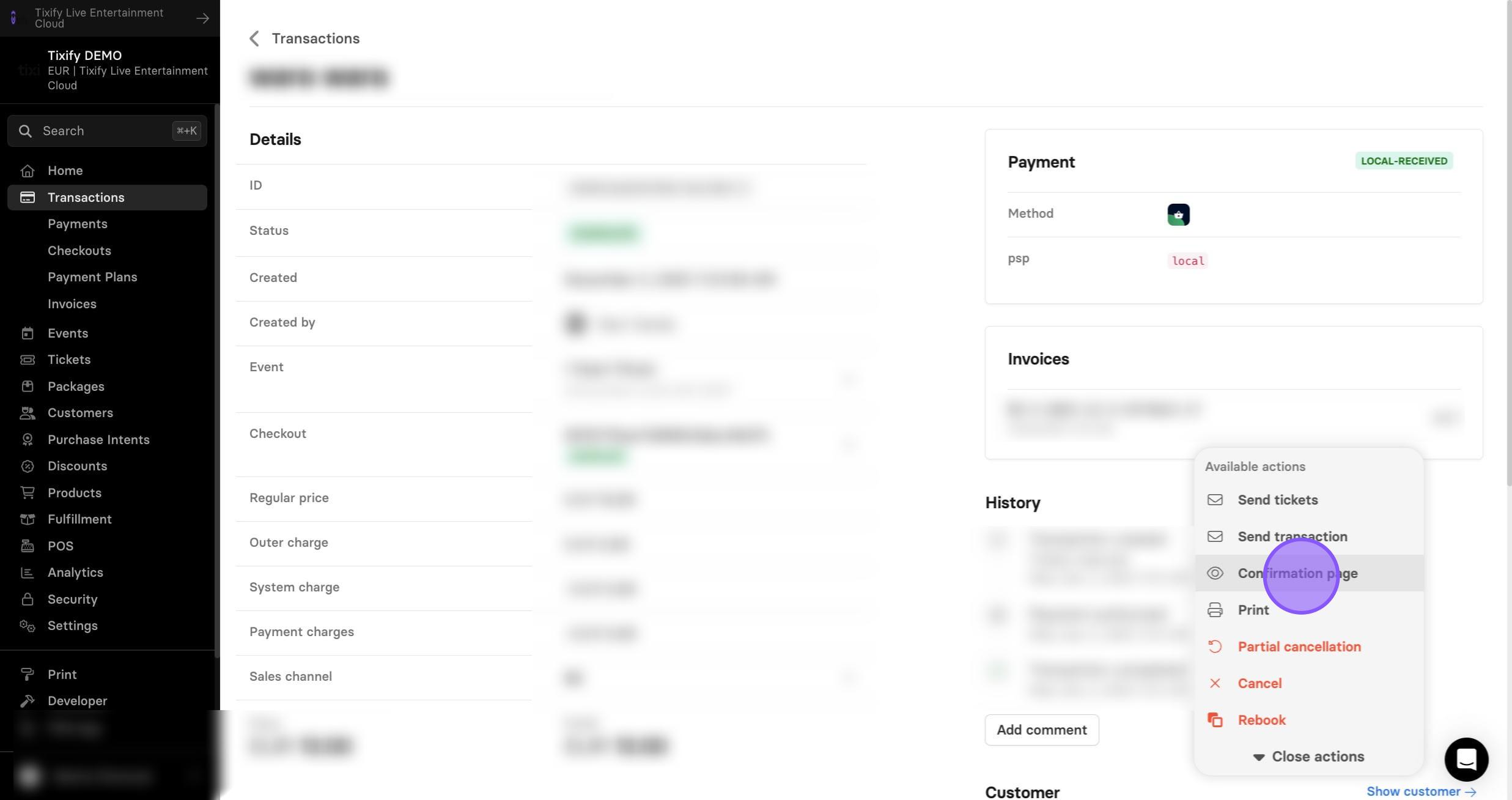
3: Select "Confirmation Page".
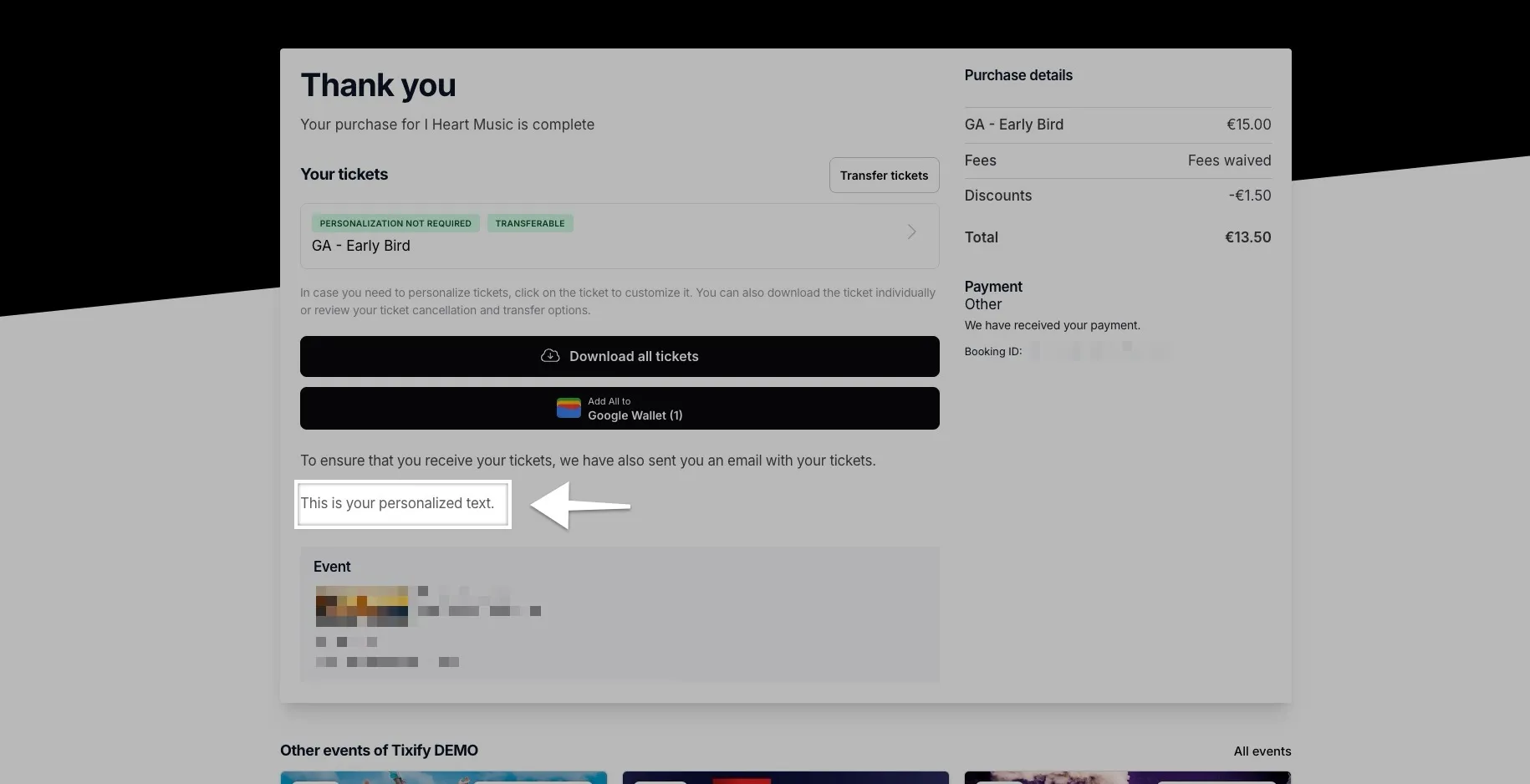
4: This is confirmation page of your customer. Here they can see their purchase details, tickets available to download, name of the event and additional events promoted by you.
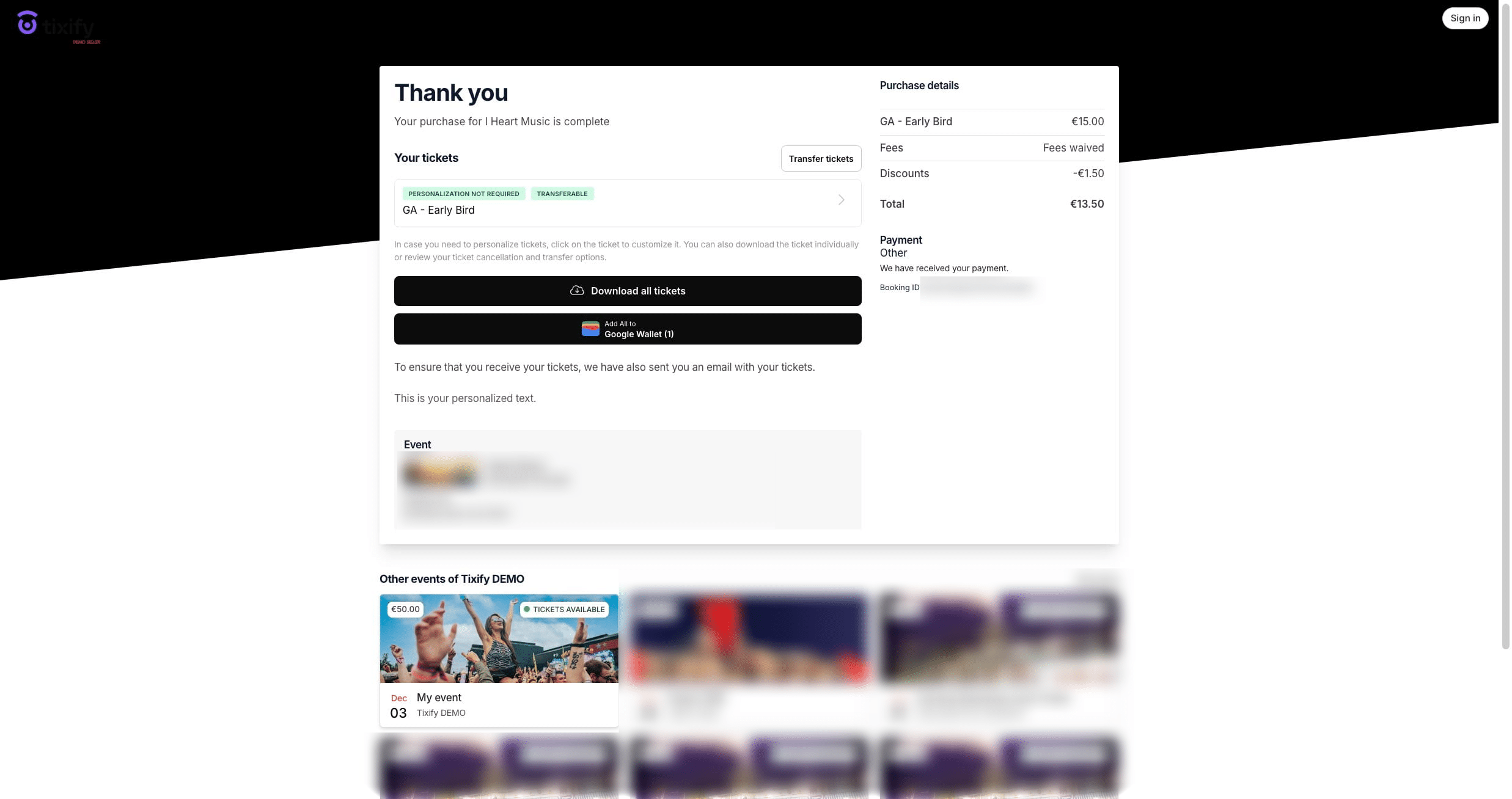
There are few things that you can customize on this page.
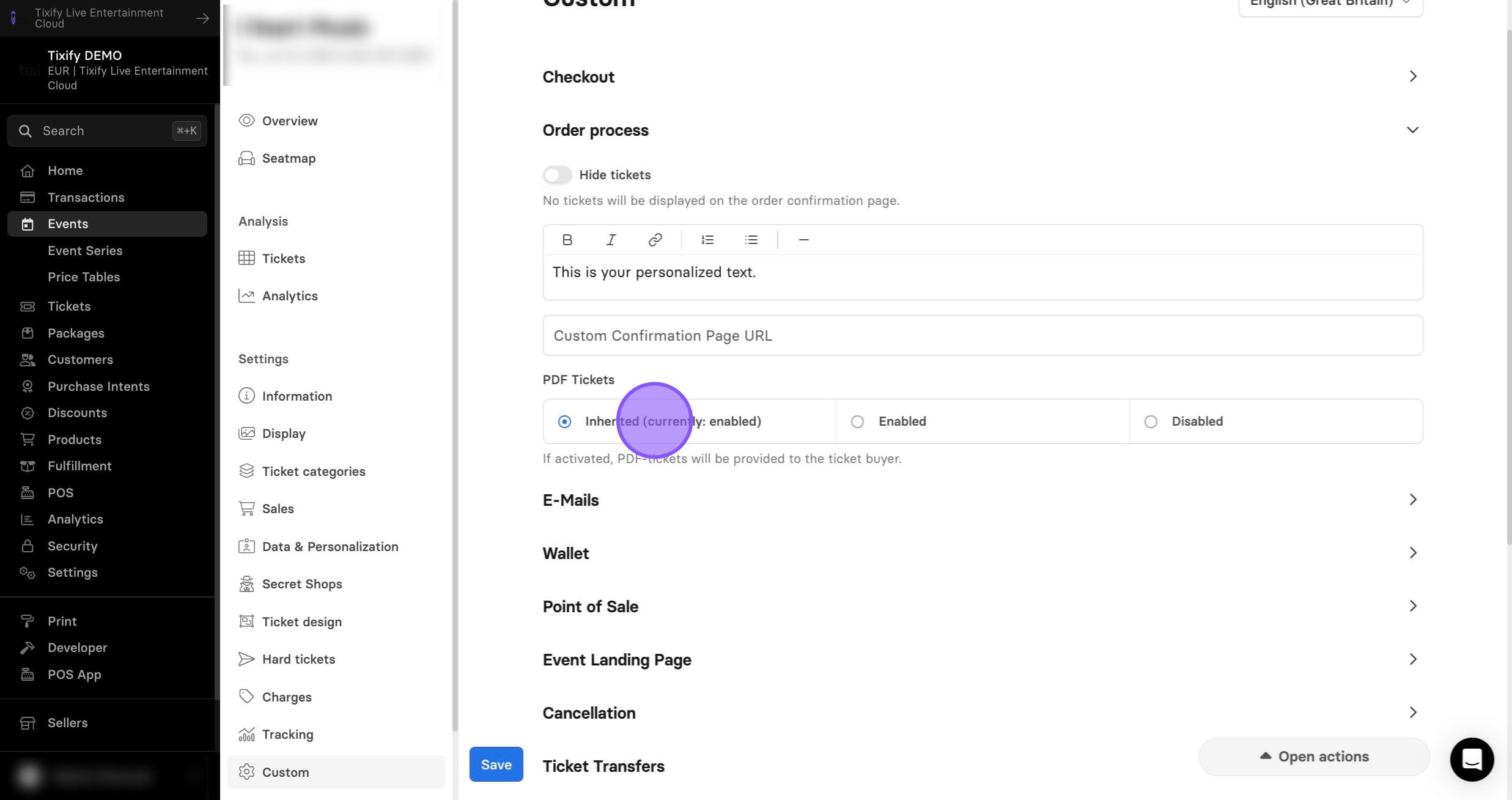
5: On the event settings click "Custom".
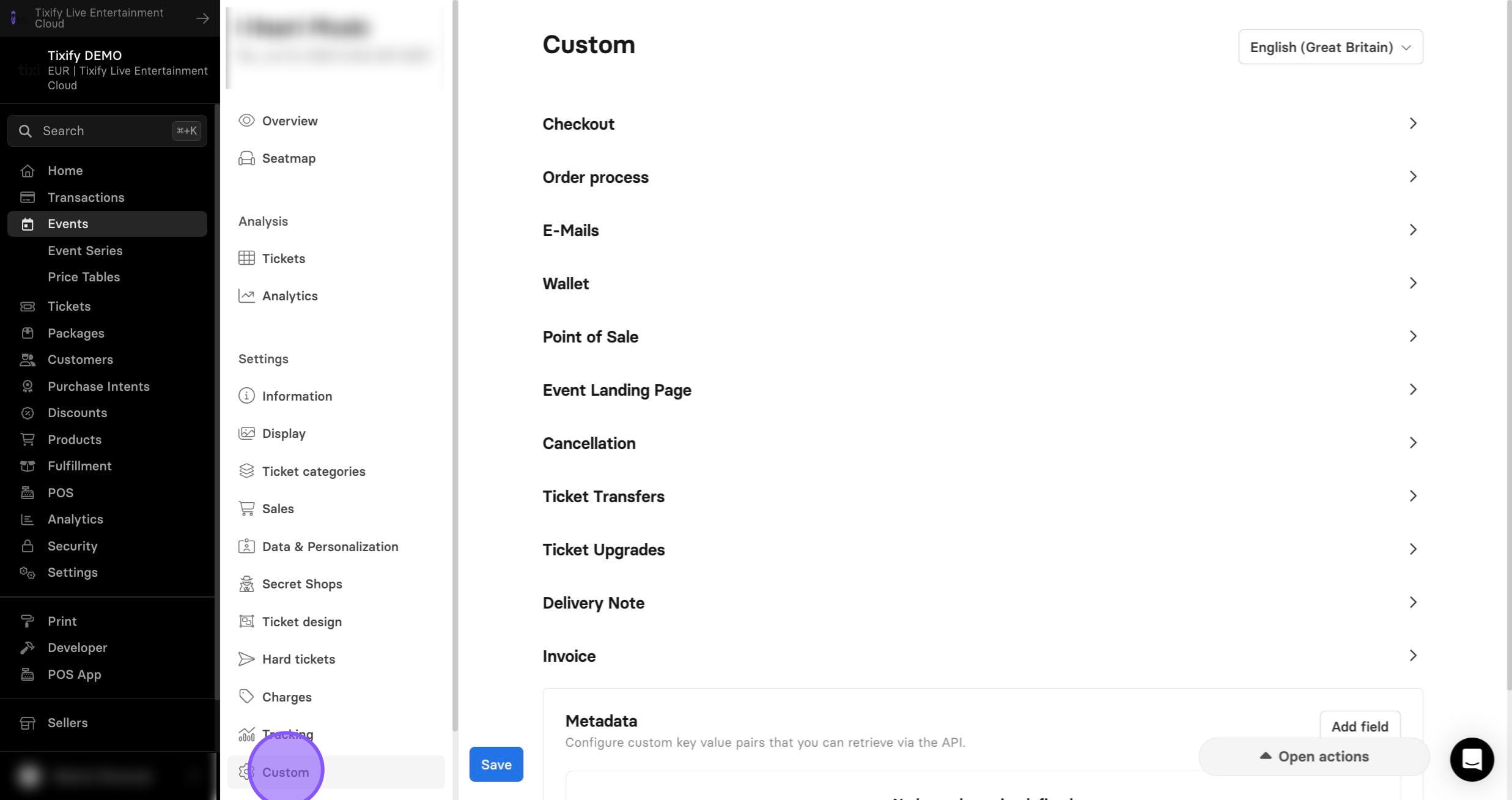
6: Go to "Order Process".
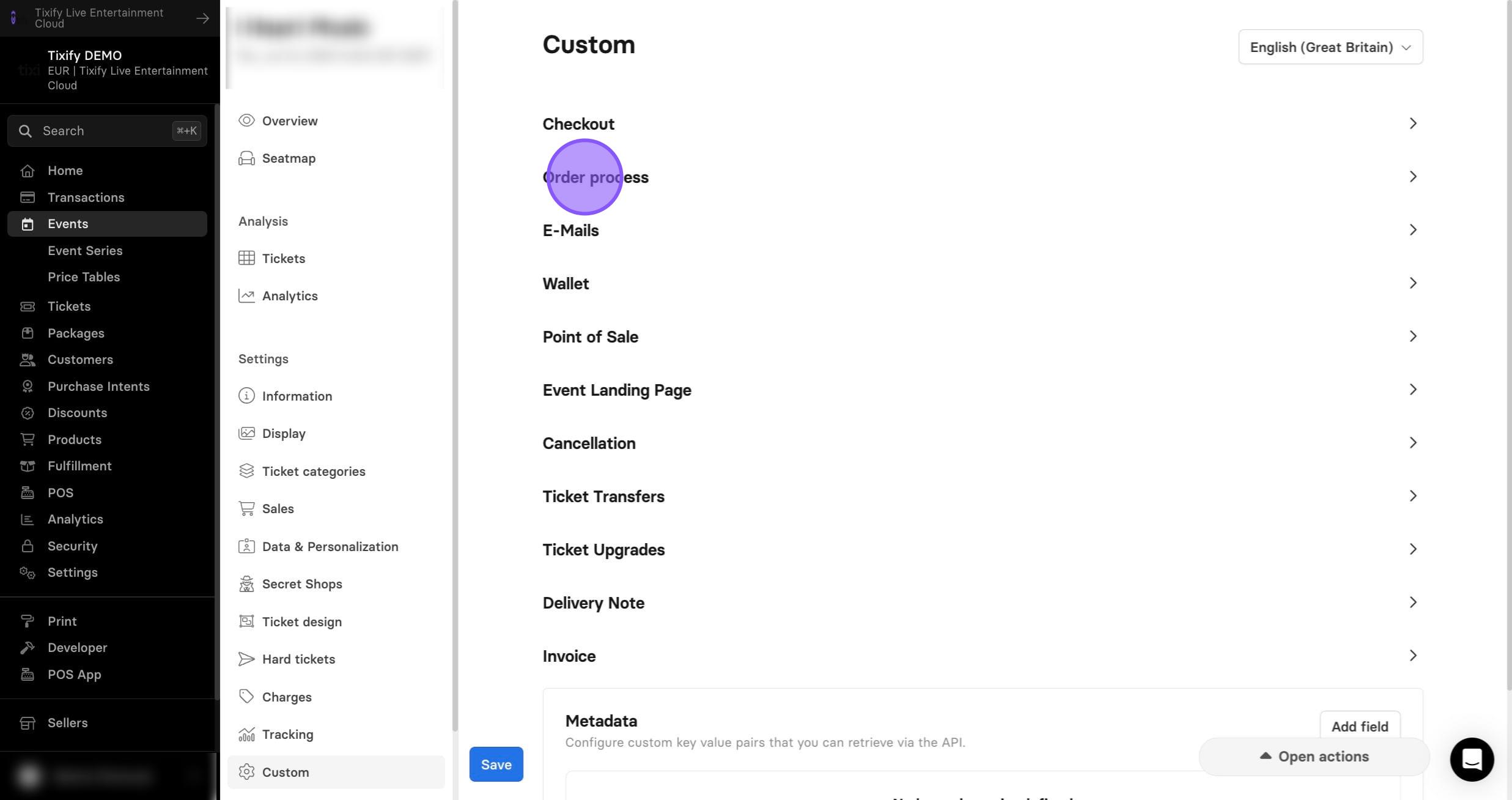
7: You can hide tickets from the confirmation page.
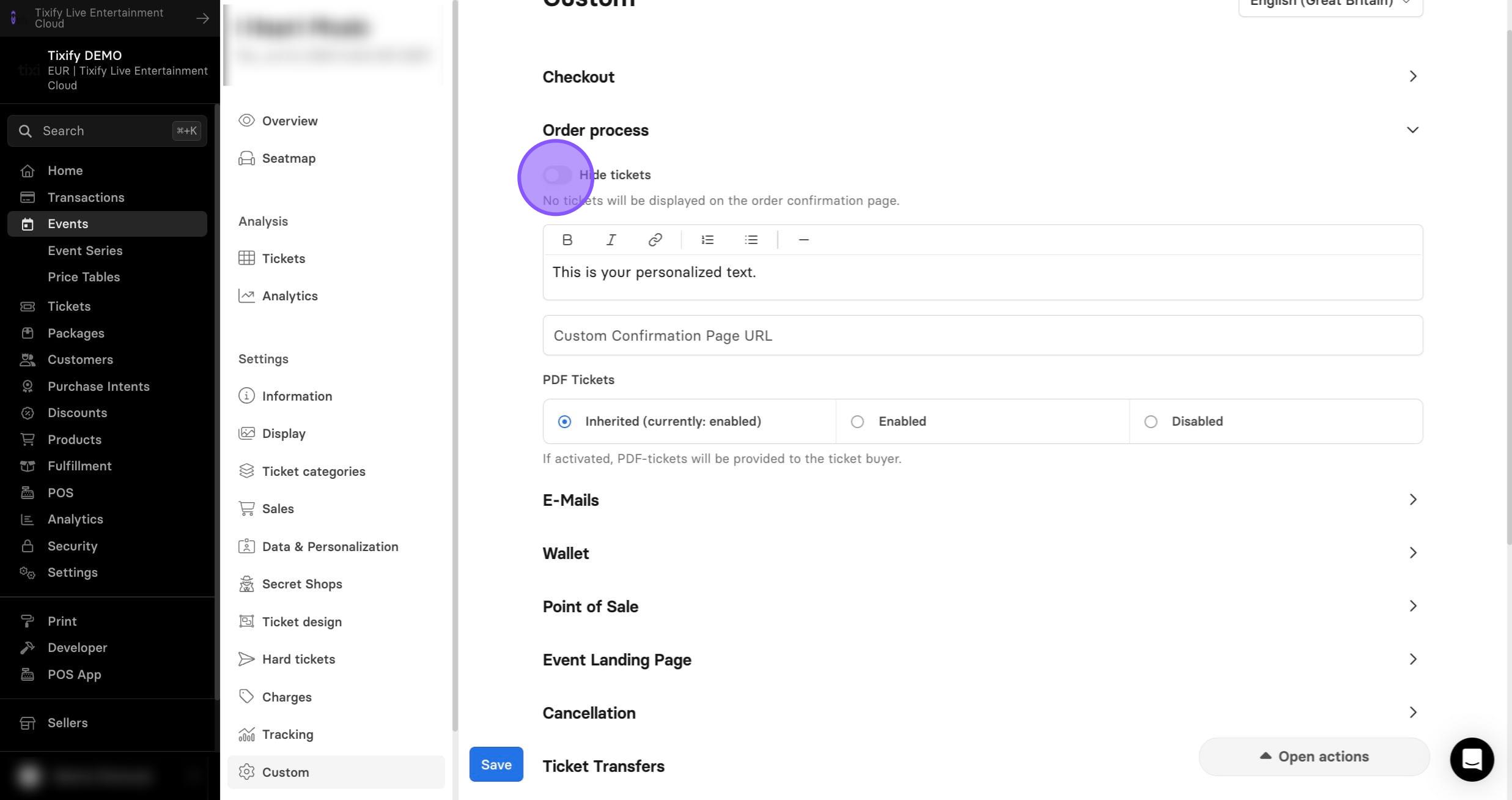
Note: Disabling this option does not turn off the automatic email confirmation. Customers will still receive an email containing their tickets. If you want to disable that email, you must do so separately.
8: Next, on the confirmation page you can add additional text regarding the event.
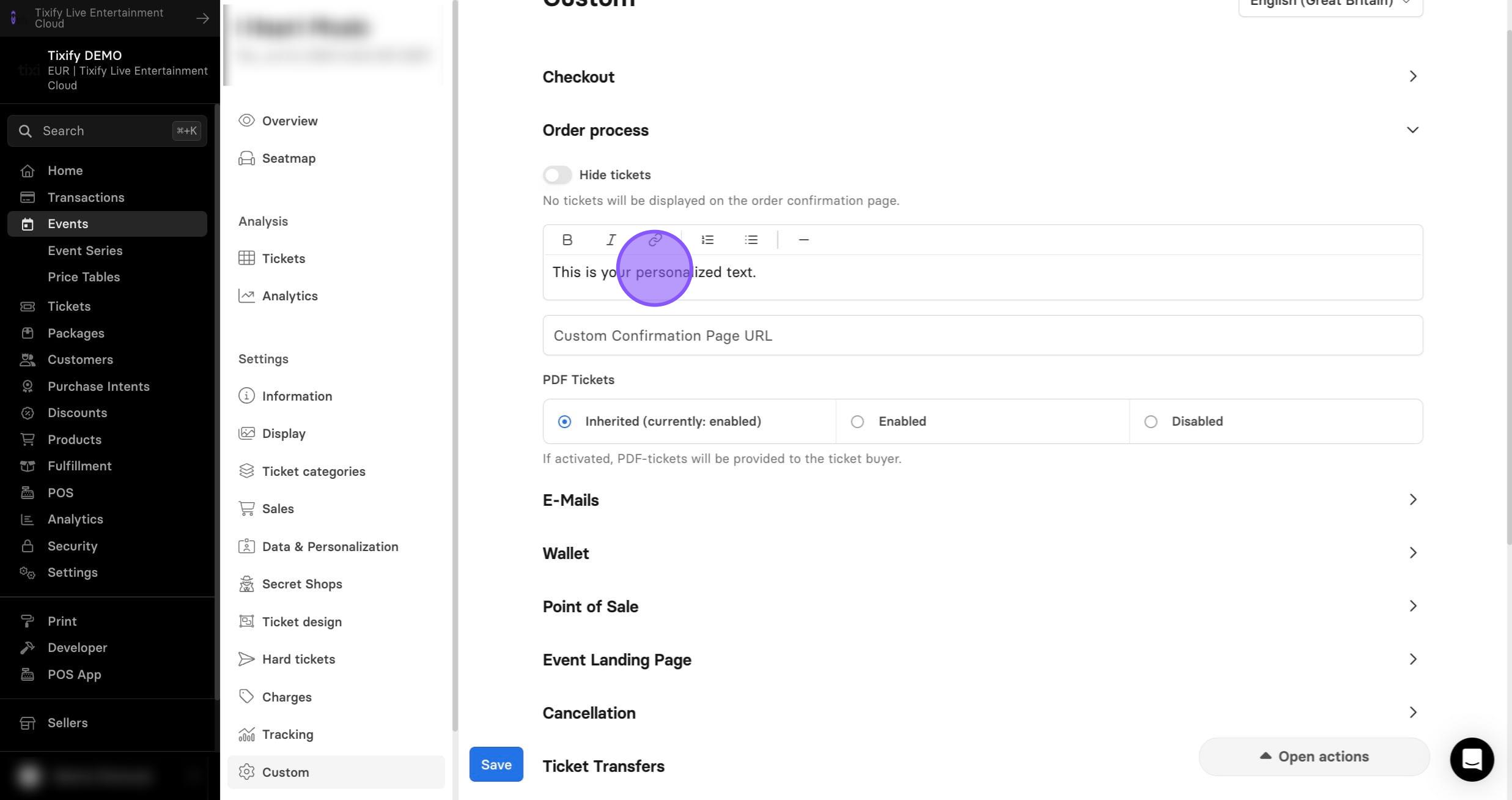
Note: This text will be visible to all ticket buyers, regardless of which ticket they purchased. If you want to display information for a specific group of customers—such as different details for different ticket types—we recommend adding it through the ticket template instead.
9: If you want to use your own order confirmation page, you can add its link here. All ticket buyers will then be redirected to this page immediately after placing their order, bypassing the standard confirmation page.
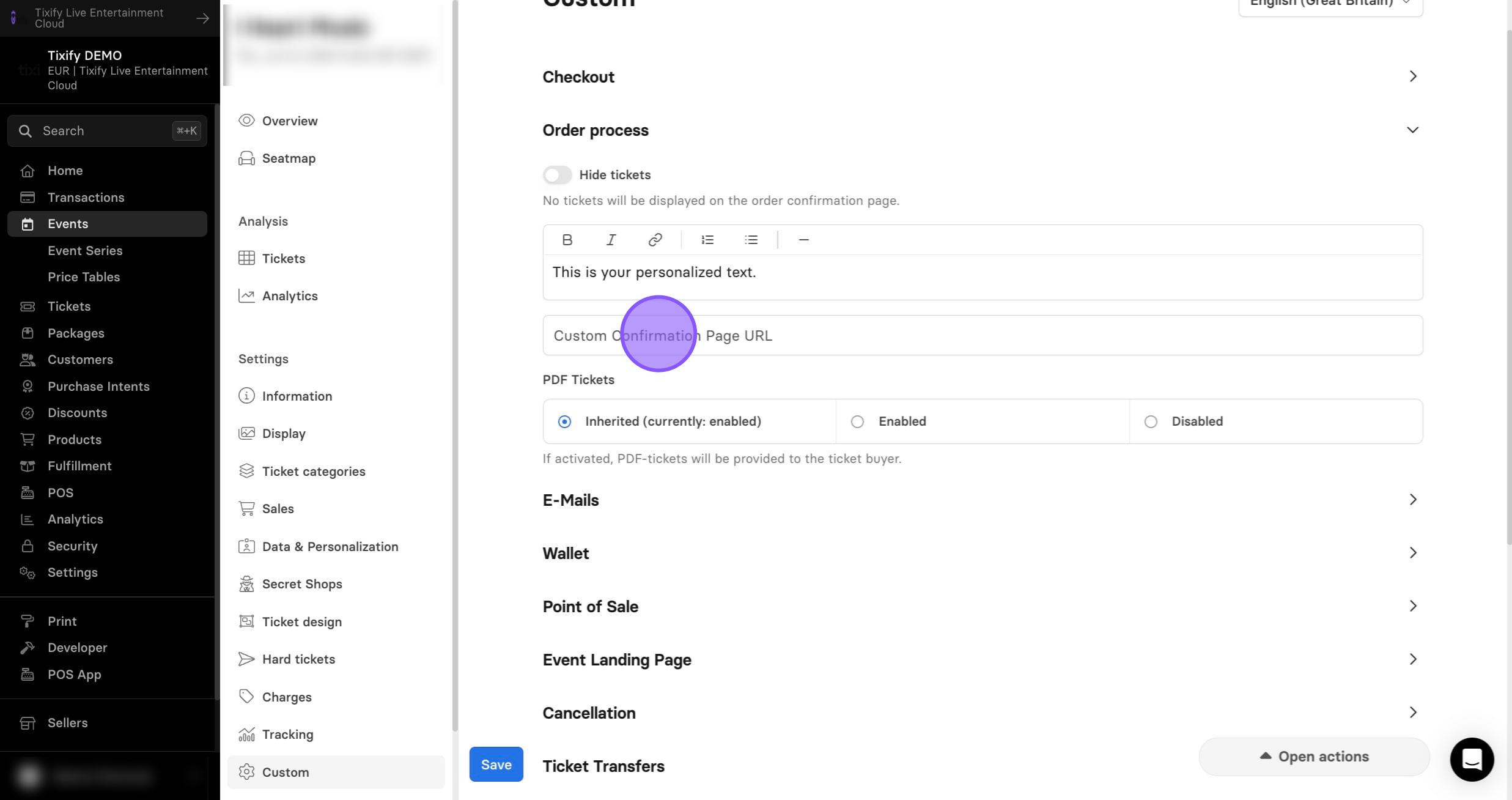
10: Lastly, you can enable/disable customers to save PDF of their tickets.