Identity Provider & SSO
In the Seller Settings go to Accounts.
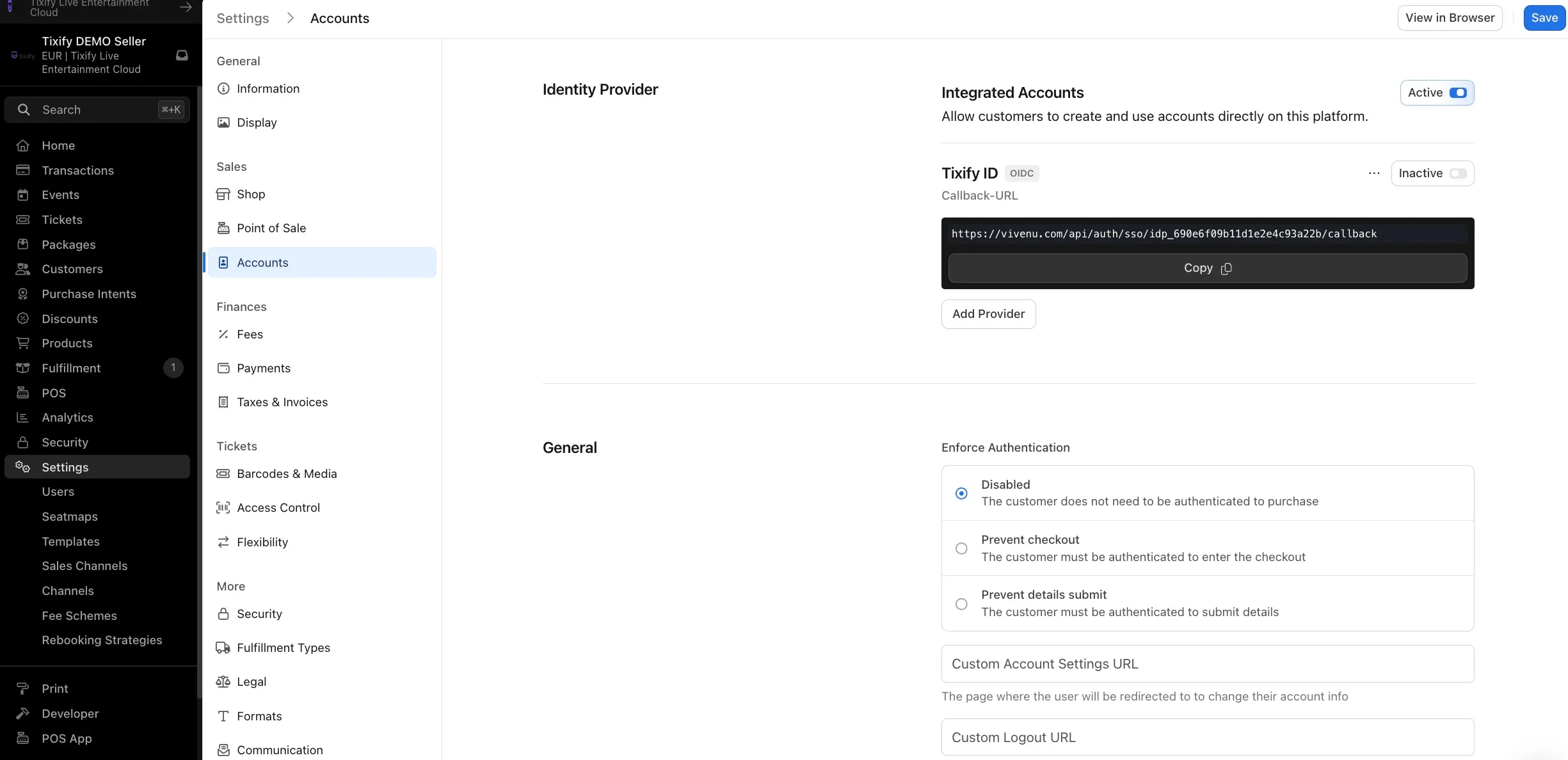
These settings let you configure how ticket buyers can create and log into their accounts.
When the Integrated Accounts option is toggled to active, customers will be able to create an account directly via your ticket shop.
There are two ways for Ticket Buyers to create an account:
- via the Sign In button in the top right corner of the Hero Shop
- via the Register/Login tab during checkout

Other Identity Providers (SSO)
Tixify allows you to set up external identity providers for your ticket buyers such that they can create and use an account on Tixify using your existing SSO.
Definitions:
IdP: The Identity Provider is the system that holds the customer records and login credentials and handles the authentication.
SP: The Service Provider is the system that is requesting the account authentication before proceeding, in this case vivenu.
Claims: Data about a user and their account that is provided by the IdP to the SP during a SAML login.
Scopes: Data about a user and their account that is requested by the SP from the IdP during an OpenID login.
Supported SSO Integrations:
Tixify can integrate with any Single Sign-On (SSO) Identity Provider that supports one of the following protocols.
- SAML 2.0
- OpenID
- JSON Web Tokens (JWT)
The setup process for JSON Web Tokens SSO is not covered in this document. Please reach out to us for more information in case you need a custom integration and can't use SAML 2.0 or OpenID.
Setting up a Third-Party Identity Provider With Tixify
Follow the steps outlined below to set up an external identity provider using SAML 2.0 or OpenID.
1. Configure your Identity Provider on Tixify
Open the Tixify dashboard and navigate to Settings > Accounts.
Within the Identity provider box, you have an option to select between OpenID and SAML2.0. Choose your desired protocol based on your third-party provider's capabilities.
Depending on the protocol, you can configure the following settings for your IdP:
IdP Settings for OpenID
OpenID Provider URL
Client ID & Client Secret
Scope
IdP Settings for SAML2.0
SAML Provider Endpoint
SAML Certificate
2. Configure the Identity Provider
Set up a new SSO application or connection on your external identity provider to match the IdP configuration you configured on vivenu.
You should be able to find the relevant steps in your identity provider's documentation.
Note: When using SAML 2.0, Tixify expects the SAML assertions to be signed. Ensure that you have set WantAssertionsSigned="true" in your provider metadata for Tixify.
Note: When using SSO, Tixify defers to the identity provider to specify whether a new user's email address should be considered verified. Therefore, you should set up your IdP such that a claim called email_verified ("true" or "false") is passed to Tixify when authenticating a user.
Example: Azure (Entra) Implementation using SAML 2.0
This process will require us to start in the Tixify dashboard, setup a basic version of the SAML integration, switch over to Entra and configure the Entra Enterprise application and then switch back to Tixify to finalize the integration.
Open the Tixify dashboard and navigate to Settings > Accounts.
In the Identity Provider section, click the Add Provider button
Enter your preferred SSO button text as the name of the provider (i.e. Student Login or Member Login), select the SAML option, and for the purposes of the initial configuration, enter https://tempURL in the SAML Protocol URL box and TempCert in the SAML Cert box and click the SAVE button.
This will create a SAML SSO integration in Tixify and generate a Callback URL. Copy the Callback-URL for use in the Entra configuration and switch the SSO integration to active (the switch in the upper right of the SSO integration.
With the Tixify configuration established, switch to the Entra instance and create a new Enterprise Application.
When you select the option to create a new application, Entra will present a list of integrations in their app store. Select the Create your own application option just under the Browse Microsoft Entra ID Gallery.
Enter a name for the application (recommend using Tixify and the type of integration as shown below) and select Integrate any other application you don’t find in the gallery (Non-gallery) and click the Create button.
This will create a new application and return to the configuration screen for the newly created application.
Select the Get Started link under the Set up single sign on box
Select the SAML box.
This will load the SAML Configuration Screen. Select the pencil icon next to Edit in the Basic SAML Configuration section.
This will load a configuration window on the right-hand side of the screen. Click the Add identifier link and enter login.microsoftonline.com as the unique identifier. Click the Add reply URL and paste the Callback-URL created in Tixify earlier. Click the save button at the top of the page to configure the SAML application.
Click the pencil icon next to Edit on the Attributes & Claims box.
Map the claims from the Entra tenant to the vivenu datapoints. SAML will send these claims to Tixify at the time of successful login. Here is a list of supported Tixify datapoints:
- user.givenname
- user.surname
- user.mail
- user.city
- user.state
- user.postalcode
- user.streetaddress
- user.country
- user.email_verified
Click the Download box next to the Certificate > Base64 in the SAML Certificates box.
Click the copy button next to the Login URL in the Setup <application name> SAML box.
Return back to Tixify and click the three dots next to the SSO integration and select the Edit button.
Paste the Login URL into the SAML Protocol URL box and the Certificate date into the SAML Certificate box (you may need to open the Certificate with a text editor to copy and paste it). The Cert should have -----BEGIN CERTIFICATE----- at the beginning and -----END CERTIFICATE----- at the end. Click the save button on the SSO integration box and the main save button in the Tixify dashboard.