Checkout
The checkout is integrated on the event page as a modal or can be accessed directly via its URL.
1: You have two options how to access your checkout page at the event level. Click on "Open actions"
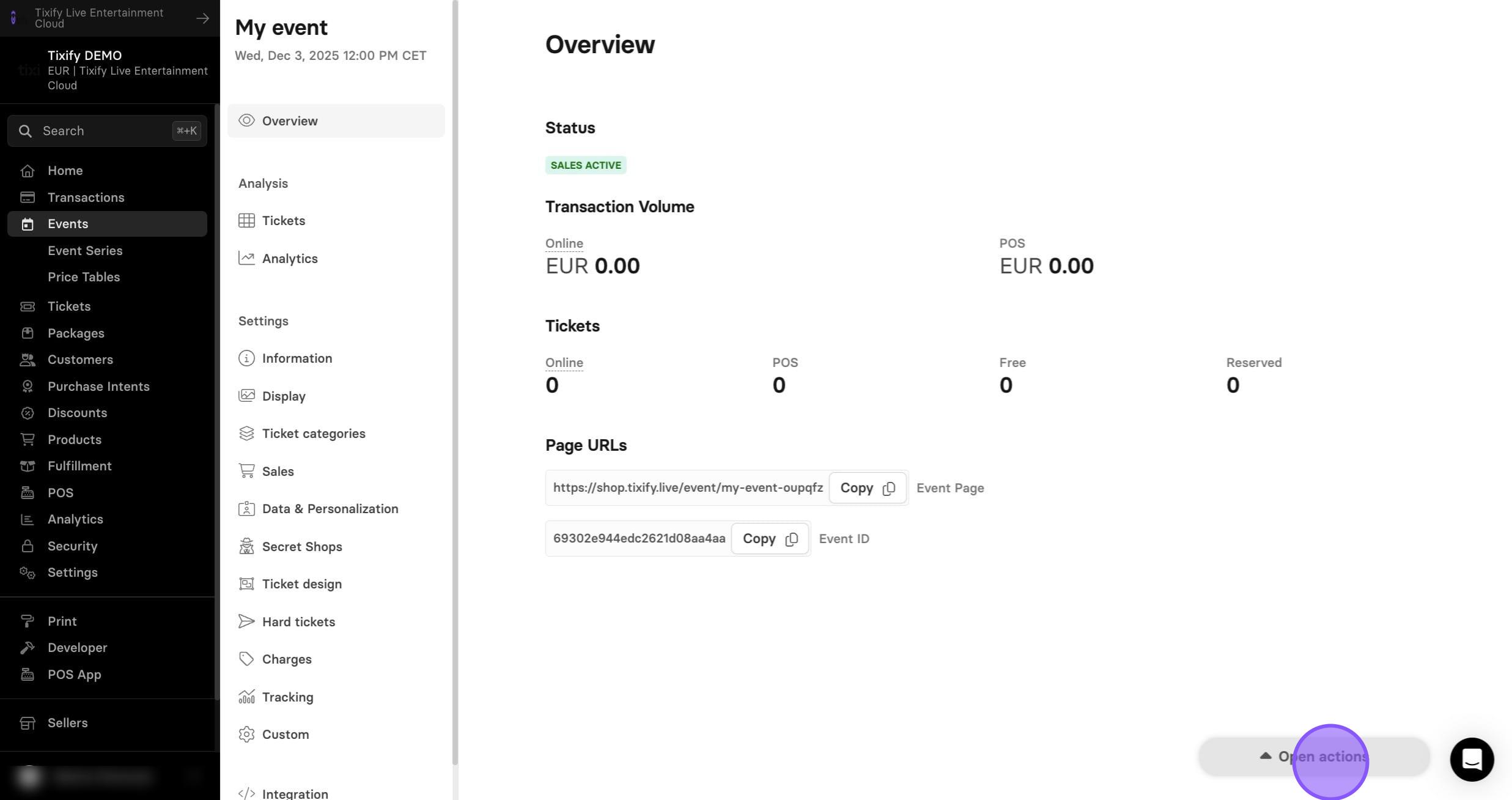
Option 1: Select "Test checkout". Checkout page will open in the new window.
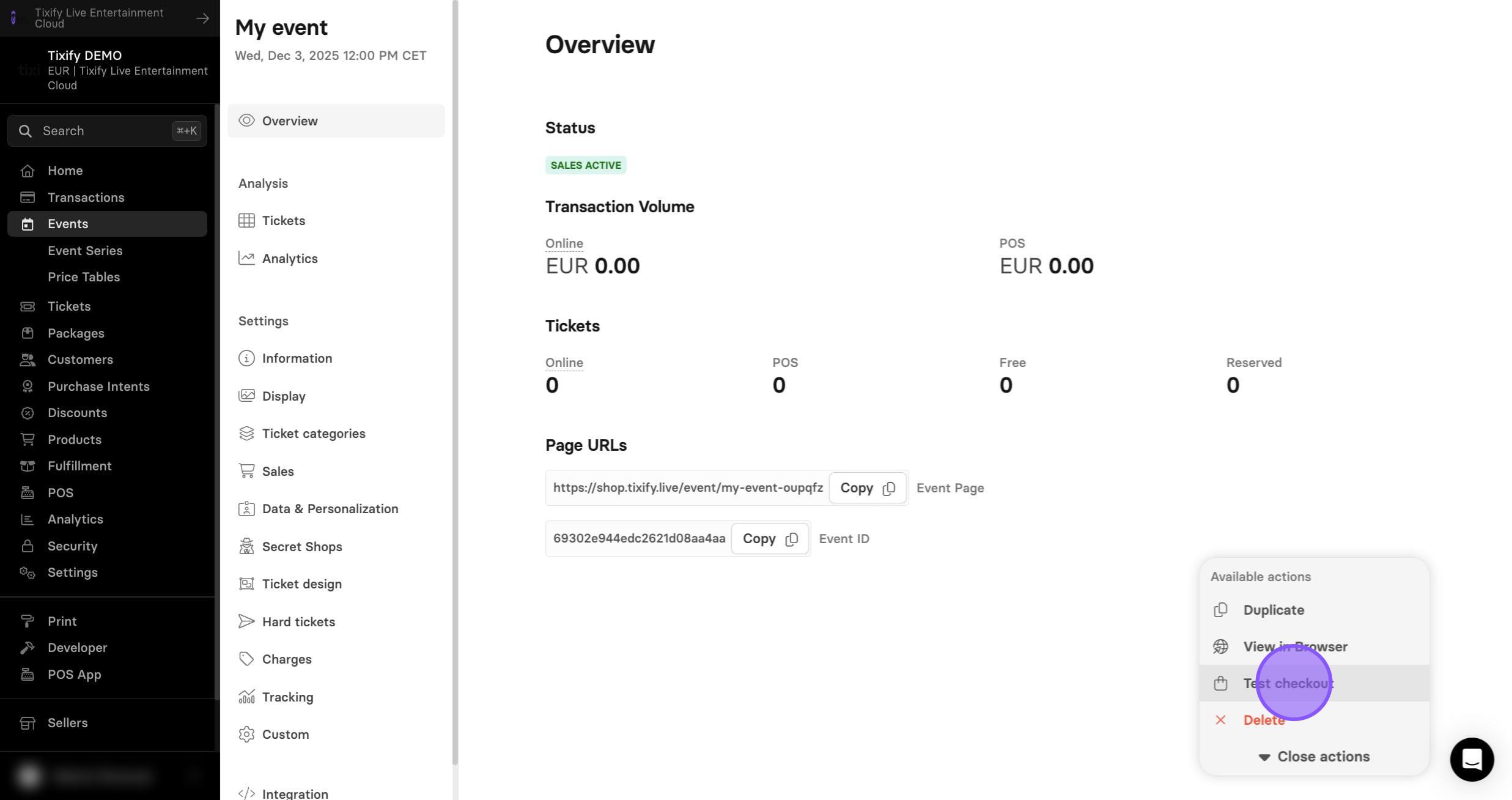
Option 2: Select "View in Browser".
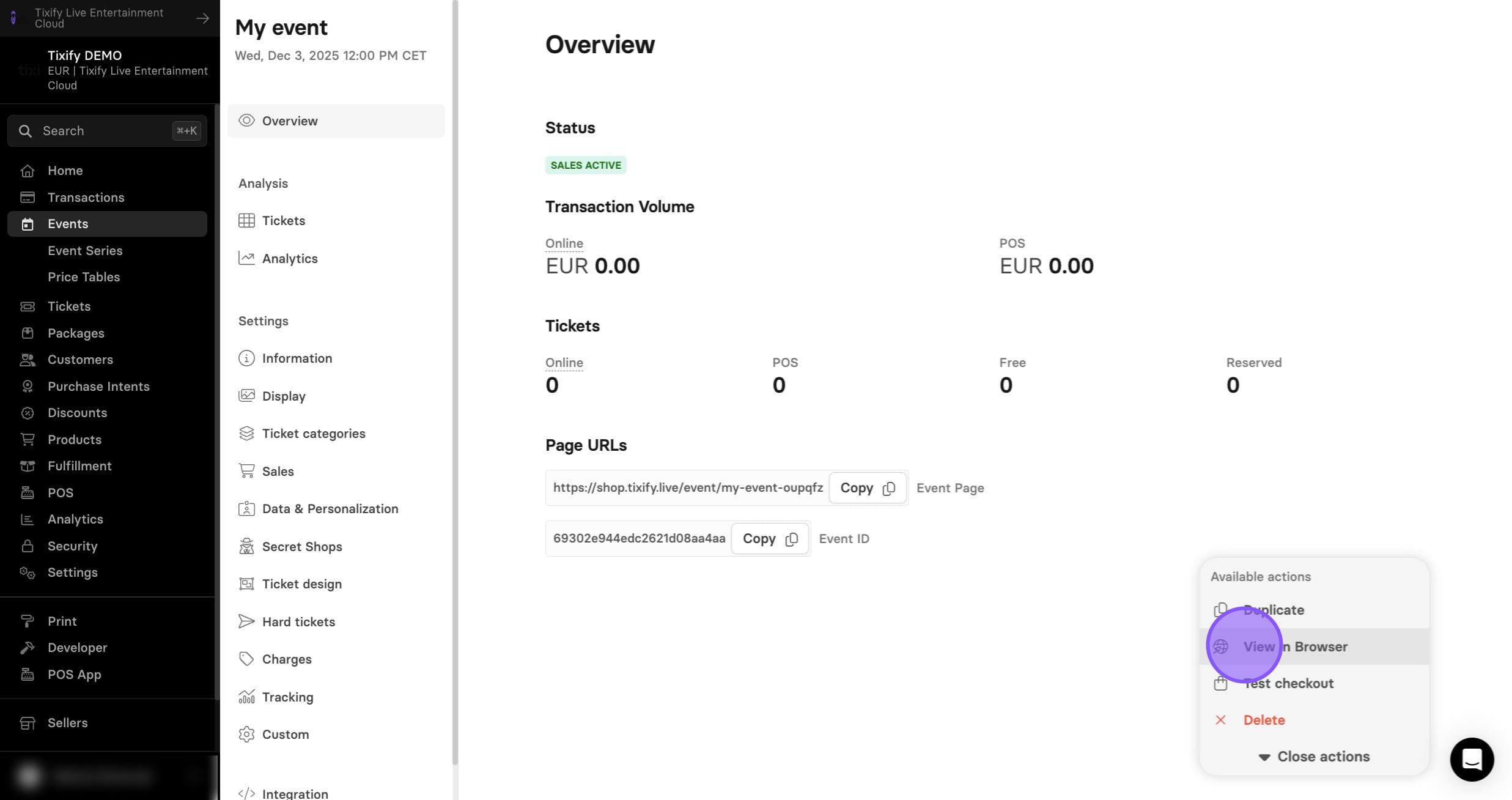
2: From the event page click on the "Buy tickets" button.
3: The checkout page will open in the same window, showing exactly what your customers see when placing their order.
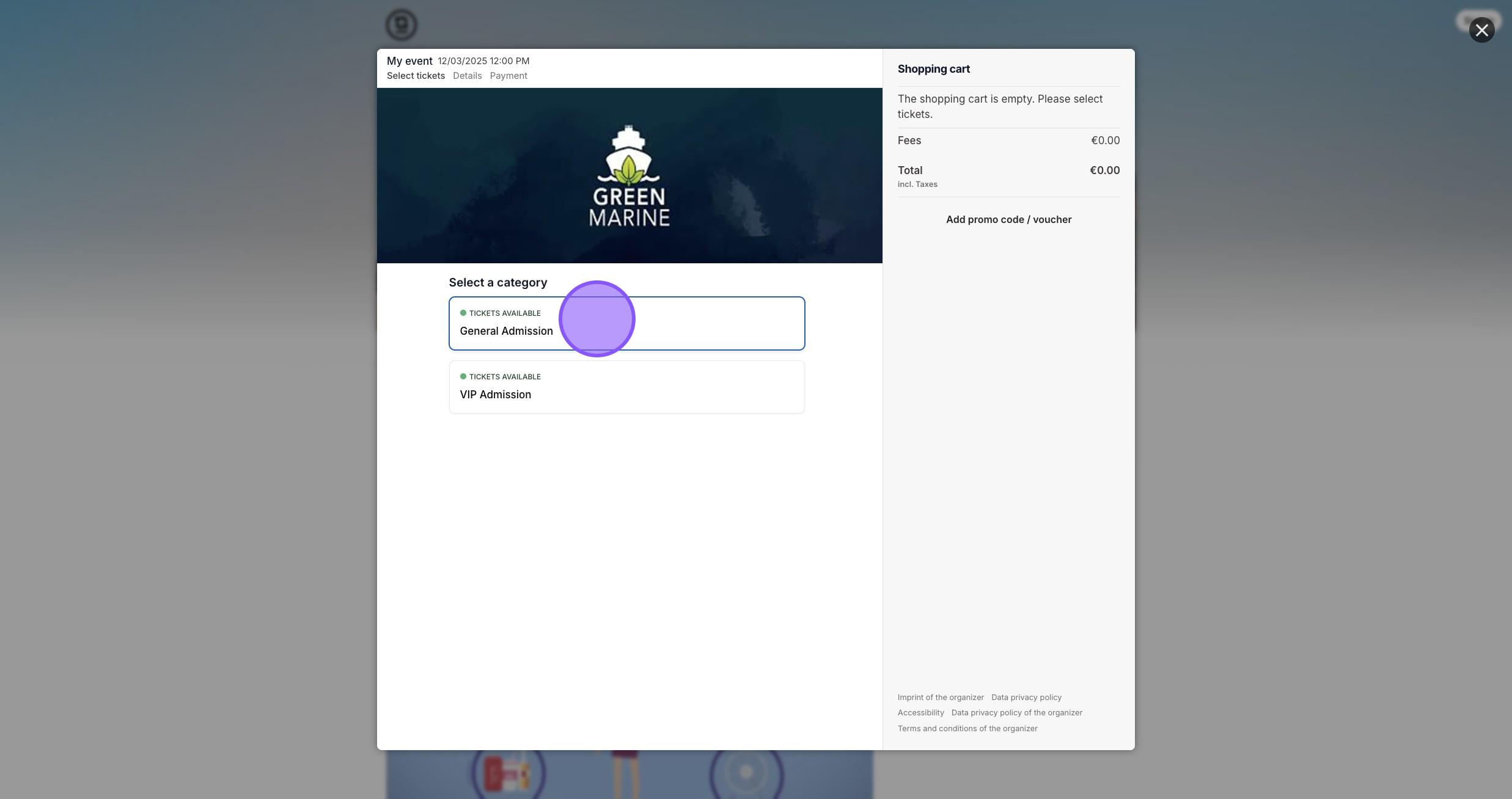
Ticket Types
1: The display of ticket types can be customized for each event individually. All related settings are available in your event’s settings.
2: Go to "Ticket categories"
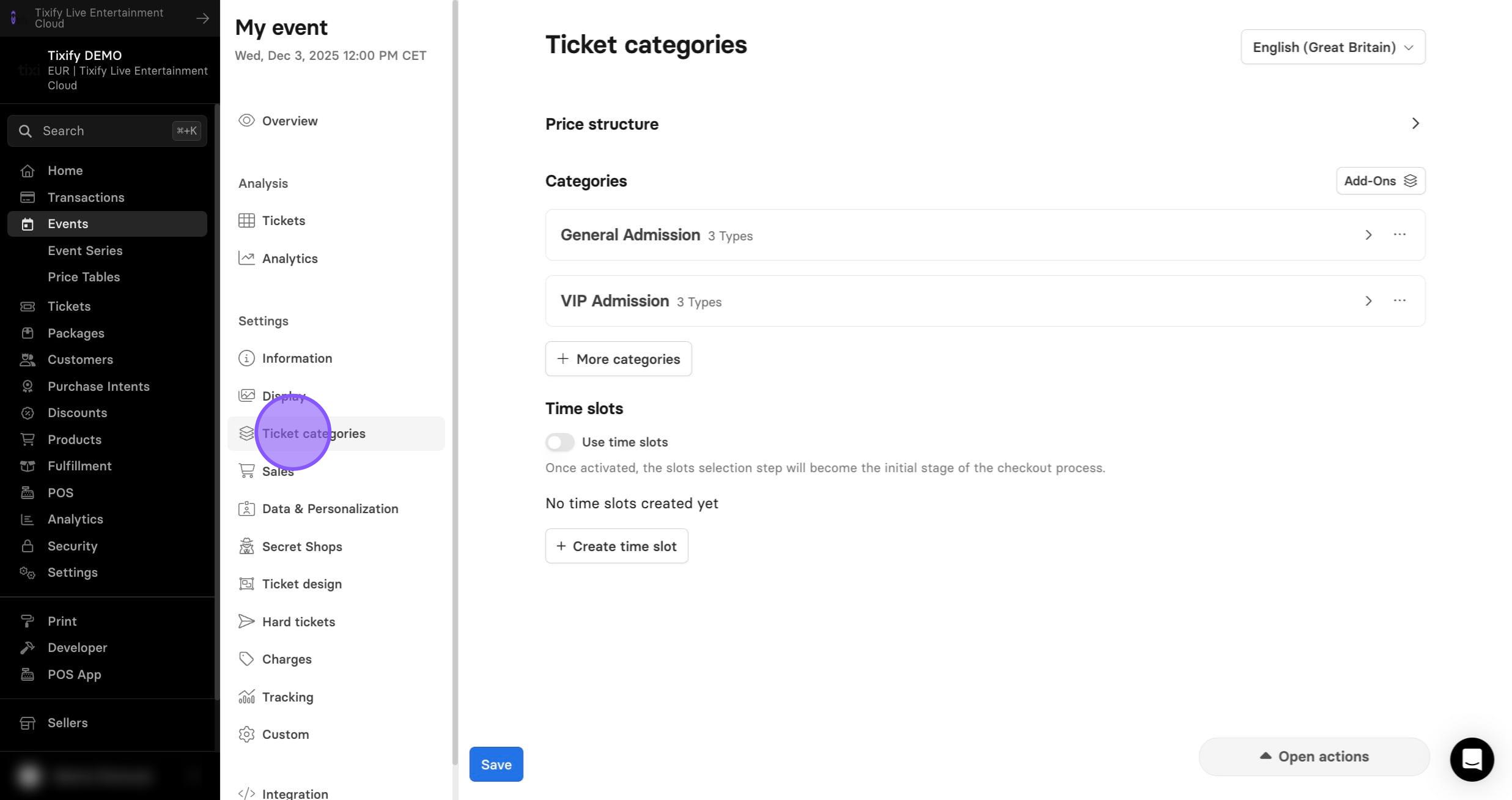
3: Select ticket category in which your ticket is located.
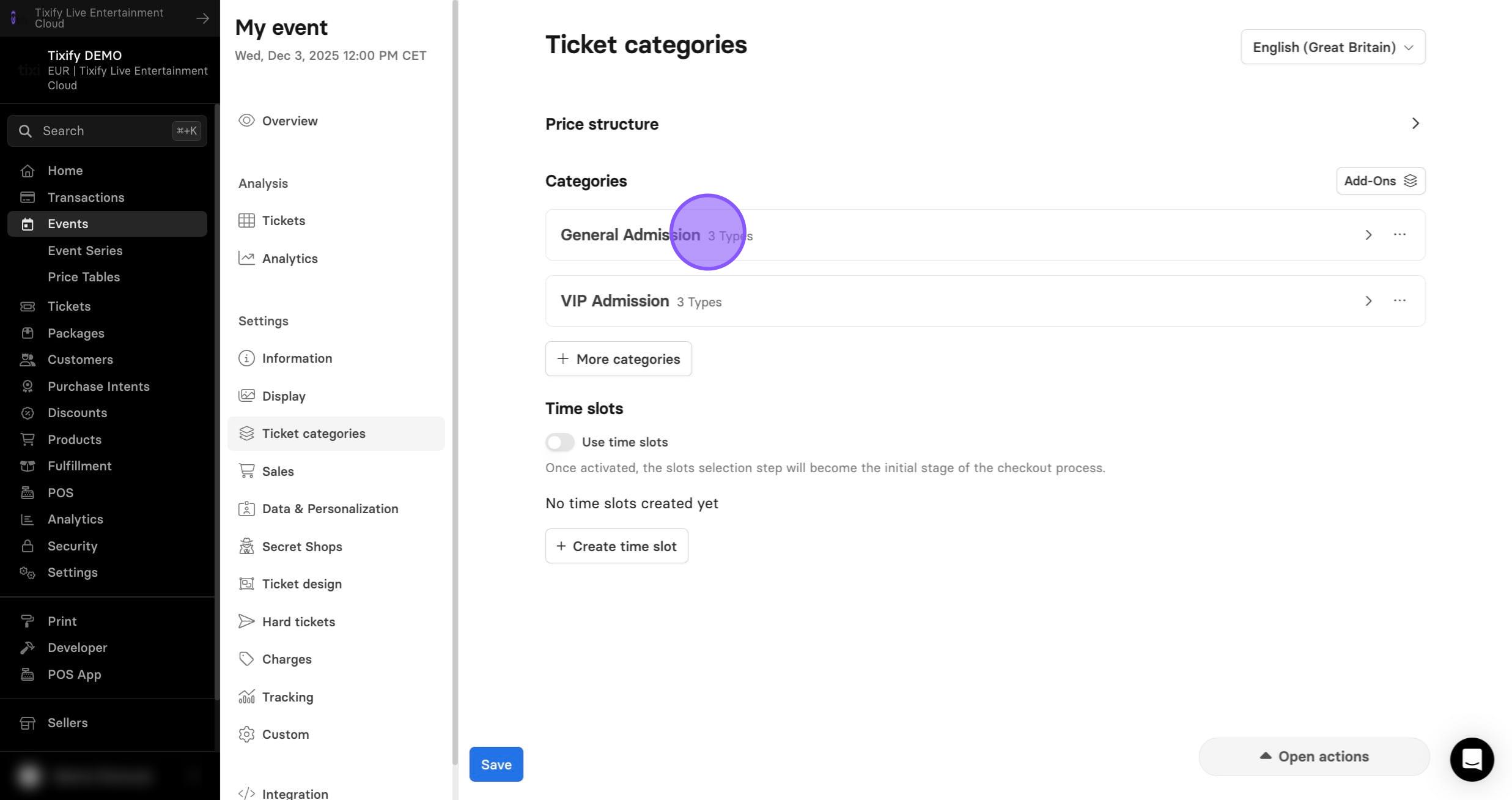
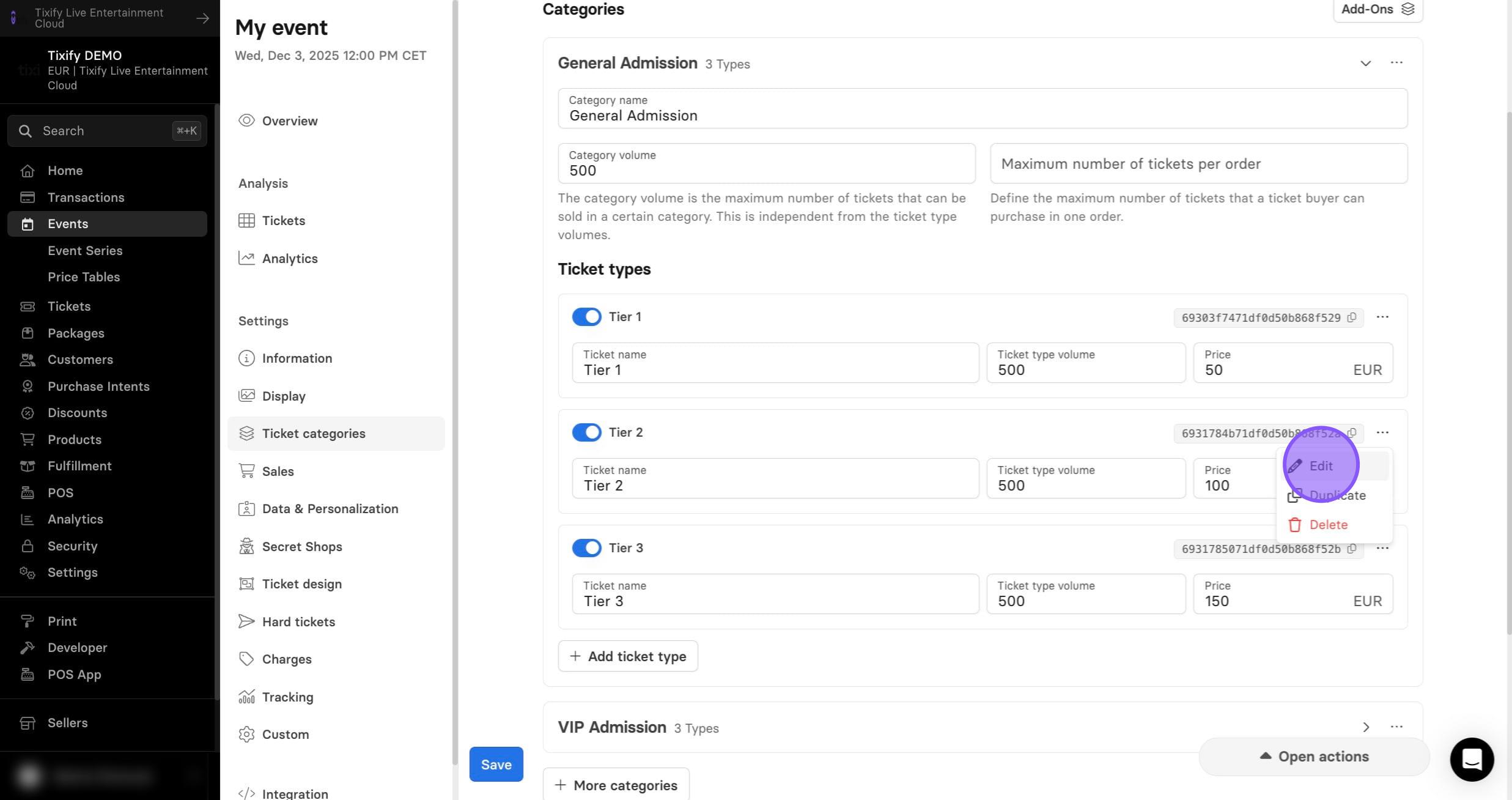
4: Select ticket you'd like to edit and click three dots.
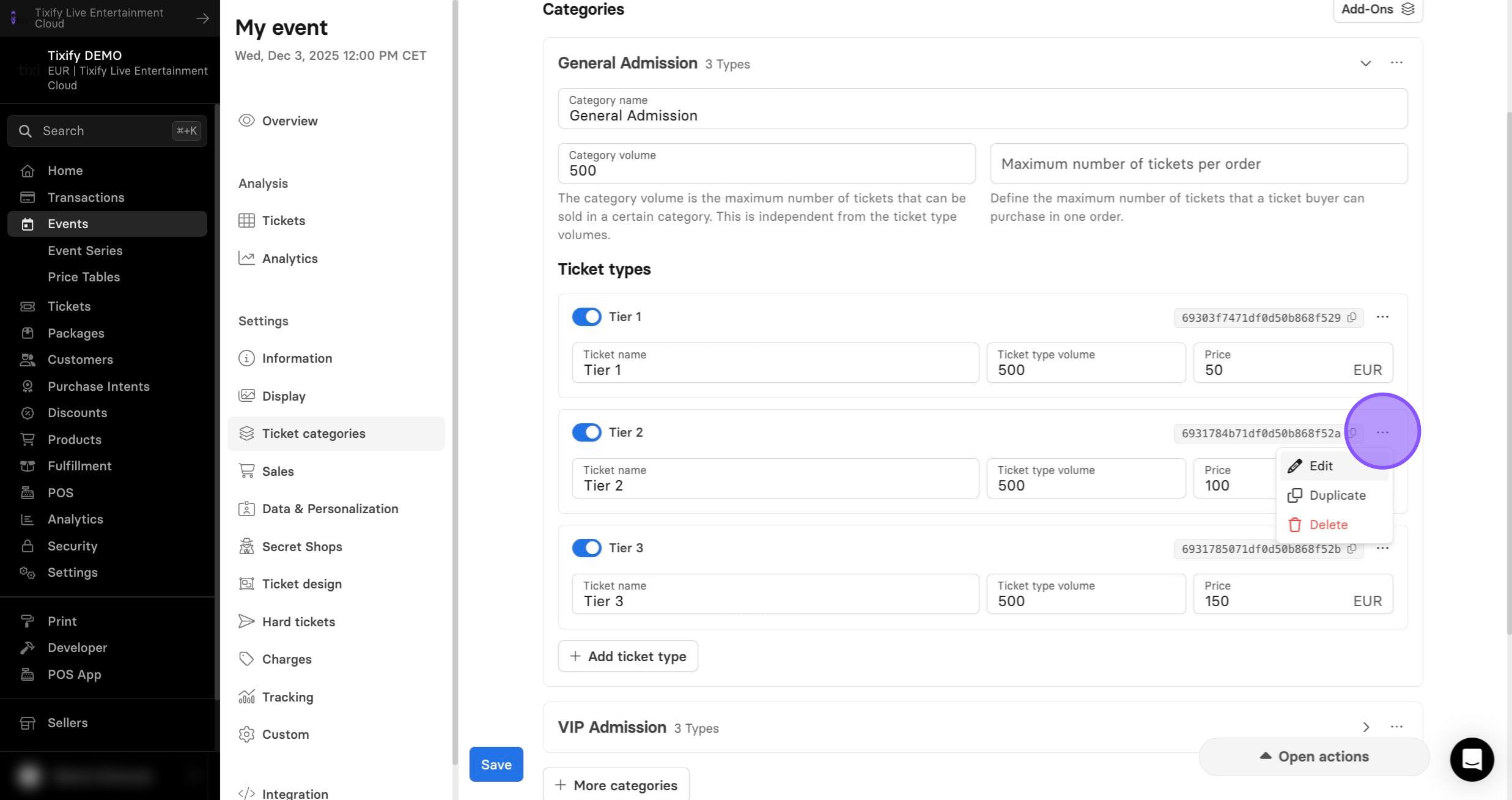
5: Select "Edit".
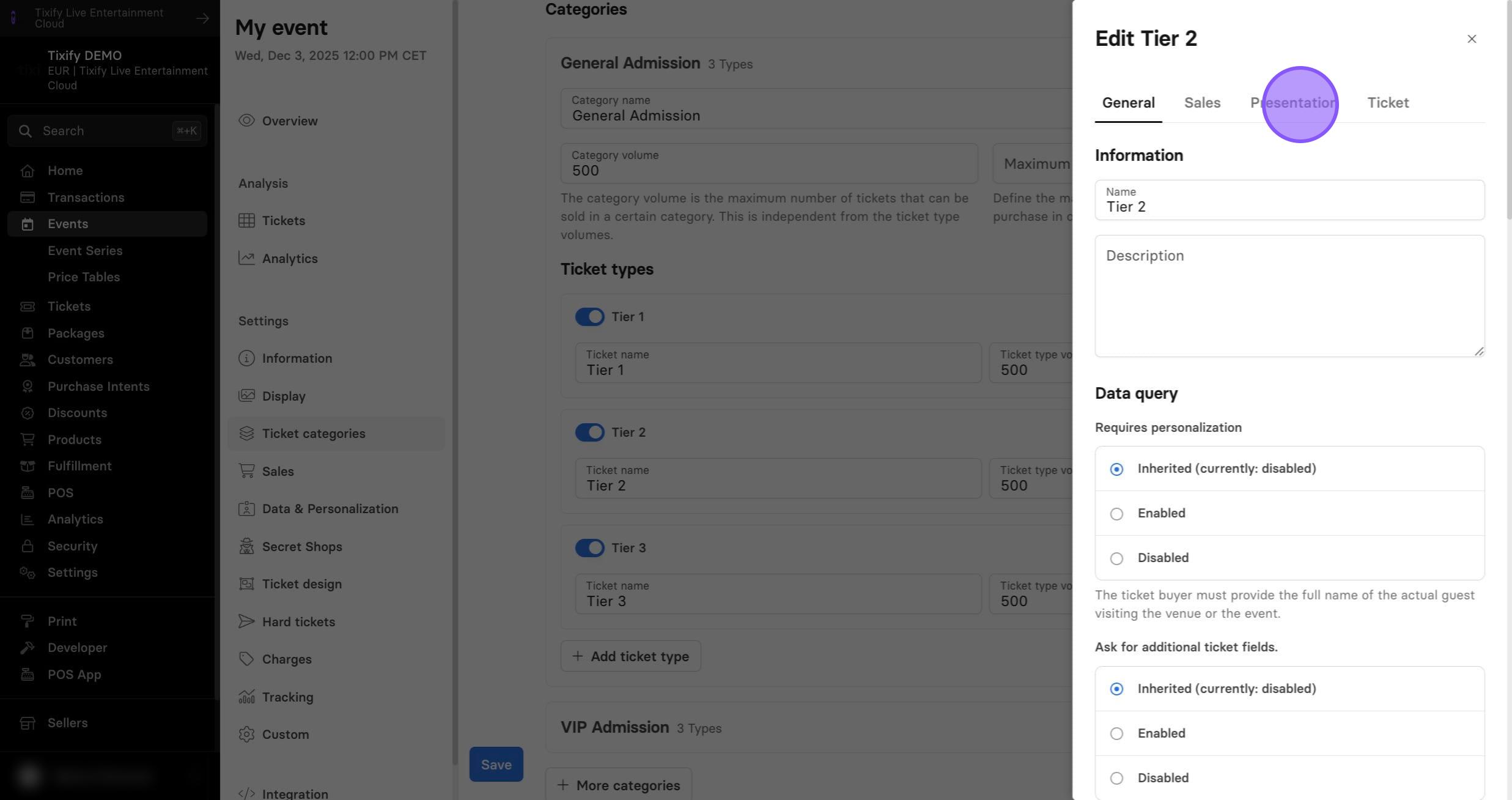
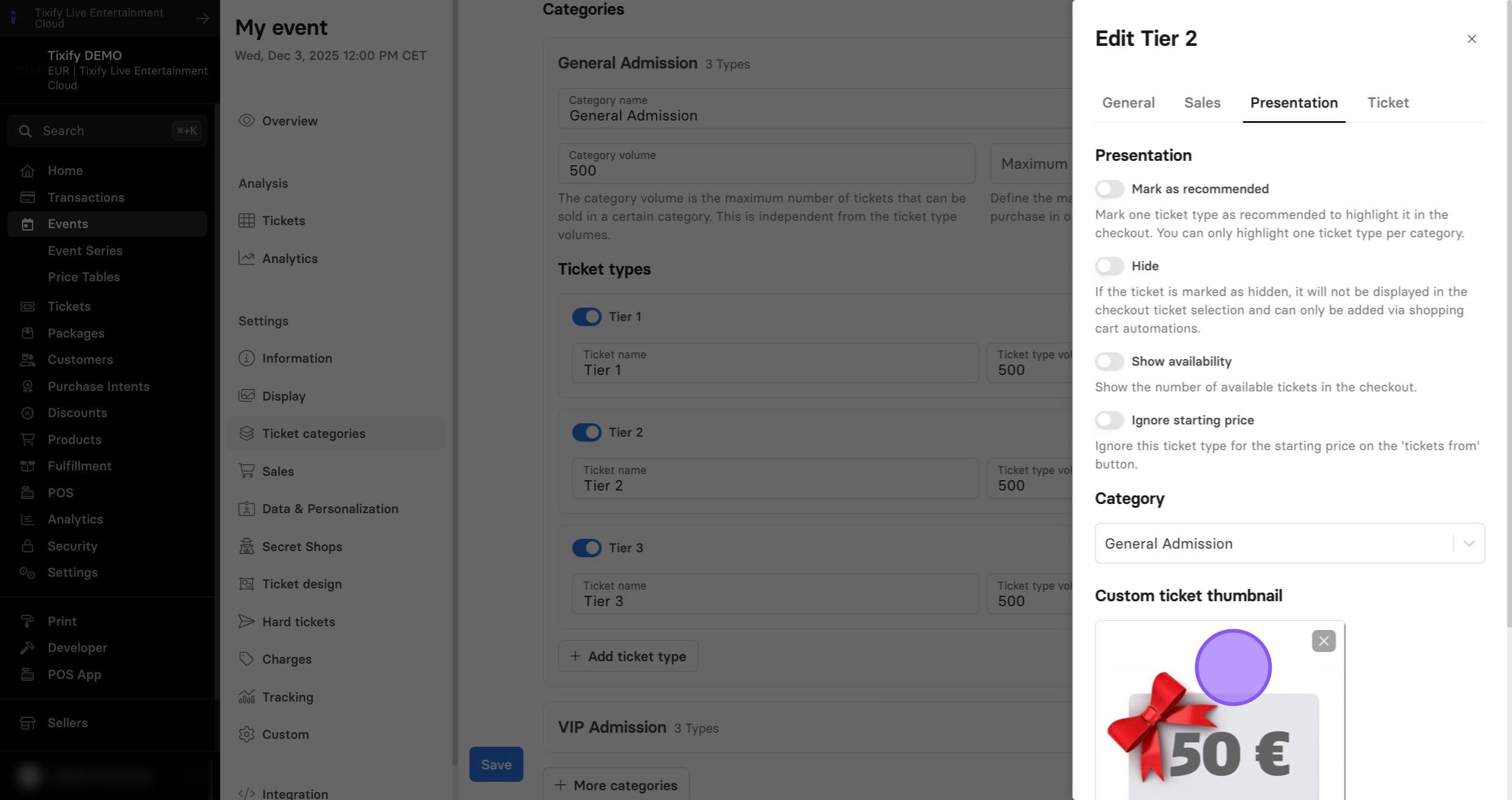
6: From the ticket menu go to "Presentation".
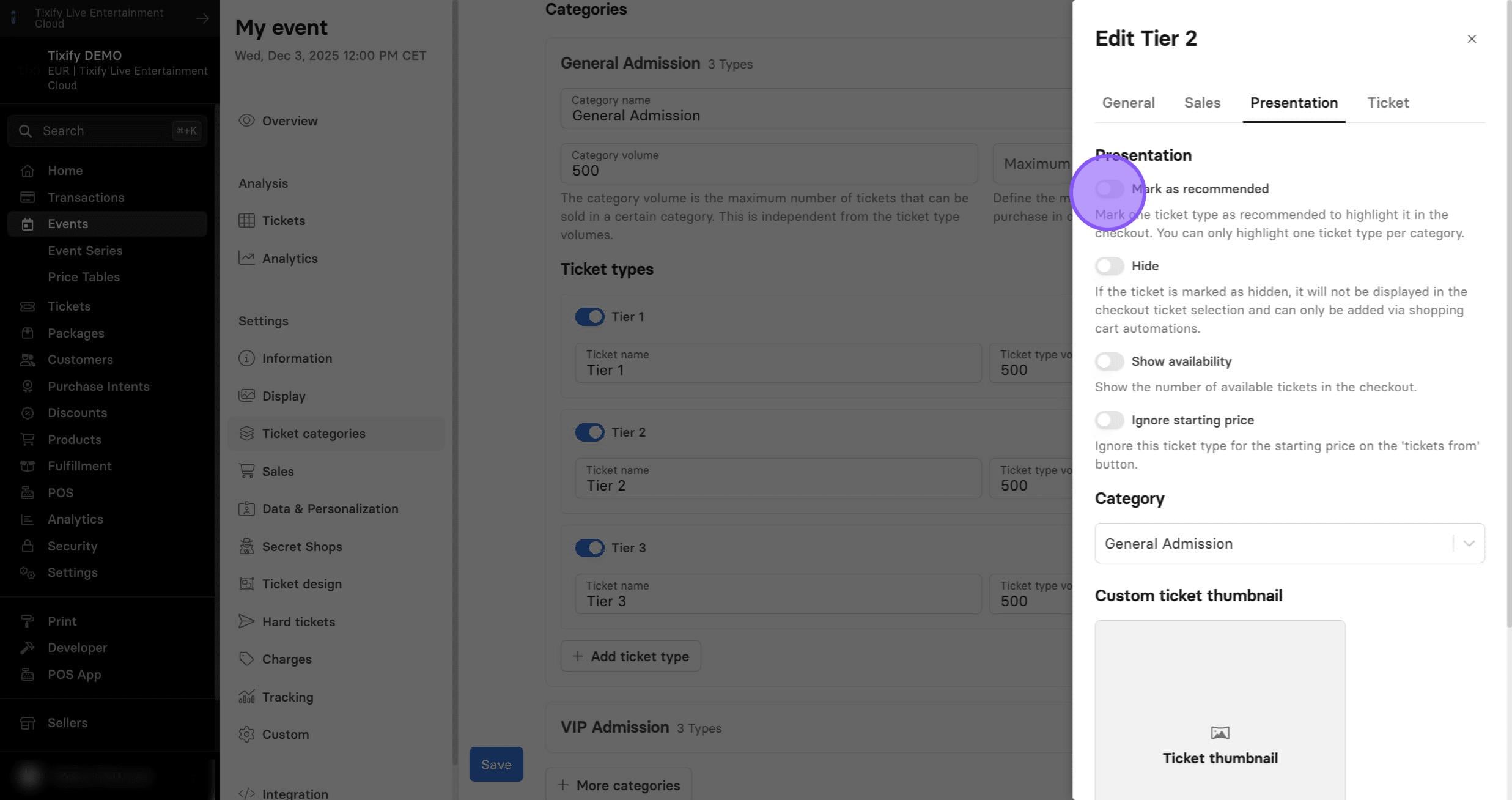
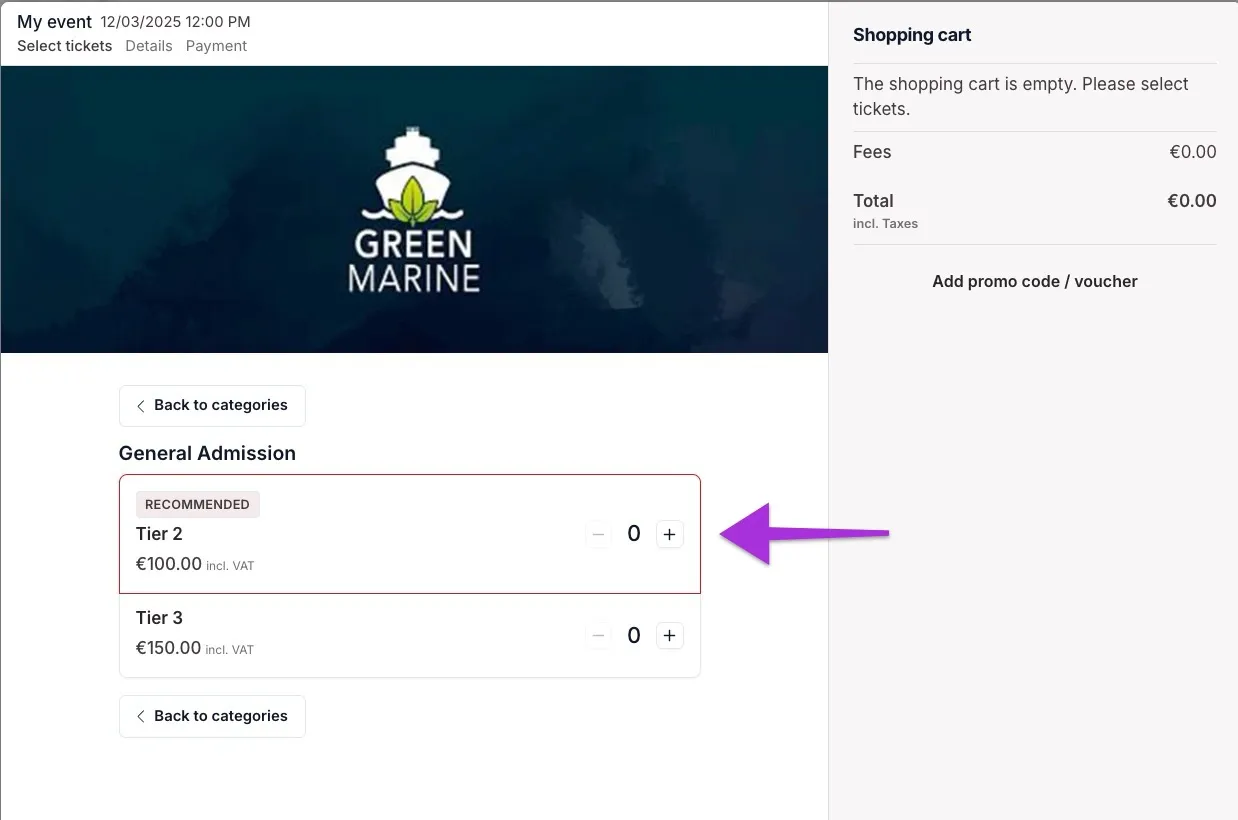
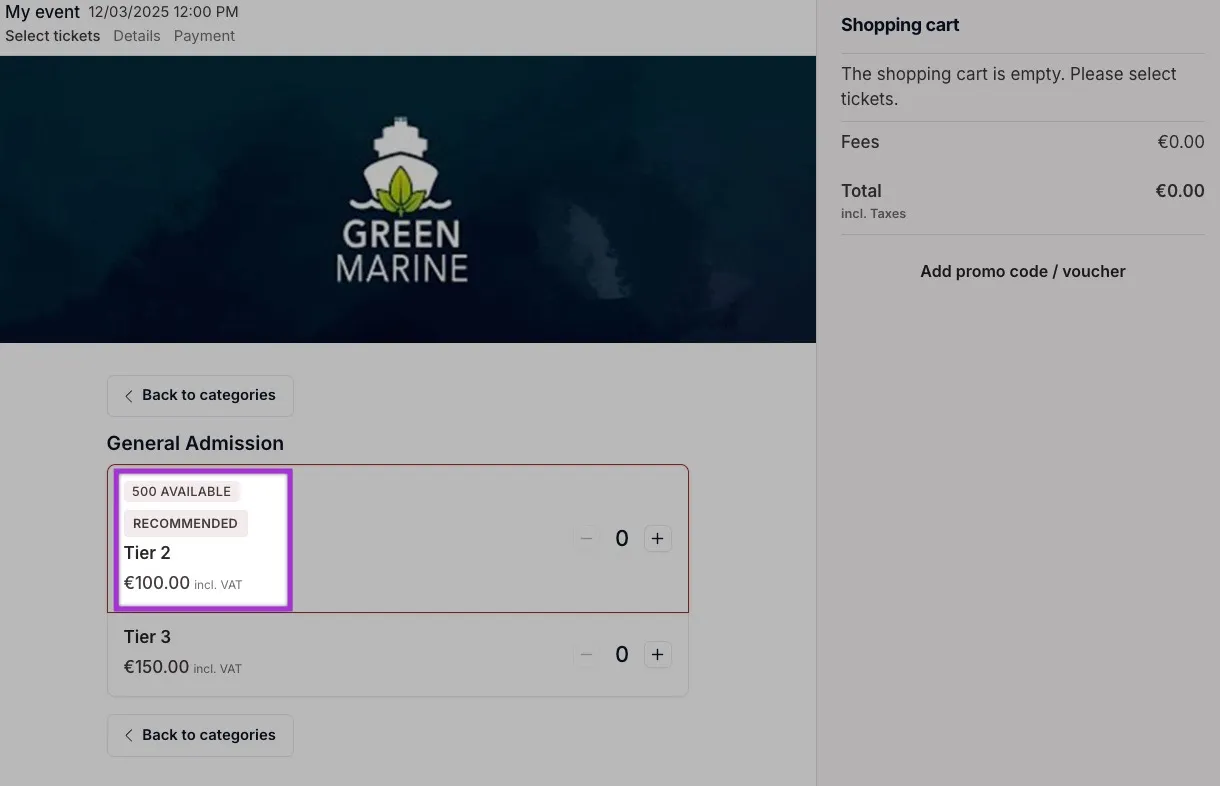
Mark as recommended: Marking a ticket as recommended adds a frame in the accent color around it, making it stand out more prominently in the checkout.
Hide Tickets: If a ticket is hidden, it will not appear in the checkout and can only be added through shopping cart automations. This is useful, for example, when offering tickets via automations that are not otherwise available for sale.
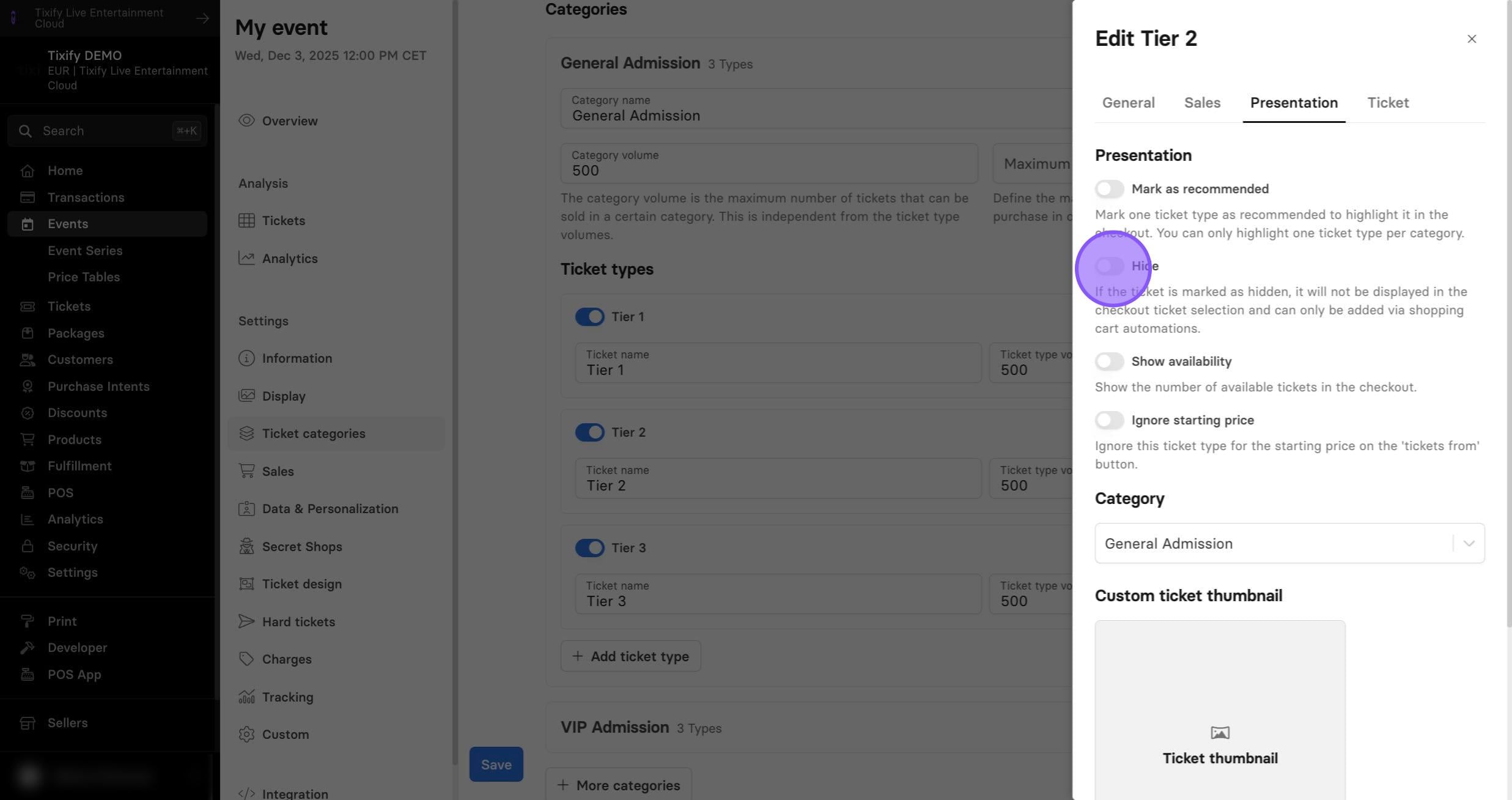
Show availability: Display the exact number of available tickets for a ticket type.
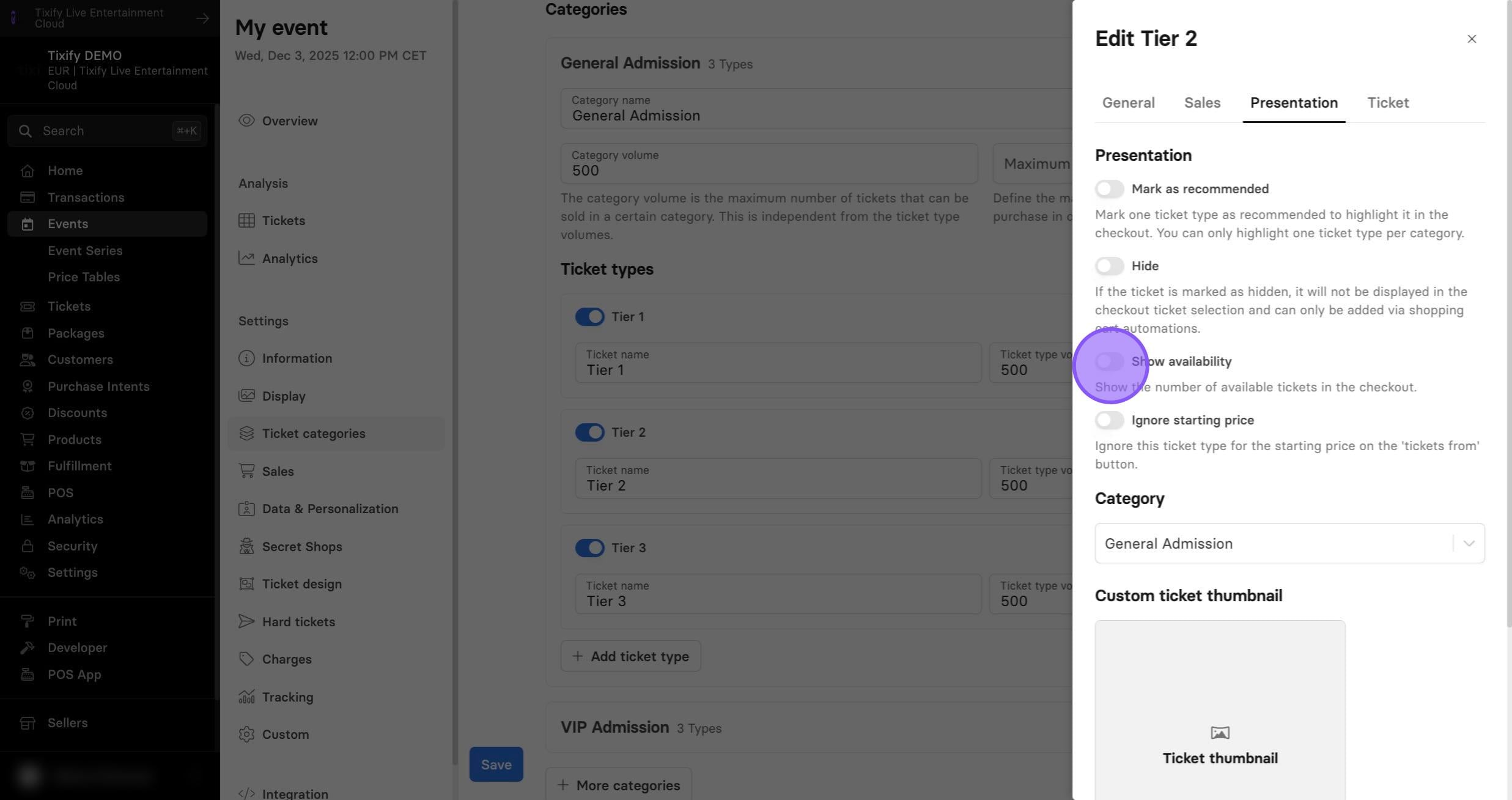
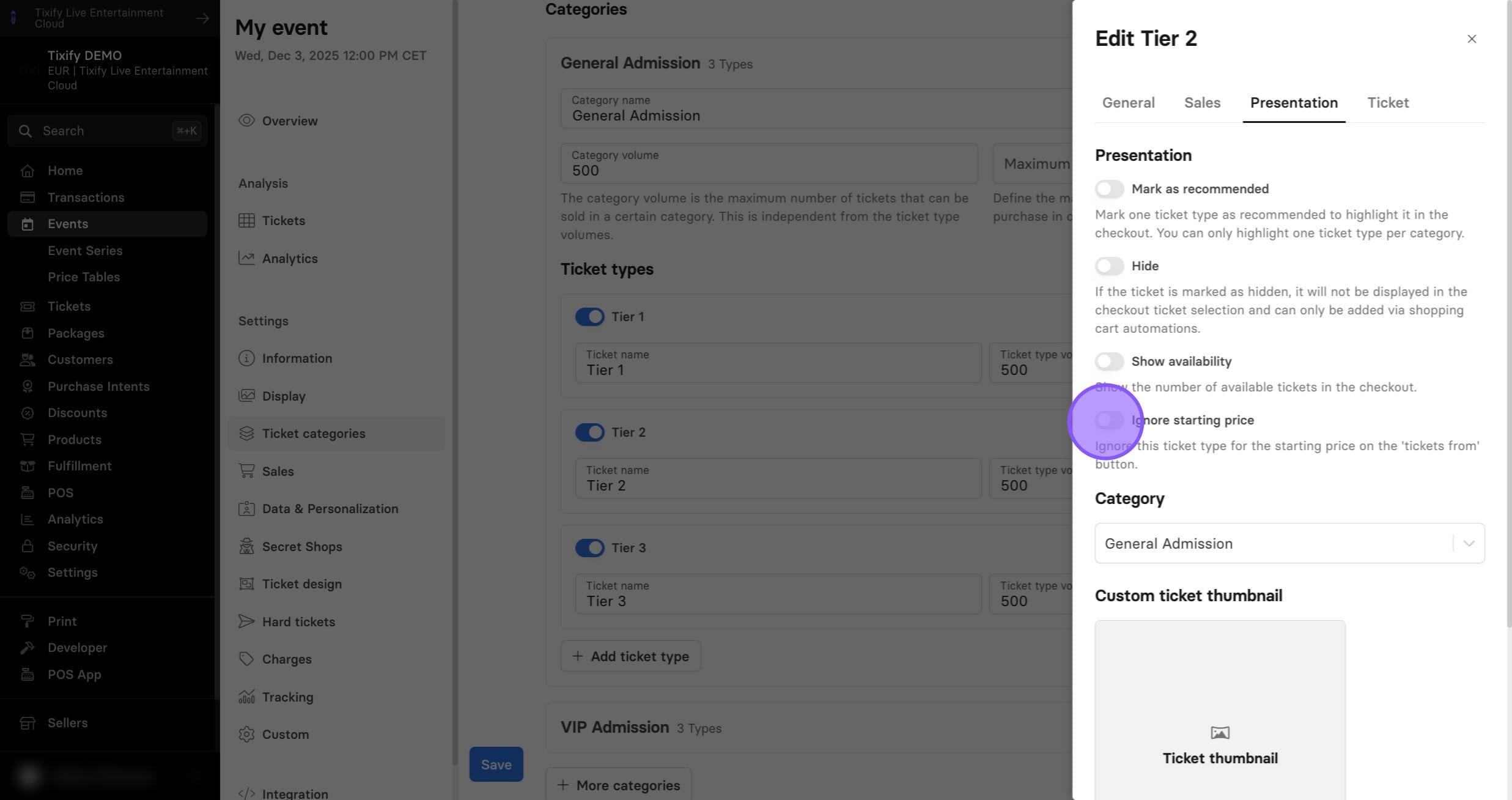
Ignore for start price: If a ticket is excluded from the starting price, it will not be counted in the “Tickets from” amount. For example, free tickets with a 0 EUR value won’t make the event display as “Tickets from 0 EUR" if this option is enabled.
The ticket thumbnail is an image displayed next to the ticket type in the checkout.
Products
If products are sold in an event, the display of these in the checkout can be additionally customized.
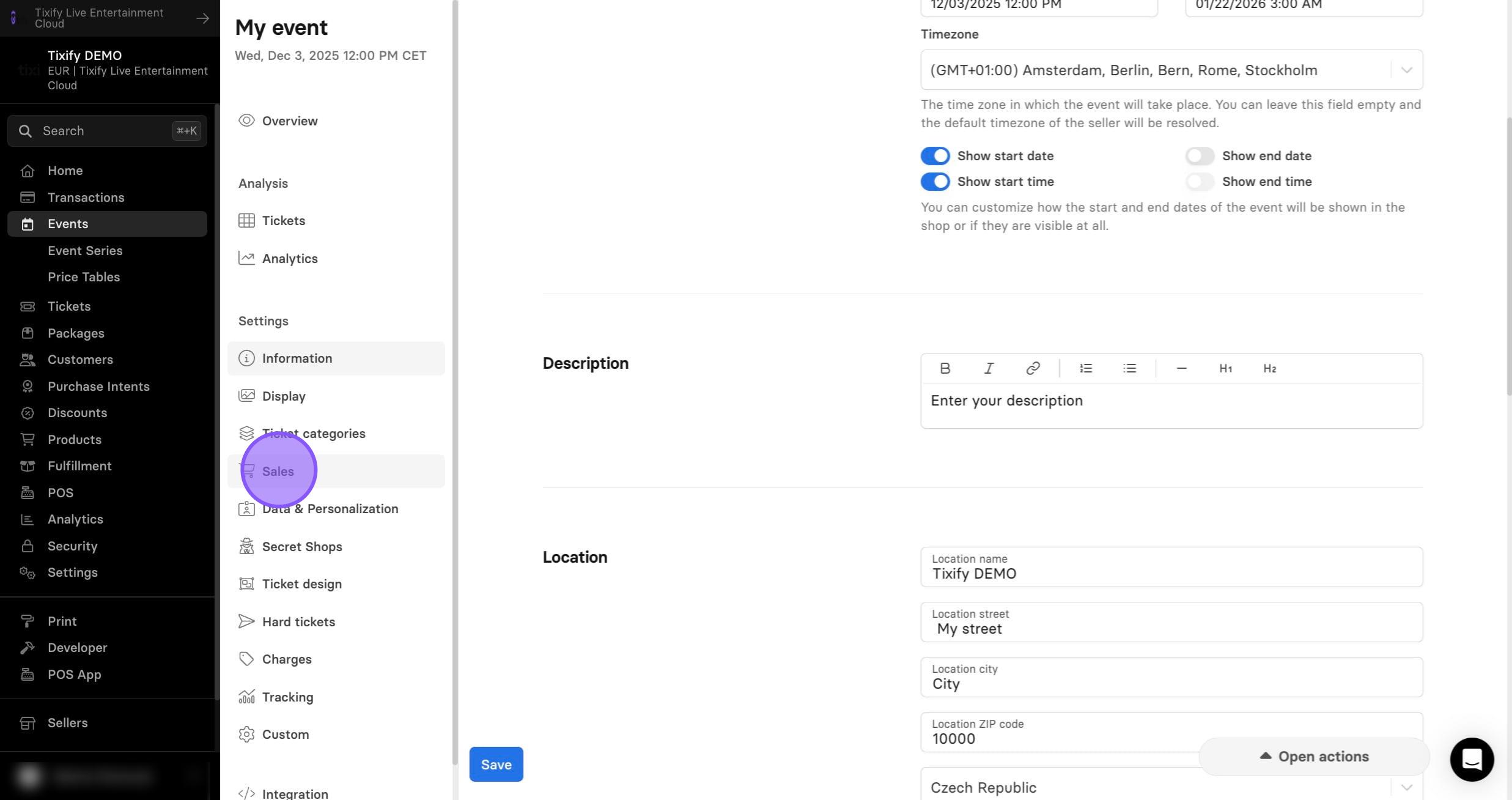
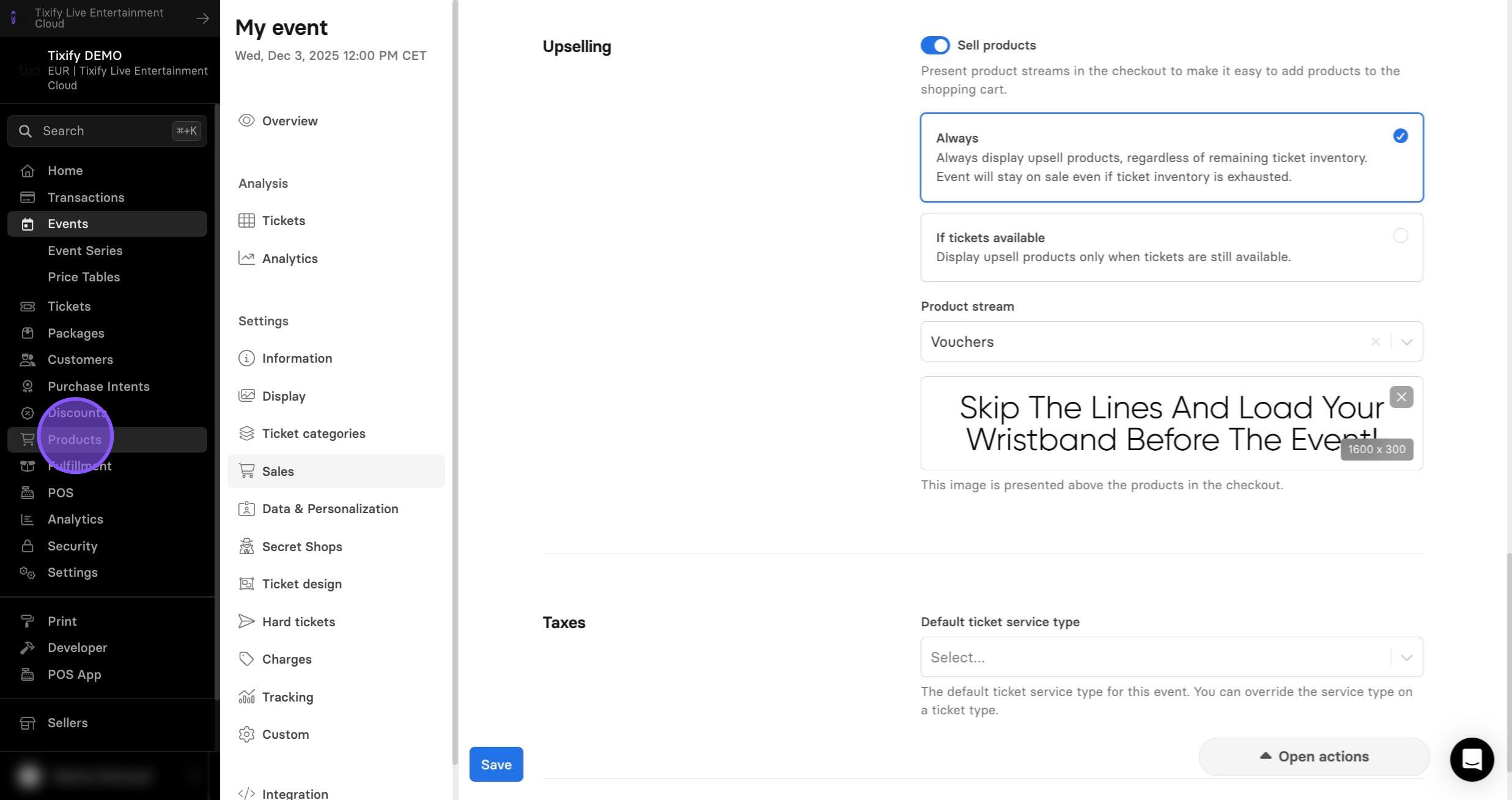
1: You can customize products thumbnail by clicking "Sales" in the event settings.
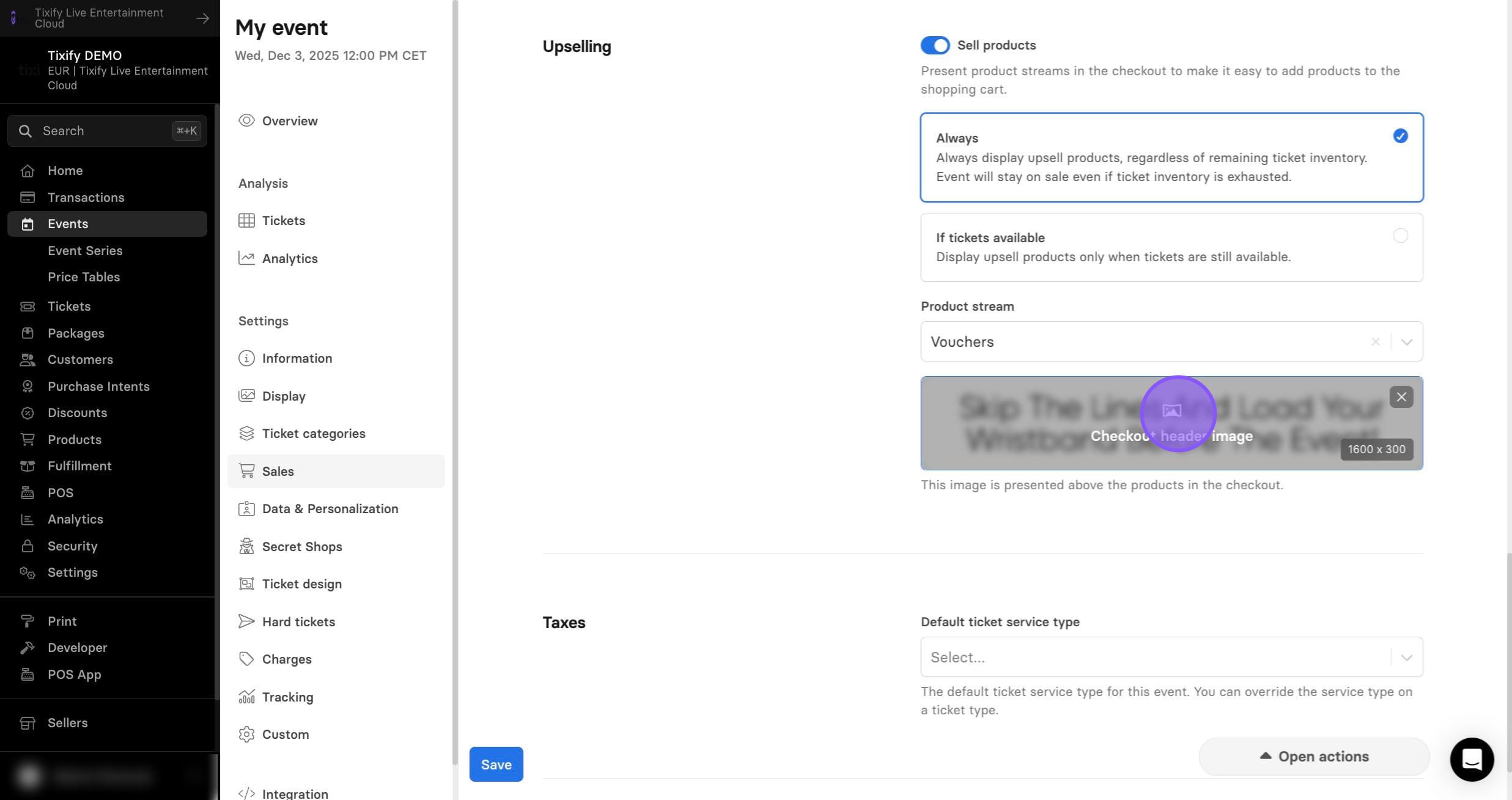
2: In the "Upselling" add your checkout header. If not selected, the custom header will be applied by default.
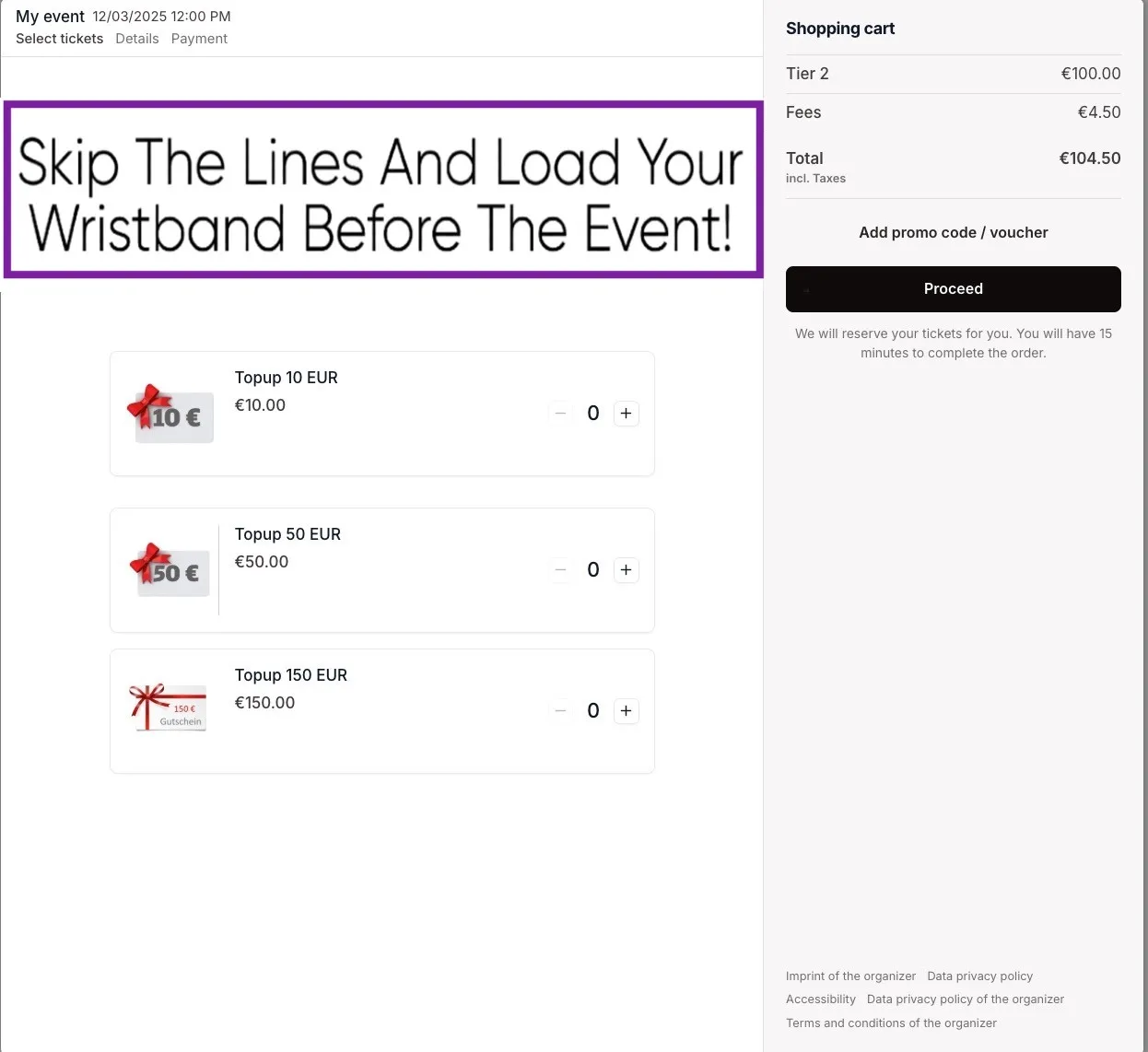
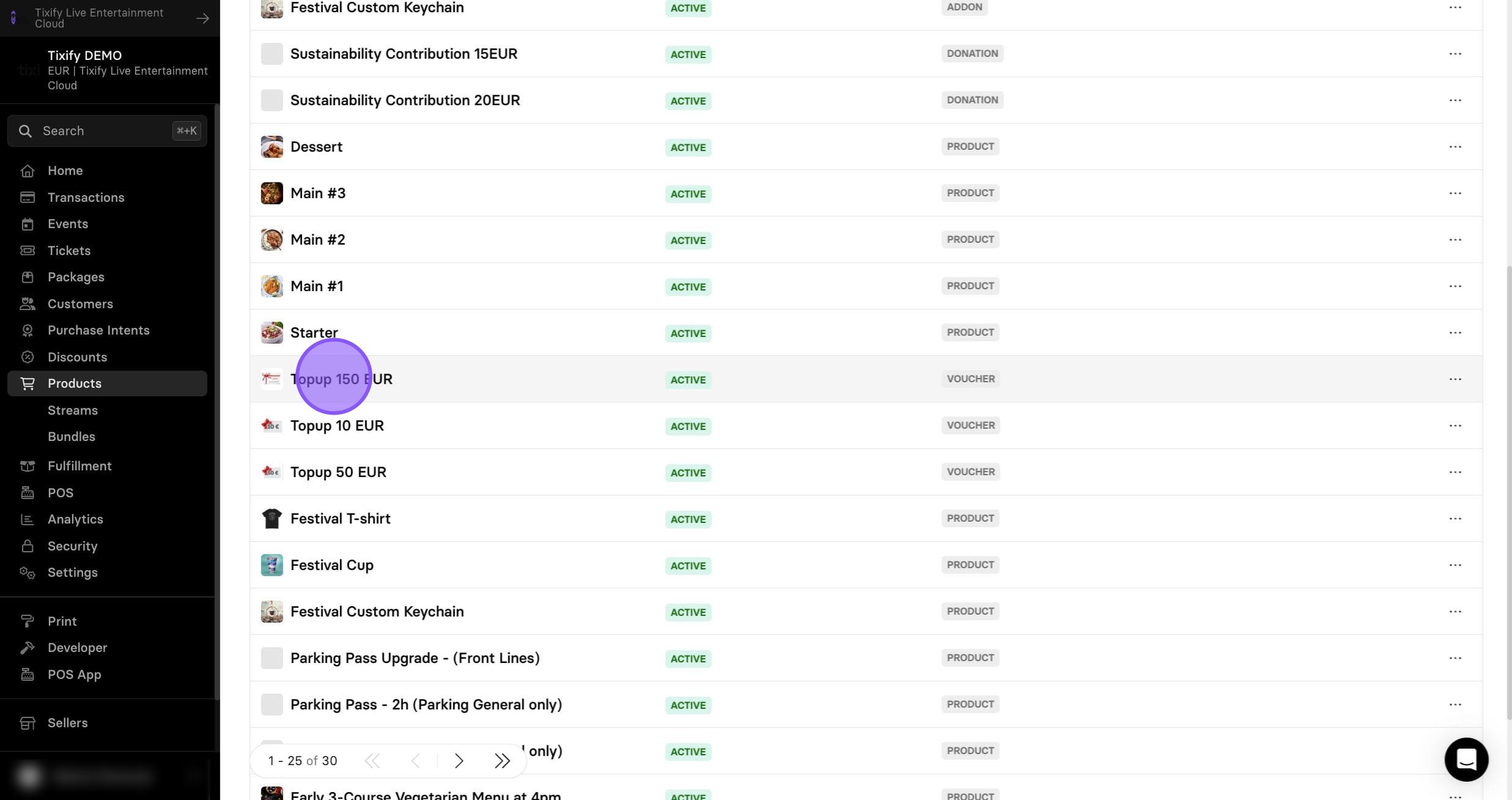
3: Additionally you can customize images of presented products. Go to "Products".
4: Select product you'd like to edit.
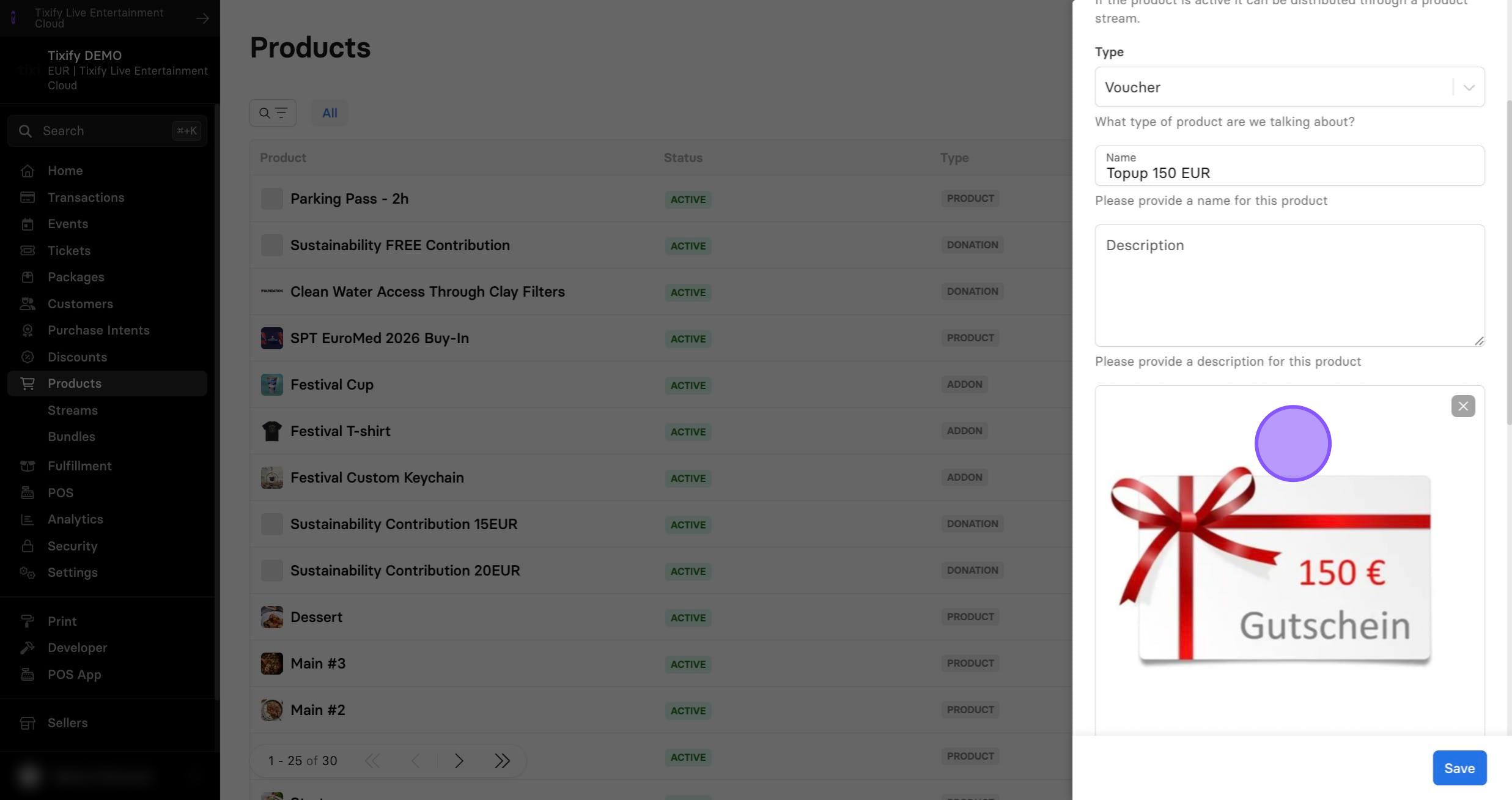
5: In the open window set the product image.
Checkout Integrations
Instead of using our event pages, you can embed the checkout directly on your website. This reduces clicks for ticket buyers, keeps them on your site, and maintains a branded checkout experience.
The checkout can be embedded either via iFrame or modal integration, depending on your preference. For both options, code snippets are available in the dashboard and can be copied directly—no additional coding is required.
Modal Integration
Modal integration opens the checkout as a new window on top of your website. This window can be opened by clicking on a button, for example.
iFrame Integration
With iFrame integration, the checkout is embedded directly into the website. The customer does not leave the website, no additional window opens and he can complete the purchase on your website until the end.
Note: iFrame and Modal integrations can only be used for single events. Embedding Hero Shops or collected events is not possible.