Personalization
Personalization means collecting the name of each individual ticket holder, not just the buyer. Each ticket is then stored with its assigned name.
Example: If someone buys 5 tickets without personalization, the buyer’s name appears on all tickets. If personalization is enabled, the buyer is asked to enter the name of the attendee for each ticket after the purchase is completed.
The personalization step happens after checkout, so the buyer can add names later without interrupting the booking process.
Note: If enabled, personalization is mandatory. If a ticket is not personalized, it cannot be downloaded, stored, or printed. Consequently, the barcode will not be visible without completing the personalization process. This ticket status will be visualized in the backend as Details.
How to activate?
Personalization must be enabled for each event. It can be activated for all tickets in one step or alternatively only for selected ticket types. Both methods are explained in more detail below.
For all tickets:
- Locate the desired event and open the event settings.
- Click on Data & Personalization.
- Enable the checkbox Personalization required for all ticket types.
- Click Save. Subsequently, personalization will be prompted for all tickets.
For individual tickets:
- Locate the desired event and open the event settings.
- Click on Ticket Categories.
- Find the desired ticket type and open the ticket type settings using the three dots and select Edit. A new window will appear.
- Stay on the General tab and enable the checkbox Requires personalization.
- Click on the X to close the window and then click Save.
Note: Once personalization is activated for all tickets, this setting cannot be overridden at the ticket type level. If you wish to activate it for individual ticket, make sure to disable personalization at the event level first.
When personalization is enabled, it becomes mandatory. A ticket cannot be downloaded or viewed unless personalization is completed. Tickets that have not been personalized will appear in the dashboard with the ticket status Details.
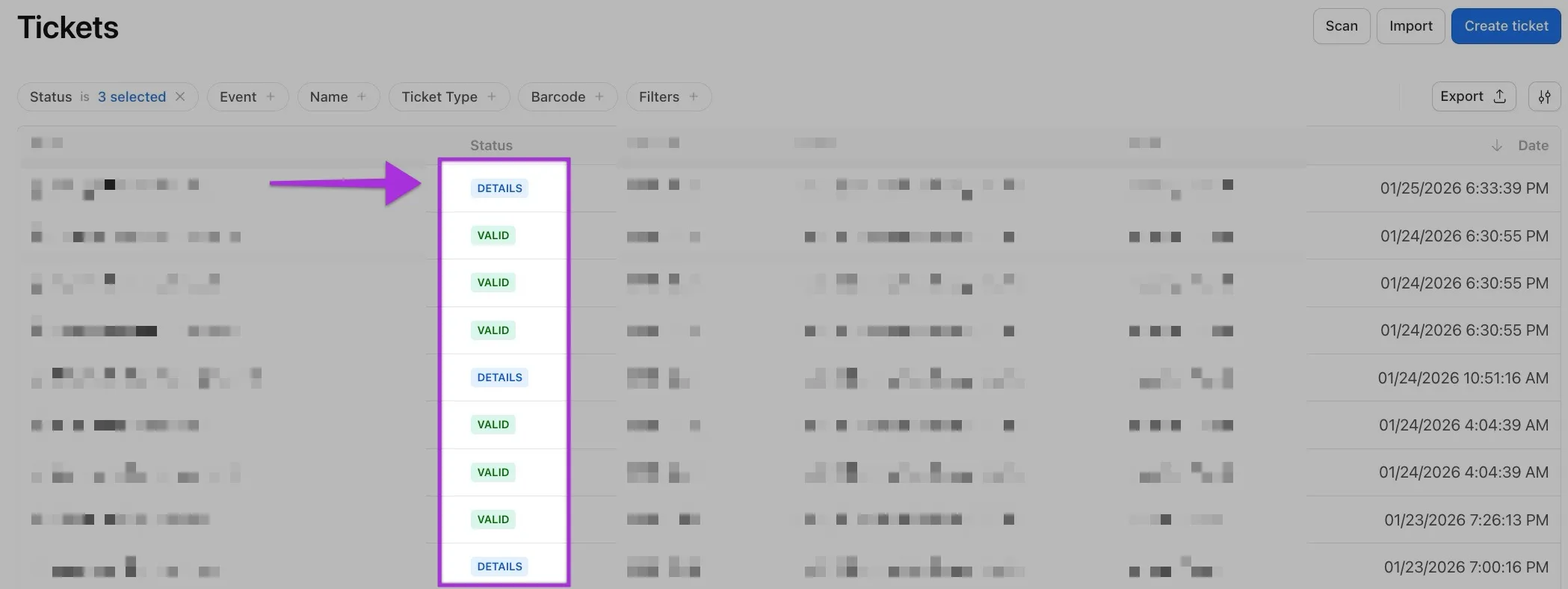
To ensure that tickets are personalized on time, a personalized reminder can be sent to each customer whose ticket is still in the Detailsrequired status. This reminder email is generated by Tixify and can be automatically sent at specific times.
Activate Personalization Reminder
- Go to the Settings module and select Communication.
- Enable the checkbox Send reminder. Additional settings will appear.
- Activate the time points at which you want the reminders to be sent. You can enable as many time points as you wish.
- Click Save. Personalization reminders will now be sent to customers whose tickets are still in the "Detailsrequired" status at the specified times.